

A powerful, interactive terminal-based viewer/editor for CSV/TSV/Excel/Parquet/Vortex/JSON/NDJSON built with Python, Polars, and Textual. Inspired by VisiData, this tool provides smooth keyboard navigation, data manipulation, and a clean interface for exploring and analyzing tabular data directly in terminal with multi-tab support for multiple files!
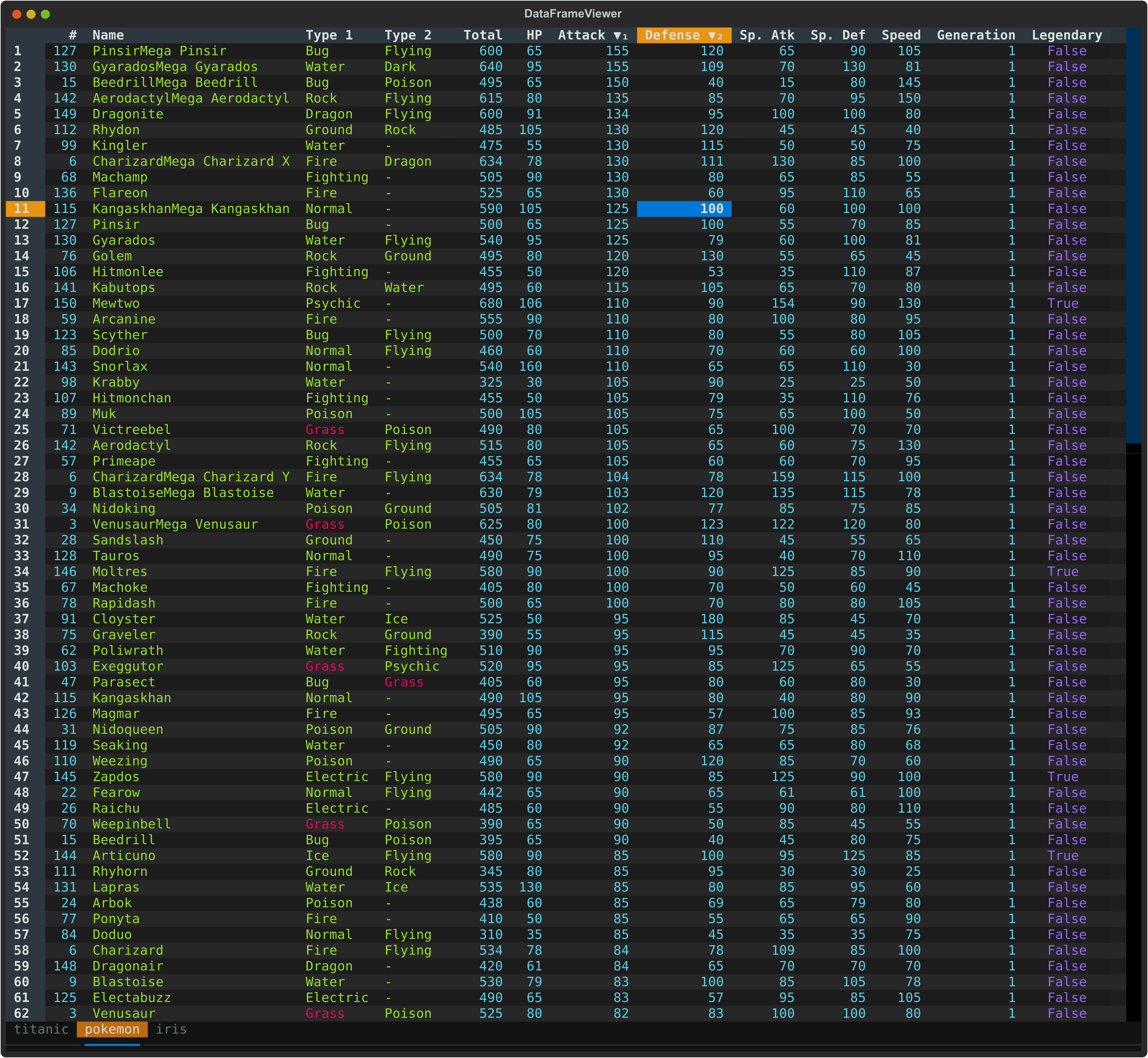
- 🚀 Fast Loading - Powered by Polars for efficient batch data handling
- 🎨 Rich Terminal UI - Beautiful, color-coded columns with auto-detected data types (e.g., integer, float, string)
- ⌨️ Comprehensive Keyboard Navigation - Intuitive controls
- 📊 Flexible Input - Read from files and/or stdin (pipes/redirects) in various formats
- 🔄 Smart Pagination - Lazy load rows on demand for handling large datasets
- 📝 Data Editing - Edit cells, delete rows, reorder columns, and beyond
- 🧹 Duplicate Removal - Remove duplicate rows
- 🔍 Search & Filter - Find values, highlight matches, and filter selected rows
↔️ Column/Row Reordering - Move columns and rows with simple keyboard shortcuts- 📈 Sorting & Statistics - Multi-column sorting, frequency distribution, and histogram analysis
- 💾 Save & Undo - Save edits back to file with full undo/redo support
- 📂 Multi-File Support - Open multiple files in separate tabs
- 🔄 Tab Management - Seamlessly switch between open files with keyboard shortcuts
- 📑 Duplicate Tab - Create a copy of the current tab with the same data
- 🐍 Embedded Python Console - Inspect and transform the active table with
dfandpldirectly in-app - 📌 Freeze Rows/Columns - Keep important rows and columns visible while scrolling
- 📸 Take Screenshot - Capture terminal view as a SVG image
# Install from PyPI
pip install dataframe-textual
This installs an executable dv.
Using uv
# Install as a tool
uv tool install dataframe-textual

# Quick run using uvx without installation
uvx https://github.com/need47/dataframe-textual.git <csvfile># Clone the repository
git clone https://github.com/need47/dataframe-textual.git
cd dataframe-textual
# Install from local source with development dependencies
pip install -e ".[dev]"# Open one file
dv pokemon.csv# Open multiple files in tabs
dv file1.csv file2.csv file3.csv
# Open multiple sheets in an Excel file as separate tabs
dv file.xlsx
# Mix files and stdin
dv data1.tsv < data2.tsv# Read all parquet files (must be of same format and same structure) into one single table
dv *.parquet --all-in-oneusage: dv [-h] [-V] [-d DELIMITER] [-f FORMAT] [-F [FIELDS ...]] [-H [HEADER ...]] [-L [N]] [-I] [-T] [-E] [-C [C]] [-Q [C]] [-K N] [-A N] [-M [N]] [-N NULL [NULL ...]] [--theme [THEME]] [--all-in-one]
[--expr EXPR] [--sql SQL] [-o OUTPUT]
[files ...]
TUI viewer/editor for tabular data (e.g., CSV/Excel).
positional arguments:
files Files to view (or read from stdin)
options:
-h, --help show this help message and exit
-V, --version show program's version number and exit
-d, --delimiter DELIMITER
Specify the delimiter of the input files (must be a single character, e.g., `|` or `;`). By default, the delimiter is inferred from the file extension. If reading from stdin, the
delimiter must be specified unless it is tab delimited.
-f, --format FORMAT Specify the format of the input files (e.g., `csv` or `excel`). By default, the format is inferred from the file extension. If reading from stdin, the format must be specified
unless it is tab delimited.
-F, --fields [FIELDS ...]
When used without values, list available fields. Otherwise, read only specified fields.
-H, --header [HEADER ...]
Specify header info. When reading CSV/TSV. If used without values, assumes no header. Otherwise, use provided values as column header (e.g., `-H col1 col2 col3`).
-L, --infer_schema_length [N]
Number of rows to use for inferring schema when reading CSV/TSV. Defaults to 100. When used without value, uses all rows for schema inference (can be slow for large files).
-I, --no-inference Do not infer data types when reading CSV/TSV. All values will be of string type.
-T, --truncate-ragged-lines
Truncate ragged lines when reading CSV/TSV
-E, --ignore-errors Ignore errors when reading CSV/TSV
-C, --comment-prefix [C]
Skip comment lines starting with `C` when reading CSV/TSV
-Q, --quote-char [C] Use `C` as quote character for reading CSV/TSV. When used without value, disables special handling of quote characters.
-K, --skip-lines N Skip first N lines when reading CSV/TSV
-A, --skip-rows-after-header N
Skip N rows after header when reading CSV/TSV
-M, --n-rows [N] Read maximum rows
-N, --null NULL [NULL ...]
Values to interpret as null values when reading CSV/TSV
--theme [THEME] Set the theme for the application. If used without value, show available themes.
--all-in-one, --aio, --one
Read all files (must be of same format and same structure) into one single table.
--expr EXPR Specify a Polars expression to filter data (e.g., $age > 30)
--sql SQL Specify a SQL query to execute on the input file (e.g., to select and filter data)
-o, --output OUTPUT Output file (optionally modified) with specified format, which is inferred from file extension (e.g., .csv, .xlsx).
# Open a file
dv data.csv

# Gzipped files are supported
dv data.csv.gz

# Read from stdin (defaults to TSV)
cat data.tsv | dv
dv < data.tsv

# Specify delimiter
dv data.txt -d '|'

# Specify format
dv data.json -f ndjson

# View headless CSV file
dv data_no_header.csv -H

# View headless CSV file with provided header
dv data_no_header.csv -H country ip requests

# Skip first 3 rows (e.g., metadata)
dv data_with_meta.csv -K 3

# Skip 1 row after header (e.g., units row)
dv data_with_units.csv -A 1

# Skip 3 rows before header and 1 row after
dv messy_scientific_data.csv -K 3 -A 1

# Skip comment lines (or just -C)
dv commented_data.csv -C '#'

# Disable type inference for faster loading
dv large_data.csv -I

# Ignore parsing errors in malformed CSV
dv data_with_errors.csv -E

# Treat specific values as null (e.g., 'NA', 'N/A')
dv data.csv -N NA N/A

# Use different quote character (e.g., single quote for CSV)
dv data.csv -Q "'"

# Disable quote character processing for TSV with embedded quotes
dv data.tsv -Q

# Choose the `monokai` theme
dv data.csv --theme monokai

# Show column headers
dv data.csv -F

# Read only specific columns: 'name', 'age', first column, and last column
dv data.csv -F name age 1 -1

# Read all files (must be of same format and same structure) into one single table
dv data-1.csv data-2.csv --all-in-one

# Filter rows before opening the TUI using a Polars expression
dv data.csv --expr '$age > 30'

# Filter data using SQL query (use 'self' as the table name)
dv data.csv --sql 'SELECT * FROM self WHERE age > 30'

# Convert to other format
dv data.csv -o data.parquetShortcuts are a single key, a modifier combo (e.g., Shift+G), or a leader sequence starting with g or z (e.g., g/, g_, zQ).
How Leader Mode Works:
- Press the leader key
gorzto activate the mode — a 3-second timeout begins - Press the next key within the timeout to execute the combined command
- If no second key is pressed within 3 seconds or
Escis pressed, leader mode is cancelled.
| Key | Action |
|---|---|
q |
Quit current tab (prompts to save unsaved changes) or view |
gq |
Quit all tabs then app (prompts to save unsaved changes) |
S |
Show all open sheets/tabs |
gB |
Toggle tab bar visibility |
B |
Previous tab |
b |
Next tab |
gb |
Move current tab left (wrap to last) |
zb |
Move current tab right (wrap to first) |
Ctrl+T |
Save current tab (or current view) to file |
Ctrl+S |
Save all tabs to file |
w |
Save current tab to file (overwrite without prompt) |
gw |
Save all tabs to file (overwrite without prompt) |
Ctrl+D |
Duplicate current tab |
Ctrl+O |
Open file in a new tab |
Ctrl+N |
Create new tab from Polars expression |
Double-click |
Rename tab |
Tips:
- Tabs with unsaved changes are indicated with a bright background
- Closing a tab with unsaved changes triggers a save prompt
| Key | Action |
|---|---|
F1 |
Toggle help panel |
` (backtick) |
Toggle Python console |
gT |
Select theme |
Ctrl+P -> Screenshot |
Capture terminal view as a SVG image |
| Key | Action |
|---|---|
gg |
Go to first row |
G |
Go to last row |
Ctrl+G |
Go to specific row |
← / ↓ / ↑ / → |
Move left/down/up/right |
h / j / k / l |
Move left/down/up/right (Vim-style) |
gh |
Scroll to leftmost column |
gj |
Scroll to last row |
gk |
Scroll to first row |
gl |
Scroll to rightmost column |
Home / End |
Go to first/last column |
Ctrl+Home / Ctrl+End |
Go to page top/bottom |
PageDown / PageUp |
Scroll down/up one page |
Ctrl+F |
Page forward |
Ctrl+B |
Page backforward |
| Key | Action |
|---|---|
u/U |
Undo last action |
R |
Redo last undone action |
gu |
Reset to initial state |
| Key | Action |
|---|---|
Enter |
Show details for the current row as two-column key–value pairs |
Tab |
Show current cell details; press Tab again there to drill deeper |
C |
Show metadata for all columns (name and data type) |
F |
Show frequency distribution for current or selected columns |
I |
Show statistics for current column |
gI |
Show statistics for all columns |
m |
Show histogram for current column |
M |
Show histogram for current column with custom bins |
= |
Show bar chart using first selected column as label and cursor column as value |
- (minus) |
Hide selected columns or current column |
g- (minus) |
Hide current column and all columns before it |
z- (minus) |
Hide current column and all columns after it |
gv |
Show all hidden columns |
z~ |
Toggle 1-based column index prefixes |
z^ |
Toggle internal row index (RID) column display |
_ (underscore) |
Toggle column full width for current column |
g_ (underscore) |
Toggle column full width for all string/list columns |
+ |
Toggle freeze rows and/or columns |
, |
Toggle thousand separator for current column |
g, |
Toggle thousand separator for all numeric columns |
( |
Expand current list column into indexed columns (e.g. col[1], col[2]) |
) |
Contract indexed sibling columns (col[N]) back into a list column |
< |
Decrease float precision for current column |
> |
Increase float precision for current column |
g^ |
Set current row as the new header row |
zC |
Cycle cursor type (cell -> row -> column) |
| Key | Action |
|---|---|
Double-click |
Edit cell or rename column header |
Delete |
Clear current cell (set to NULL) |
Shift+Delete |
Clear current column (set matching cells to NULL) |
e |
Edit current cell (respects data type) |
E |
Edit entire column with value/expression |
a |
Add empty column after current |
A |
Add column with name and value/expression |
i |
Add index column after current |
za |
Add a link column from URL template |
^ |
Rename current column |
* |
Delete selected columns or current column |
g* |
Delete current column and all columns before it |
z* |
Delete current column and all columns after it |
d |
Delete current row |
gd |
Delete current row and all those above |
zd |
Delete current row and all those below |
D |
Duplicate current row |
zD |
Duplicate current column |
gU |
Remove duplicate rows (keep first occurrence) |
: |
Split current string column into a new column by delimiter |
z: |
Join all selected columns into a new string column by delimiter |
g: |
Glue items of a list column into a string column by delimiter |
Ctrl+U |
Convert current or selected string column(s) to uppercase |
Ctrl+L |
Convert current or selected string column(s) to lowercase |
zB |
Strip leading and trailing whitespaces in current string column |
o |
Explode current list column into multiple rows |
O |
Explode current string column by delimiter into multiple rows |
zT |
Transpose table (swap rows and columns) |
| Key | Action |
|---|---|
\ |
Select rows with cell matches or those matching cursor value in current column |
| (pipe) |
Select rows by expression |
{ |
Go to previous selected row |
} |
Go to next selected row |
s |
Select/deselect current row |
' (apostrophe) |
Select/deselect current column |
t |
Toggle row selections (invert) |
T |
Clear all row/column selections and cell matches |
| Key | Action |
|---|---|
/ |
Find cursor value in current column and highlight matching cells |
g/ |
Find cursor value in all columns and highlight matching cells |
? |
Find expression in current column and highlight matching cells |
g? |
Find expression in all columns and highlight matching cells |
n |
Go to next matching cell |
N |
Go to previous matching cell |
r |
Find and replace in current column (interactive or replace all) |
gr |
Find and replace in all columns (interactive or replace all) |
| Key | Action |
|---|---|
v |
Filter rows with cursor value in the current column |
V |
Filter rows with specified value or expression |
. |
Filter rows with non-null values in the current column |
z. |
Filter rows with null values in the current column |
f |
Filter rows using values in the current column |
" (double quote) |
Collect rows/columns to a new tab |
| Key | Action |
|---|---|
[ |
Sort current column ascending |
] |
Sort current column descending |
| Key | Action |
|---|---|
H / Shift+← |
Move current column left |
J / Shift+↓ |
Move current row down |
K / Shift+↑ |
Move current row up |
L / Shift+→ |
Move current column right |
| Key | Action |
|---|---|
~ |
Cast current column to string |
@ |
Cast current column to date |
# |
Cast current column to integer |
$ |
Cast current column to boolean |
% |
Cast current column to float |
| Key | Action |
|---|---|
c |
Copy current cell to clipboard |
Ctrl+C |
Copy column to clipboard |
Ctrl+R |
Copy row to clipboard (tab-separated) |
| Key | Action |
|---|---|
Q |
Advanced SQL interface (full SQL query with syntax highlight) |
zQ |
Simple SQL interface (select columns & where clause) |
Columns are automatically styled based on their data types (auto-inferred):
| Data Type | Text Color | Alignment |
|---|---|---|
| integer | Cyan | right |
| float | Yellow | right |
| string | Green | left |
| boolean | Blue | centered |
| temporal | Magenta | centered |
These controls change how the table is shown without changing the underlying data.
-: Hide selected columns, or the current column if nothing is selected.g-: Hide the current column and all columns before it.z-: Hide the current column and all columns after it.gv: Show all hidden columns.+: Freeze rows and/or columns to keep important areas visible while scrolling.z~: Toggle a 1-based index prefix in visible column headers such as1_colname.,: Toggle the thousand separator for the current numeric column.g,: Toggle the thousand separator for all numeric columns.(: Expand the current list column into indexed columns named likecolname[1],colname[2], etc.): Contract those indexed sibling columns back into a single list column. Position the cursor on any sibling (e.g.colname[2]) and press)to merge allcolname[N]columns back intocolname.</>: Decrease or increase float precision for the current float column. Each column keeps its own precision setting, and0means the default full display.
These actions are the fastest way to get out of trouble after a mistaken edit, delete, sort, filter, or other table change.
u/U: Undo the last action and restore the previous state.R: Redo the last undone action.gu: Reset the table to its original loaded state if you want to start over.
Several features open a modal screen (an overlay table) for inspection or interaction. The following modals share a common set of keyboard shortcuts:
| Modal Screen | Opened With | Purpose |
|---|---|---|
| Sheets Overview | S |
Summary of all open tabs |
| Column Metadata | C |
Column names and data types |
| Row Detail | Enter |
All column values for one row |
| Cell Detail | Tab |
Drill into a single cell value |
| Frequency | F |
Value distribution for a column |
| Statistics | I / gI |
Summary statistics for column or dataframe |
| Histogram | m / M |
Numeric distribution as histogram |
| Bar Chart | = |
Bar chart using selected column as label, cursor column as value |
Common keys available in all modal screens:
| Key | Action |
|---|---|
q / Escape |
Close the modal |
g |
Scroll to top |
G |
Scroll to bottom |
[ |
Sort by current column ascending |
] |
Sort by current column descending |
, |
Toggle thousand separator for numeric values |
C |
Cycle cursor type (cell → row → column) |
Ctrl+S |
Save the modal table to file |
Individual modals may add extra keys on top of these (documented in each subsection below).
Press S to open a modal providing a summary view of all currently opened tabs.
The modal displays a table with the following columns:
| Column | Description |
|---|---|
| Tab | Display name of the tab |
| #Rows | Total number of rows |
| #Cols | Number of columns |
| Filename | Source file path |
Keys inside the modal:
| Key | Action |
|---|---|
Enter |
Close the modal and switch to the tab under the cursor |
e |
Rename the tab under the cursor |
d |
Close the tab under the cursor (prompts if unsaved changes) |
This is useful for quickly navigating between tabs, reviewing file sizes at a glance, or closing tabs you no longer need without switching to them first.
Press C to open a modal displaying details for all columns:
- Column - Column name
- Type - Data type (e.g., Int64, String, Float64, Boolean)
Keys inside the modal
- Press
Enterto jump to the selected column in the main table and close the modal - Press
Fto show the frequency table for the selected column - Press
Ito show the statistics table for the selected column - Press
JorShift+↓to move the selected column right (and move the metadata row down) - Press
KorShift+↑to move the selected column left (and move the metadata row up) - Press
eto rename the selected column - Press
dto delete the selected column from the main table
Show summary statistics such as count, null count, mean, median, standard deviation, min, max, and etc.
Ishows statistics for the current columngIshows statistics for all columns in the dataframe
This is useful for:
- Understanding data distributions and overall column behavior
- Identifying outliers and anomalies
- Checking data quality quickly
- Reviewing summary statistics without leaving the TUI
- Comparing columns at a glance
Press Enter on any row to open a modal showing all column values for that row.
Useful for examining wide table where columns don't fit well on screen.
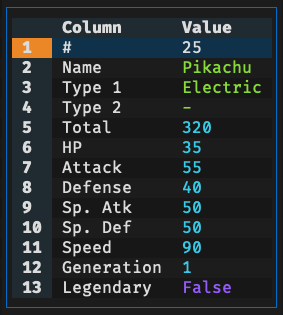
Keys inside the modal:
- Press
vto filter all rows containing the selected column value - Press
"to collect all rows containing the selected column value to a new tab - Press
{to move to the previous row - Press
}to move to the next row - Press
Fto show the frequency table for the selected column - Press
Ito show the statistics table for the selected column - Press
Tabto open a cell-detail modal for the selected field
Press Tab in the main table to inspect the current cell in its own modal for complex data or long text
You can also press Tab from the Row Detail modal to drill into the selected field.
Inside the cell-detail modal, press Tab again on the selected row/column to keep drilling into nested values.
- Scalar values are displayed inline. For long text, press
Tabagain to view the full content in a multi-line modal. - String values are split into multiple rows using
|by default - List-like values are expanded into a one-column table
- Dict-like values are shown as key/value columns
Press F to see value distributions for the current column. If multiple columns are selected, it shows frequency of value combinations across those selected columns.
- One value column per selected input column, plus Count, Percentage, Histogram
- Total row at the bottom
Keys inside the modal:
- Press
vto filter rows matching the selected value (or selected value combinations) - Press
"to collect rows matching the selected value (or selected value combinations) to a new tab
This is useful for:
- Understanding value distributions
- Quickly filtering to specific values
- Identifying rare or common values
- Finding the most/least frequent entries
The application provides multiple ways to select rows (for filtering or collecting) and columns (for hiding or deleting):
\- Select rows with cell matches or those matching cursor value in current column (respects data type)|- Opens dialog to select rows with custom expressions- Select/deselect current row'(apostrophe) - Select/deselect current columnt- Flip selections of all rowsT- Clear all row selections, column selections, and cell matches{- Go to previous selected row}- Go to next selected row
Advanced Options:
When searching or finding, you can use checkboxes in the dialog to enable:
- Match option
Nocasefor case-insensitive matching - Match option
Wholeto match full text - Match option
Literalto ignore special regex characters - Match option
Reverseto perform reverse match
These options work with plain text searches. Use Polars regex patterns in expressions for more control. For example, use (?i) prefix in regex (e.g., (?i)john) for case-insensitive matching.
Quick Tips:
- Search results highlight matching rows in red
- Use expression for advanced selection (e.g., $attack > $defense)
- Type-aware matching automatically converts values. Resort to string comparison if conversion fails
Find by value/expression and highlight matching cells:
/- Find cursor value in current columng/- Find cursor value in all columns (global search)?- Open dialog to search in current column with expressiong?- Open dialog to search in all columns with expression (global search)n- Go to next matching cellN- Go to previous matching cell
Replace values in current column (r) or in all columns (gr).
How It Works:
When you press r or gr, enter:
- Find term: Value or expression to search for (done by string value)
- Replace term: Replacement value
- Matching options:
Nocasefor case-insensitive matchingWholeto match full textLiteralto ignore special regex charactersReverseto perform reverse match
- Replace mode: All at once or interactive review
Replace All:
- Replaces all matches with one operation
- Shows confirmation with match count
Replace Interactive:
- Review each match one at a time (confirm, skip, or cancel)
- Shows progress
Tips:
- Search are done by string value (i.e., ignoring data type)
- Type
NULLto find or replace null values
Both actions work on a subset of the original dataframe, but they serve different workflows.
Filtering options:
Basic Filter (v):
- Opens the chose subset as a derived view inside the current workflow
- Edits made in the filtered view still apply to the original dataframe
- Press
Ctrl+Tto save the current view to a file - Press
qto leave the filtered view and return to the main table
Advanced Filter (V):
- Opens a dialog for value-based or expression-based filtering
- Useful when you want to define the subset directly
Column Filter (f):
- Opens a type-aware filter dialog for the current column
- Numeric columns support
=,!=,<,<=,>=, and> - String columns support exact match, prefix, suffix, contains, and regex matching
- Boolean columns support true, false, and null filtering
- Temporal columns support the same comparison operators as numeric columns
- List columns support exact-list matching and item membership checks such as "contains"
Collect ("):
- Creates a separate tab containing only the chosen rows/columns
- The collected tab is independent from the source dataframe
- Edits in the collected tab do not modify the original table
For Basic Filter (v) and Collect ("), rows are chosen in this order:
- Use selected rows if any are present
- Otherwise, use rows with active matches from search or find
- Otherwise, use rows whose current-column value matches the current cell
- Press
[to sort current column ascending - Press
]to sort current column descending - Multi-column sorting supported (press multiple times on different columns)
- Press same key twice to remove the current column from sorting
Editing covers cell updates, structural table changes, and quick cleanup.
eor Double-click: Edit the current cell with type-aware validation.^or Double-click column header: Rename the current column.d: Delete the selected rows, or the current row if nothing is selected.gd: Delete the current row and all rows above it.zd: Delete the current row and all rows below it.*: Delete selected columns, or the current column if nothing is selected.g*: Delete the current column and all columns to its left.z*: Delete the current column and all columns to its right.a: Add an empty column after the current column.A: Add a column after the current column using a constant or a Polars expression such as$age * 2.i: Insert an index column after the current column.D: Duplicate the current row.zD: Duplicate the current column using a_copysuffix.gU: Remove duplicate rows while keeping the first occurrence, based on visible-column values.:: Split the current string column into a new list column using a delimiter.Ctrl+U: Convert the current column, or all selected columns that are string type, to uppercase.Ctrl+L: Convert the current column, or all selected columns that are string type, to lowercase.zB: Strip leading and trailing whitespaces in the current string column.
Move Columns: Shift+← and Shift+→
- Swaps adjacent columns
HandLprovide the same left/right movement- Reorder is preserved when saving
Move Rows: Shift+↑ and Shift+↓
- Swaps adjacent rows
JandKprovide the same down/up movement- Reorder is preserved when saving
The application provides save actions for the current tab (or active view) and all tabs.
Save Current Tab (Ctrl+T):
- Saves the active tab to file
- If currently in a derived/filtered view, saves the current view instead
- Useful when you want to export only the dataframe you are currently working on
Save All Tabs (Ctrl+S):
- Saves every open tab to file
- Useful after editing multiple datasets in the same session
The output format is determined by the file extension, making it easy to convert between formats such as CSV, TSV, Parquet, or Excel.
Copies value to system clipboard with pbcopy on macOS and xclip on Linux.
Note: may require a X server to work.
- Press
cto copy cursor value - Press
Ctrl+Cto copy column values - Press
Ctrl+Rto copy row values (delimited by tab) - Hold
Shiftto select with mouse
Complex values, filters, and advanced operations can be specified via Polars expressions, with the following adaptions for convenience:
Column References:
$_- Current column (based on cursor position)$1,$2, etc. - Column by 1-based index$age,$salary- Column by name (use actual column names)$`col name`- Column by name with spaces (backtick quoted)
Row References:
$#- Current row index (1-based)
DataFrame References:
self- Current dataframe
Basic Comparisons:
$_ > 50- Current column greater than 50$salary >= 100000- Salary at least 100,000$age < 30- Age less than 30$status == 'active'- Status exactly matches 'active'$name != 'Unknown'- Name is not 'Unknown'$# <= 10- Top 10 rows
Logical Operators:
&- AND|- OR~- NOT
Practical Examples:
($age < 30) & ($status == 'active')- Age less than 30 AND status is active($name == 'Alice') | ($name == 'Bob')- Name is Alice or Bob$salary / 1000 >= 50- Salary divided by 1,000 is at least 50($department == 'Sales') & ($bonus > 5000)- Sales department with bonus over 5,000($score >= 80) & ($score <= 90)- Score between 80 and 90~($status == 'inactive')- Status is not inactive$revenue > $expenses- Revenue exceeds expenses$`product id` > 100- Product ID with spaces in column name greater than 100self.drop(RID).is_duplicated()- Duplicate rows (note: the internal RID column must be excluded)
String Operations: (Polars string API reference)
$name.str.contains("John")- Name contains "John" (case-sensitive)$name.str.contains("(?i)john")- Name contains "john" (case-insensitive)$email.str.ends_with("@company.com")- Email ends with domain$code.str.starts_with("ABC")- Code starts with "ABC"$name.str.len_chars() < 7- Length of name shorter than 7
Number Operations:
$age * 2 > 100- Double age greater than 100($salary + $bonus) > 150000- Total compensation over 150,000$percentage >= 50- Percentage at least 50%
Null Handling:
$column.is_null()- Find null values$column.is_not_null()- Find non-null valuesNULL- a value to represent null for convenience
Tips:
- Use column indices (e.g.,
$1,$2) for faster column access. - Use column names that match exactly (case-sensitive)
- Use parentheses to clarify complex expressions:
($a & $b) | ($c & $d)
Press za to create a new column containing dynamically generated URLs using template. Links are typically clickable in a terminal emulator using Ctrl+Click.
Template Placeholders:
The link template supports multiple placeholder types for maximum flexibility:
$_- Current column, e.g.,https://example.com/search/$_- Uses values from the current column$1,$2,$3, etc. - Column by 1-based position index, e.g.,https://example.com/product/$1/details/$2- Uses 1st and 2nd columns$name- Column by name (use actual column names), e.g.,https://example.com/$region/$city/data- Usesregionandcitycolumns
Features:
- Multiple Placeholders: Mix and match placeholders in a single template
- URL Prefix: Automatically prepends
https://if URL doesn't start withhttp://orhttps://
The SQL interface provides two modes for querying your dataframe:
SELECT specific columns and apply WHERE conditions without writing full SQL:
- Choose which columns to include in results
- Specify WHERE clause for filtering
- Ideal for quick filtering and column selection
Execute complete SQL queries for advanced data manipulation:
- Write full SQL queries with standard SQL syntax
- Access to all SQL capabilities for complex transformations
- Always use
selfas the table name - Syntax highlighted
Examples:
-- Filter and select specific rows and/or columns
SELECT name, age
FROM self
WHERE age > 30

-- Use backticks (`) for column names with spaces
SELECT *
FROM self
WHERE `product id` = 7Use the built-in Python console for quick interactive transformations without leaving the TUI.
- Open/close console:
` - Run shell commands: prefix with
!(example:!ls) - In console:
clearorclsclears console output - In console:
Esccloses the console panel - Available names:
df(active DataFrame),self(active table),app(viewer app),pl(Polars) - Assign a DataFrame or Series back to
dfto refresh the current table immediately
Most loading failures come from malformed CSV/TSV input, quoting issues, or mixed column types. When this happens, the application prints a hint with a suggested retry option.
Common fixes:
- Use
-Qif quote characters are mismatched, improperly escaped, or should be ignored entirely - Use
-Twhen rows contain more fields than expected and you want to truncate ragged lines - Use
-Lto increase the number of rows used for schema inference when early rows do not represent the full column types - Use
-Ito disable type inference and read CSV/TSV values as strings - Check the delimiter and format options if the input appears empty or unreadable
- Use
-Eas a last resort to ignore recoverable parsing errors
Typical cases:
Malformed CSV or broken quoting:
- Symptom: errors mentioning malformed CSV, mismatched quotes, or improperly escaped fields
- Try:
-Qto disable quoting or choose a different quote character
Ragged lines or inconsistent field counts:
- Symptom: errors saying the input has more fields than defined in the schema
- Try:
-Tto truncate ragged lines
Mixed data types in one column:
- Symptom: errors saying a value could not be parsed as an integer, float, or other inferred type at a specific column
- Try:
-Lfirst, then-Iif the column is genuinely mixed
No data could be loaded:
- Symptom: errors indicating that no data was available to load
- Check: whether the file is empty, the format is correct, and the delimiter matches the input
Fallback option:
- If none of the above helps and the file is mostly usable, retry with
-Eto ignore parsing errors
Examples:
# Disable quote handling when CSV quoting is broken
dv bad.csv -Q

# Truncate ragged lines
dv messy.tsv -T

# Increase schema inference depth
dv mixed_types.csv -L 1000

# Disable type inference entirely
dv mixed_types.csv -I

# Ignore recoverable parsing errors
dv partially_broken.csv -E- polars: Fast DataFrame library for data loading/processing
- textual: Terminal UI framework
- fastexcel: Read Excel files
- xlsxwriter: Write Excel files
- vortex-data: Read/Write Vortex files
- Python 3.11+
- POSIX-compatible terminal (macOS, Linux, WSL)
- Terminal supporting ANSI escape sequences and mouse events