This MicroHack scenario walks through a complete migration and modernization journey using Azure Migrate and GitHub Copilot. The experience covers discovery, assessment, business case development, and application modernization for both .NET and Java workloads.
This MicroHack provides hands-on experience with the entire migration lifecycle - from initial discovery of on-premises infrastructure through to deploying modernized applications on Azure. You'll work with a simulated datacenter environment and use AI-powered tools to accelerate modernization.
Key Technologies:
- Azure Migrate for discovery and assessment
- GitHub Copilot for AI-powered code modernization
- Azure App Service for hosting modernized applications
Install Azure PowerShell and authenticated to your Azure subscription:
Install-Module Az
Connect-AzAccount
Please note:
- You need Administrator rights to install Azure PowerShell. If it's not an option for you, install it for the current user using
Install-Module Az -Scope CurrentUser - It takes some time (around 10 minutes) to install. Please, complete this task in advance.
- If you have multiple Azure subscriptions avaialble for your account, use
Connect-AzAccount -TenantId YOUR-TENANT-IDto authenticate against specific one.
Once you are authenticated to Azure via PowerShell, run the following script to create the lab environment:
# Download and execute the environment creation script directly from GitHub
Invoke-WebRequest -Uri "https://raw.githubusercontent.com/CZSK-MicroHacks/MicroHack-MigrateModernize/refs/heads/main/lab-creation/New-MicroHackEnvironment.ps1" -OutFile "$env:TEMP\New-MicroHackEnvironment.ps1"
& "$env:TEMP\New-MicroHackEnvironment.ps1"Business Scenario: You're working with an organization that has on-premises infrastructure running .NET and Java applications. Your goal is to assess the environment, build a business case for migration, and modernize applications using best practices and AI assistance.
After completing this MicroHack you will:
- Understand how to deploy and configure Azure Migrate for infrastructure discovery
- Know how to build compelling business cases using Azure Migrate data
- Analyze migration readiness across servers, databases, and applications
- Use GitHub Copilot to modernize .NET Framework applications to modern .NET
- Leverage AI to migrate Java applications from AWS dependencies to Azure services
- Deploy modernized applications to Azure App Service
This MicroHack has specific prerequisites to ensure optimal learning experience.
Required Access:
- Azure Subscription with Contributor permissions
- GitHub account with GitHub Copilot access
Required Software:
- Visual Studio 2022 (for .NET modernization)
- Visual Studio Code (for Java modernization)
- Docker Desktop
- Java Development Kit (JDK 8 and JDK 21)
- Maven
Alternative: Use GitHub Codespaces (recommended if you don't have required software installed locally)
If you don't have the required software installed locally, you can use GitHub Codespaces for application modernization. Codespaces provides a cloud-based development environment with VS Code and common development tools pre-configured.
Benefits of Using Codespaces:
- No local software installation required
- Pre-configured development environment
- Access from any device with a web browser
- Consistent development environment across team members
How to Use Codespaces for Modernization:
-
Fork the Repository: Navigate to the repository on GitHub and click the "Fork" button to create your own copy.
-
Create a Codespace:
- In your forked repository, click the green Code button
- Select the Codespaces tab
- Click Create codespace on main
- Wait for the environment to initialize (this may take a few minutes)
-
Install GitHub Copilot App Modernization Extension:
Once your Codespace is running, install the GitHub Copilot App Modernization extension:
- Open the Extensions view (Ctrl+Shift+X or Cmd+Shift+X on macOS)
- Search for "GitHub Copilot App Modernization"
- Click Install
- Restart the Codespace if prompted
- Sign in to GitHub Copilot when prompted
Note: You need a GitHub Copilot Pro, Pro+, Business, or Enterprise subscription to use this extension.
-
Use GitHub Copilot for Autonomous Modernization:
The GitHub Copilot App Modernization extension can autonomously find and modernize applications. Here's how:
For .NET Applications (like ContosoUniversity):
- Navigate to the ContosoUniversity project in the Explorer
- Open the GitHub Copilot App Modernization extension from the Activity Bar
- Use the following example prompt in the Copilot Chat:
Find the ASP.NET application in this repository and modernize it to .NET 9. Upgrade the framework, migrate authentication from Windows AD to Microsoft Entra ID, and prepare it for Azure App Service deployment. - The agent will analyze the application, create a migration plan, and execute the modernization autonomously
For Java Applications (like AssetManager):
- Navigate to the AssetManager project in the Explorer
- Open the GitHub Copilot App Modernization extension from the Activity Bar
- Click Migrate to Azure to trigger the assessment
- Use example prompts like:
Assess this Java application and identify all modernization opportunities. Migrate from AWS S3 to Azure Blob Storage, upgrade from Java 8 to Java 21, and migrate from Spring Boot 2.x to 3.x autonomously. - The agent will perform the assessment and execute the guided migration tasks
Alternative Prompt for Complete Modernization:
Find all applications in this repository (both .NET and Java) and create a comprehensive modernization plan. Execute the modernization autonomously, including framework upgrades, cloud migration, and Azure service integration. -
Monitor the Modernization Process:
- Watch the Copilot Chat for real-time status updates and progress
- Review Generated Files: Check
plan.md,progress.md, ordotnet-upgrade-report.mdfor detailed logs - Allow Operations: Click "Allow" when prompted for operations during the migration
- Review Code Changes: The extension will show you the proposed changes in the editor
- Track Validation: Monitor automated validation steps (CVE scanning, build validation, tests)
-
Review and Apply Changes:
- Review the Migration Plan: Before execution starts, carefully review the generated migration plan
- Examine Code Diffs: Use the Source Control view (Ctrl+Shift+G) to see all changes
- Test Incrementally: After each major migration step completes, review and test the changes
- Click "Keep": When satisfied with the changes, click "Keep" to apply them
- Resolve Issues: If validation fails, the agent will attempt to fix issues automatically
- Commit Changes: Once all changes are validated, commit them to your branch
-
Deploy to Azure:
- After modernization completes successfully, the agent can help you deploy to Azure
- Follow the deployment prompts in the Copilot Chat
- The agent will provision necessary Azure resources and deploy your application
Important Notes:
- The modernization process is autonomous but requires your supervision and approval
- Always monitor the chat for questions or confirmations from the agent
- Review all code changes before accepting them to ensure they meet your requirements
- The agent will create a new branch for changes, allowing you to review before merging
- Validate the application runs correctly after each major migration step
- Keep an eye on the validation results (CVE scans, build status, test results)
Azure Resources: The lab environment provides:
- Resource Group:
on-prem - Hyper-V host VM with nested virtualization
- Pre-configured virtual machines simulating datacenter workloads
- Azure Migrate project with sample data
Estimated Time:
- Challenge 1: 45-60 minutes
- Challenge 2: 30-45 minutes
- Challenge 3: 45-60 minutes
- Challenge 4: 60-75 minutes
- Total: 3-4 hours
Set up Azure Migrate to discover and assess your on-premises infrastructure. You'll install and configure an appliance that collects data about your servers, applications, and dependencies.
Understand Your Environment:
- Access the Azure Portal using the provided credentials
- Navigate to the
on-premresource group - Connect to the Hyper-V host VM (
lab@lab.LabInstance.Id-vm) - Explore the nested VMs running inside the host
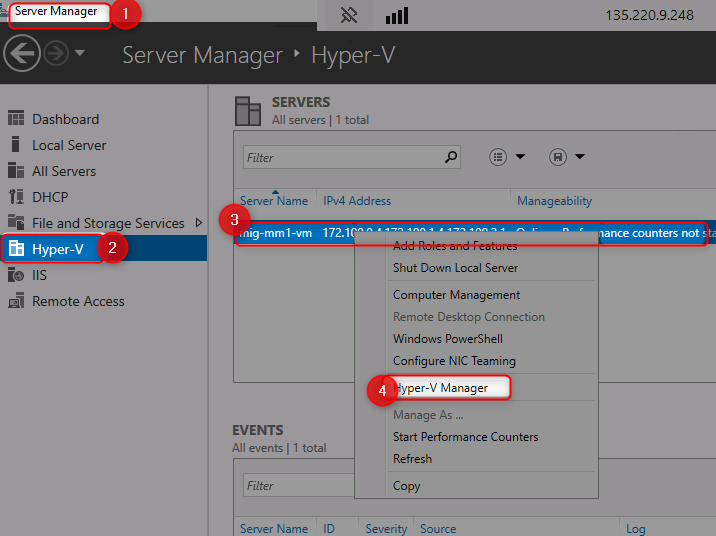
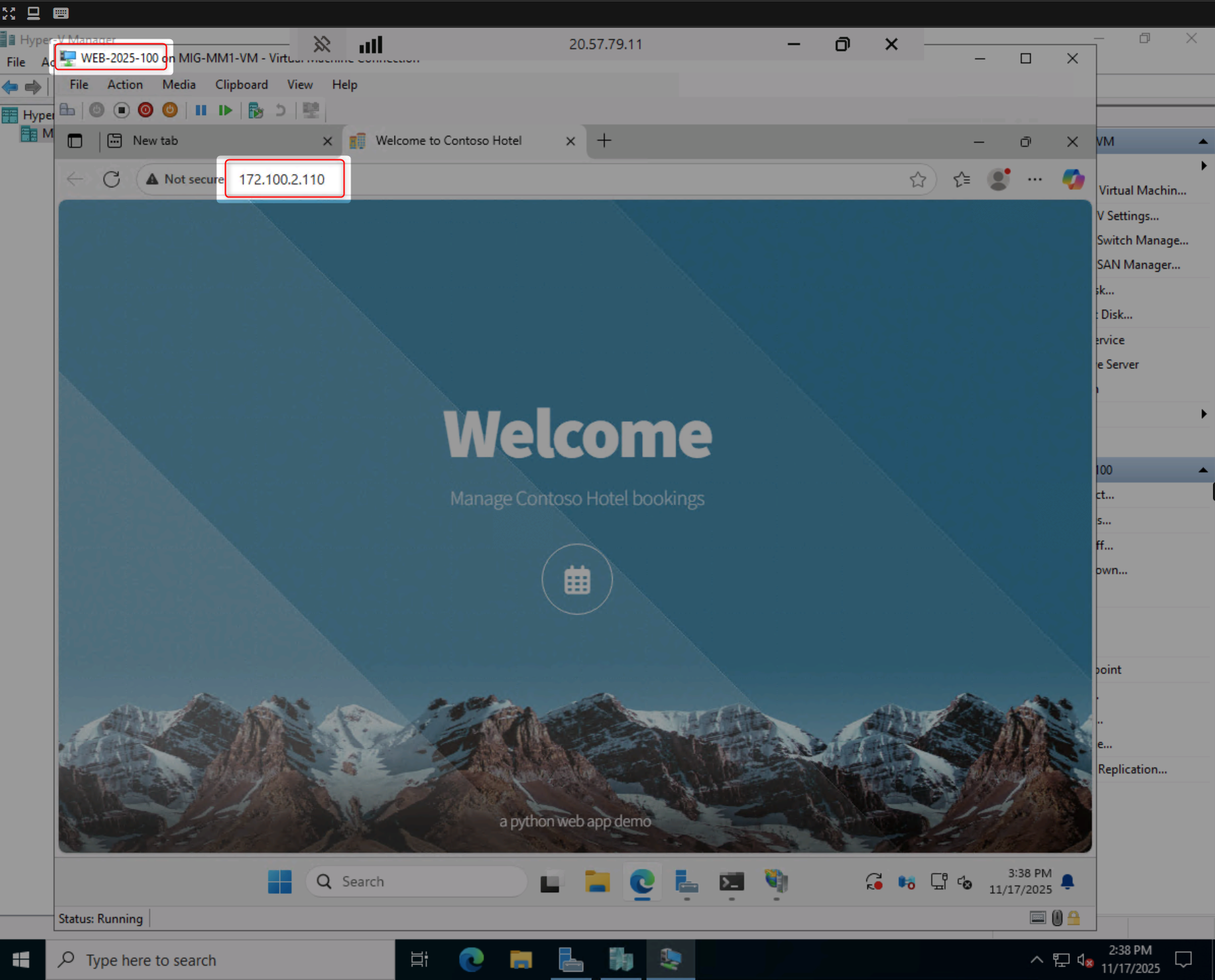
- Verify that applications are running (e.g., http://172.100.2.110)
Create Azure Migrate Project:
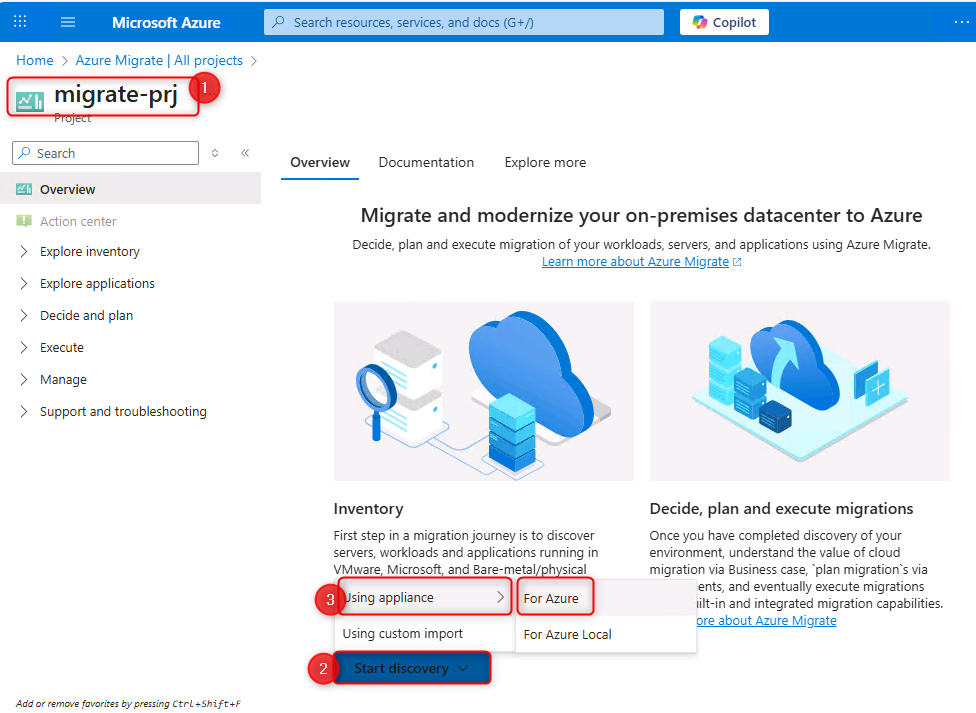
- Create a new Azure Migrate project in the Azure Portal
- Name your project (e.g.,
migrate-prj) - Select an appropriate region (e.g., Europe)
Deploy the Azure Migrate Appliance:
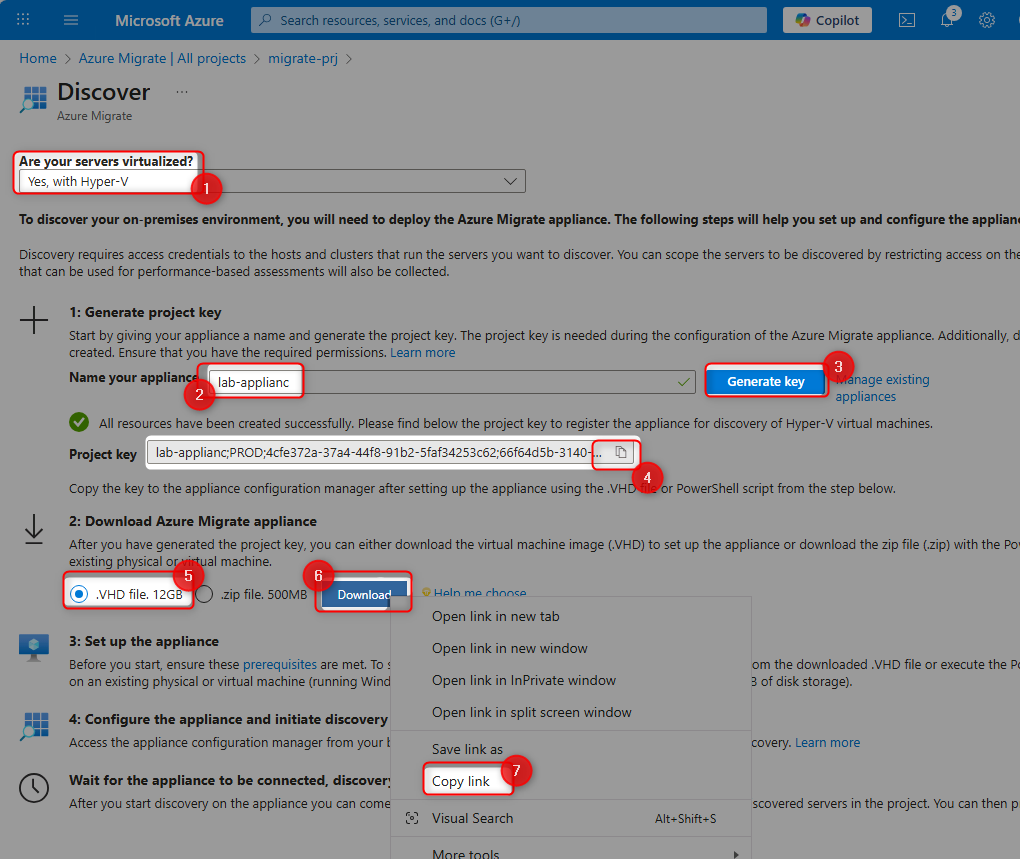
- Generate a project key for the appliance
- Download the Azure Migrate appliance VHD file
- Extract the VHD inside your Hyper-V host (F: drive recommended)
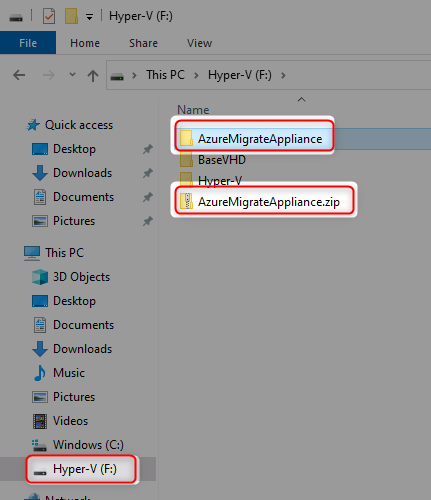
- Create a new Hyper-V VM using the extracted VHD:
- Name:
AZMAppliance - Generation: 1
- RAM: 16384 MB
- Network: NestedSwitch
- Name:
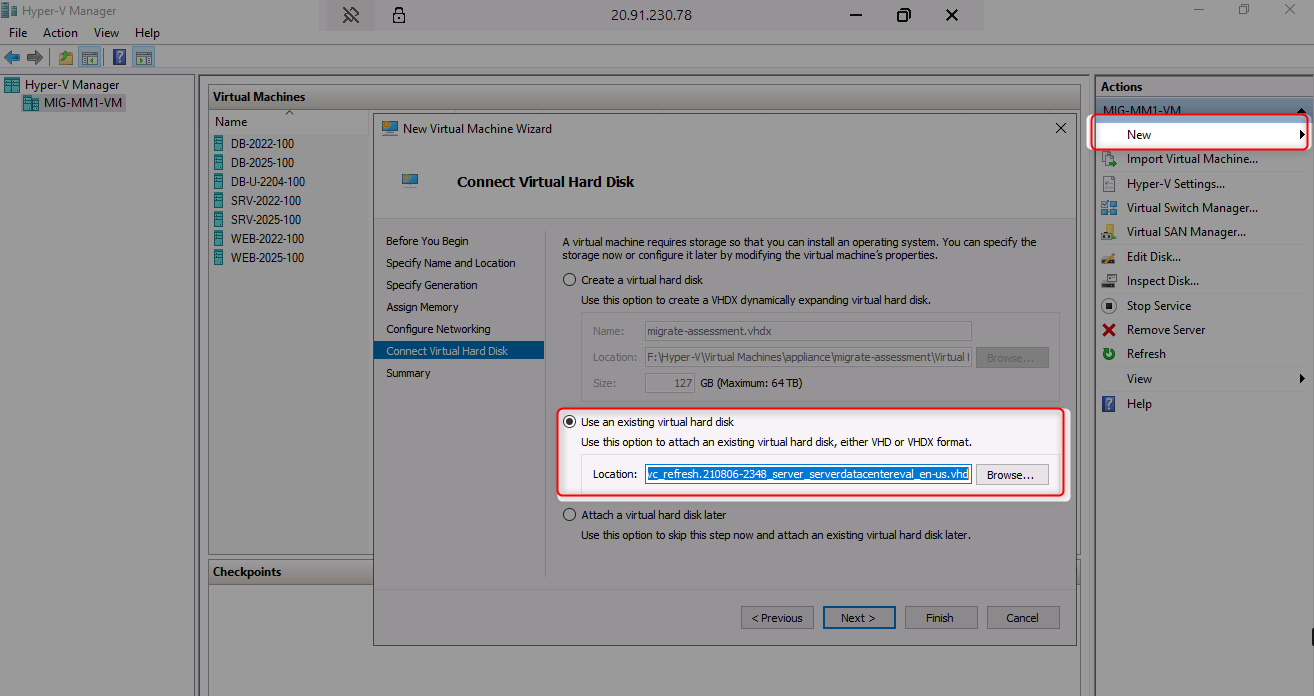
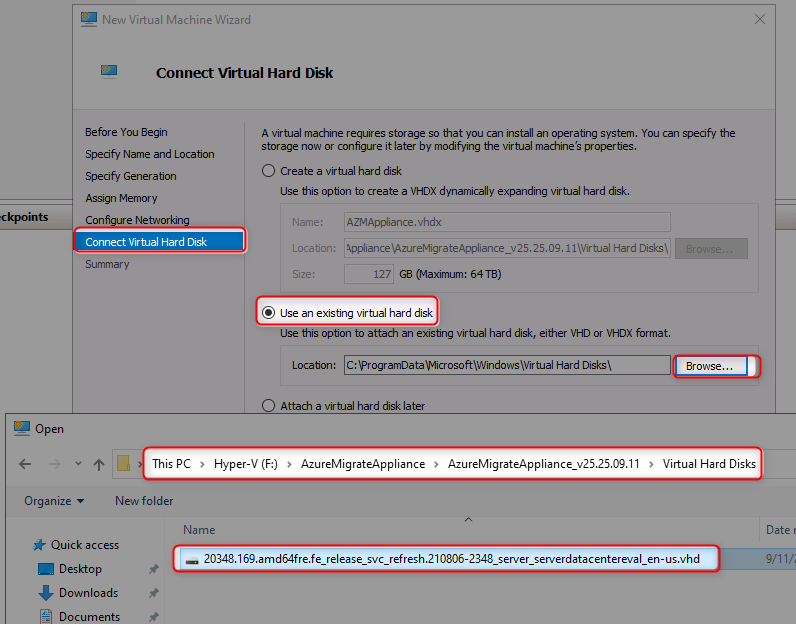
- Start the appliance VM
Configure the Appliance:
- Accept license terms and set appliance password:
Demo!pass123
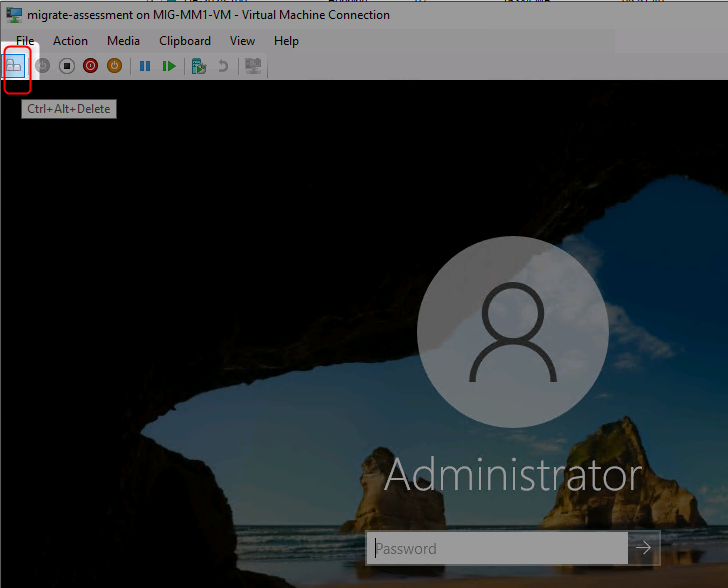
- Wait for Azure Migrate Appliance Configuration to load in browser
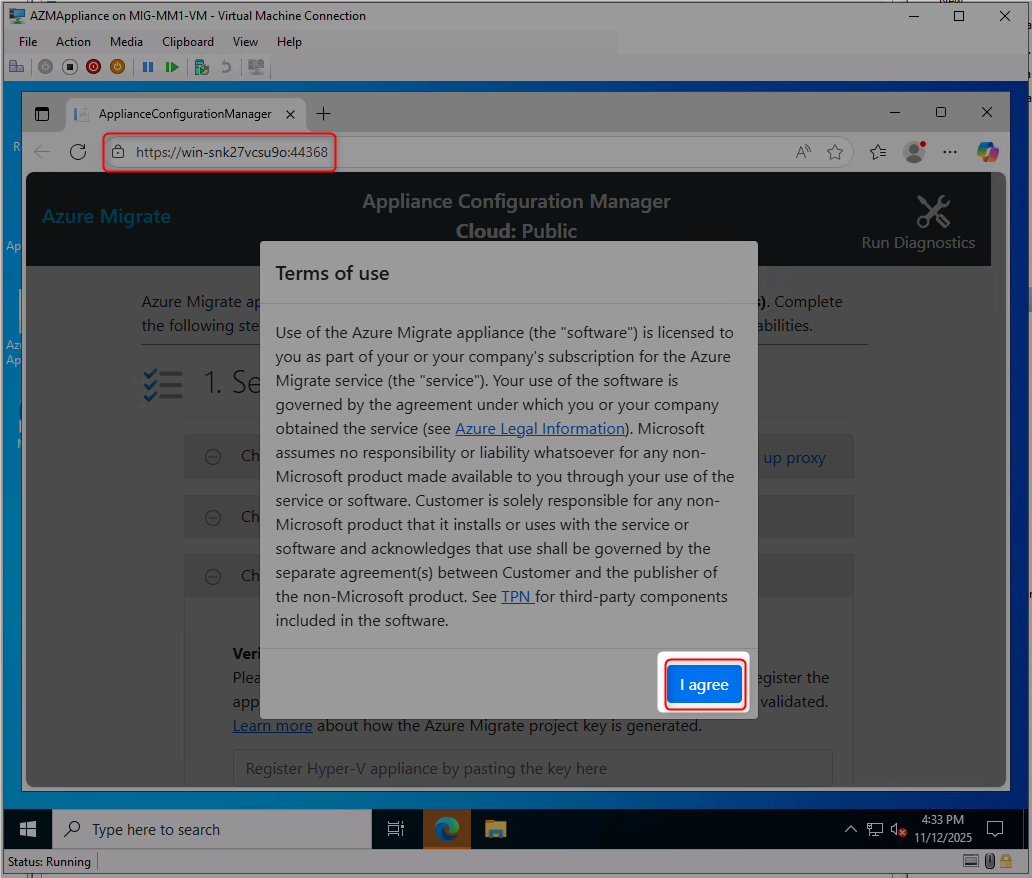
- Paste and verify your project key
- Login to Azure through the appliance interface
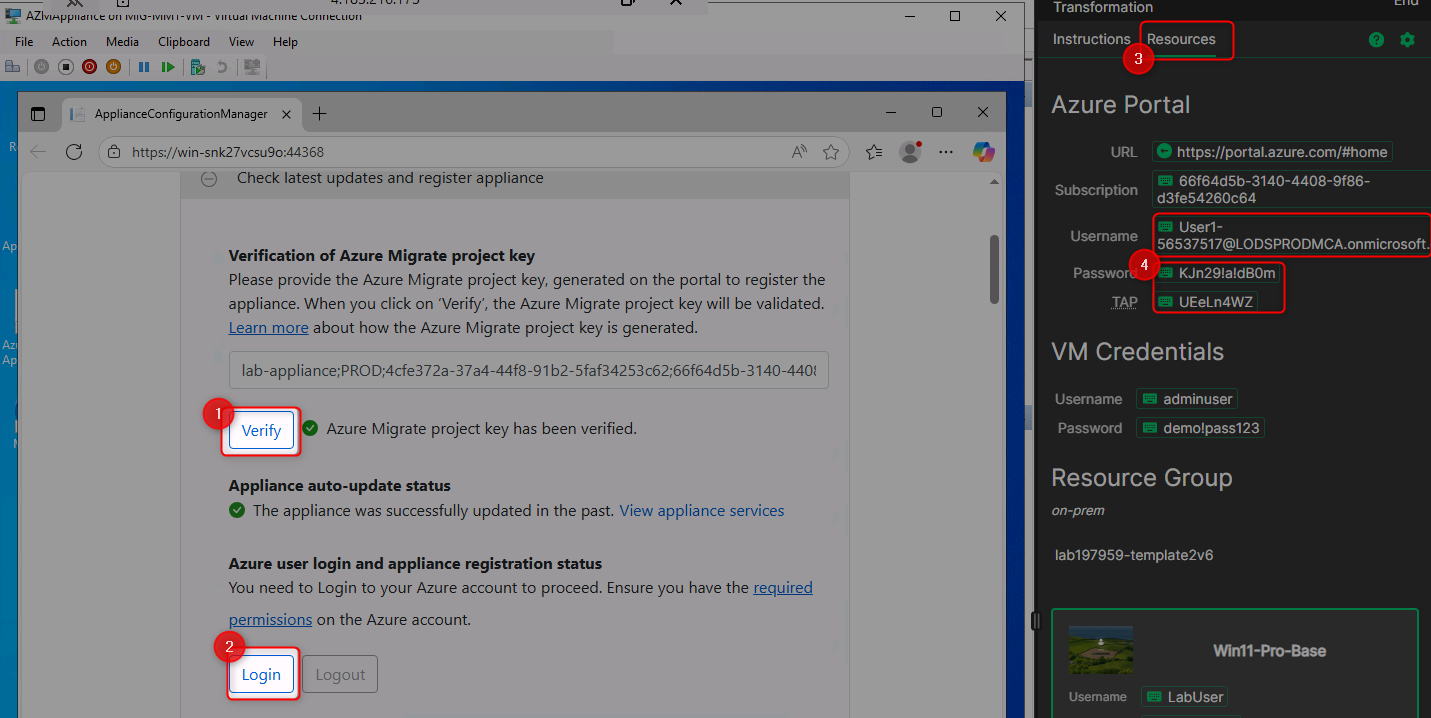
- Add Hyper-V host credentials (username:
adminuser, password:demo!pass123)
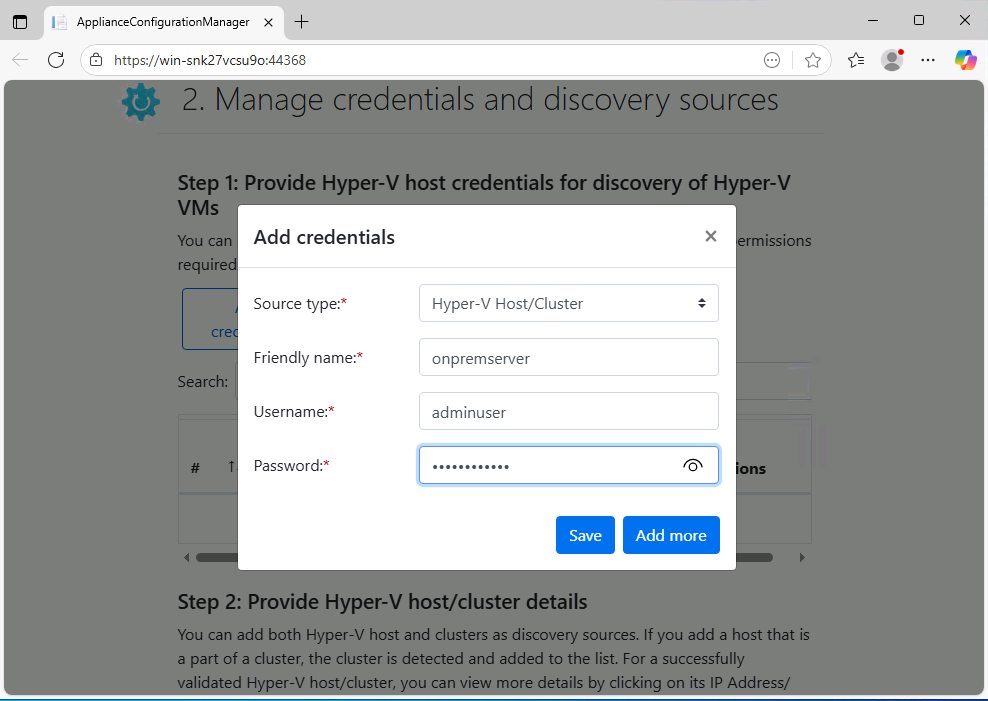
- Add discovery source with Hyper-V host IP:
172.100.2.1
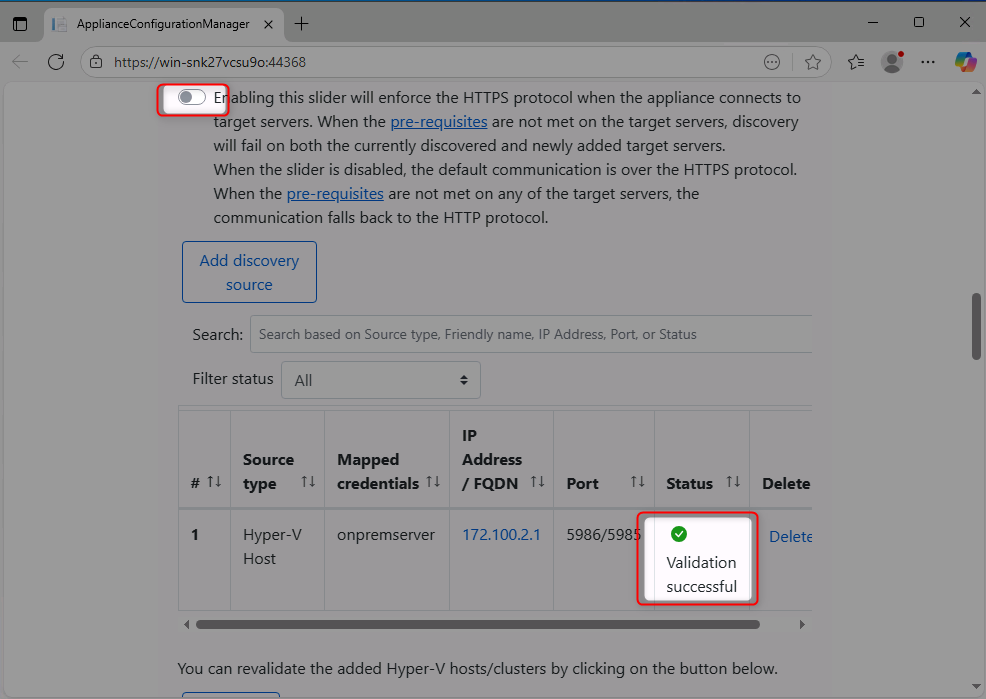
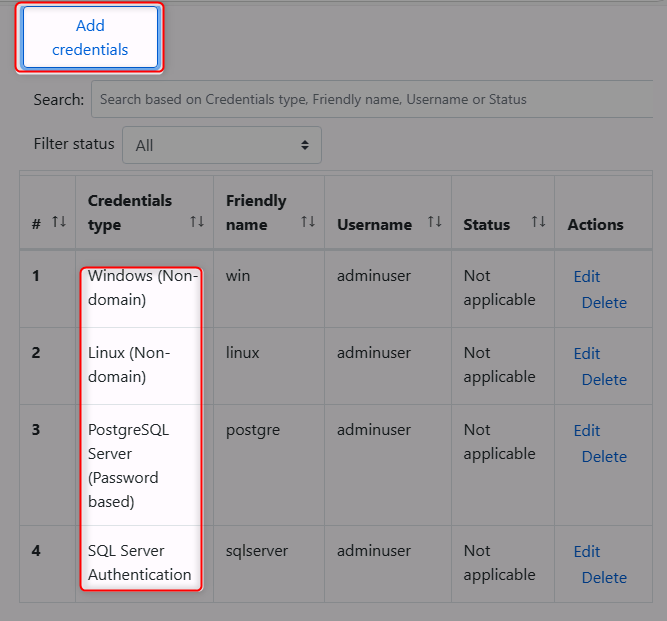
- Add credentials for Windows, Linux, SQL Server, and PostgreSQL workloads (password:
demo!pass123)- Windows username:
Administrator - Linux username:
demoadmin - SQL username:
sa
- Windows username:
- Start the discovery process
- ✅ You have successfully connected to the Hyper-V host VM
- ✅ You can access nested VMs and verify applications are running
- ✅ Azure Migrate project has been created
- ✅ Appliance is deployed and connected to Azure Migrate
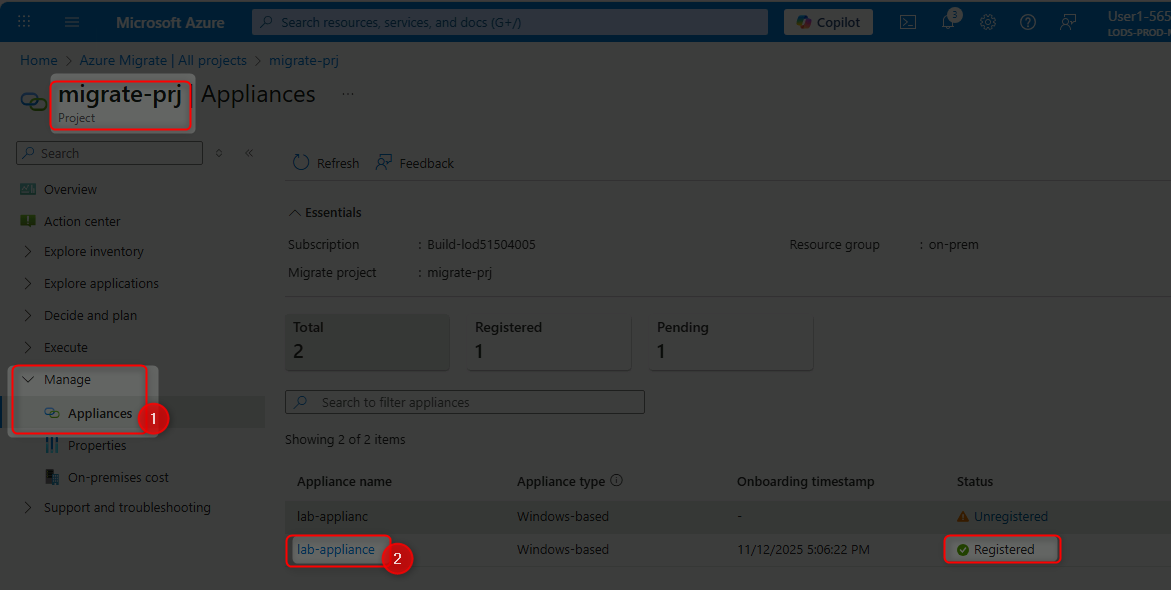
- ✅ All appliance services show as running in Azure Portal
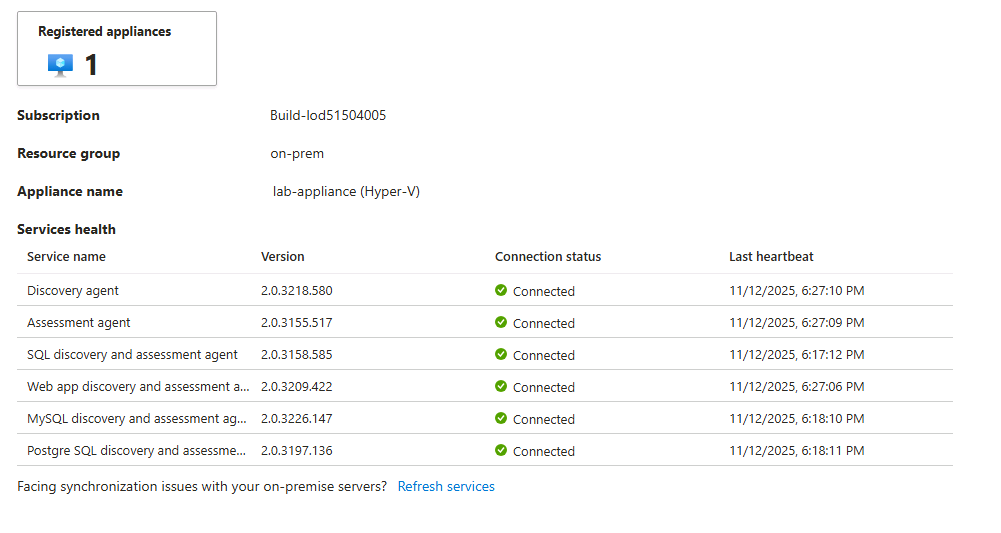
- ✅ Discovery process has started collecting data from your environment
- Azure Migrate Overview
- Azure Migrate Appliance Architecture
- Hyper-V Discovery with Azure Migrate
- Azure Migrate Discovery Best Practices
Transform raw discovery data into actionable insights by cleaning data, grouping workloads, creating business cases, and performing technical assessments to guide migration decisions.
Review Data Quality:
- Navigate to already prepared (with suffix
-azm) Azure Migrate project overview
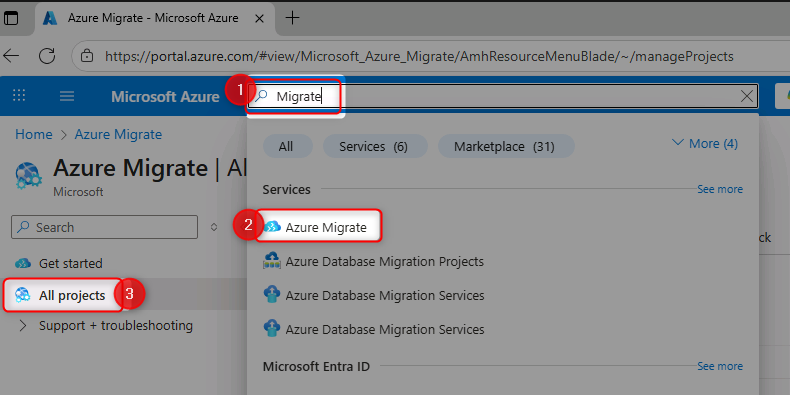
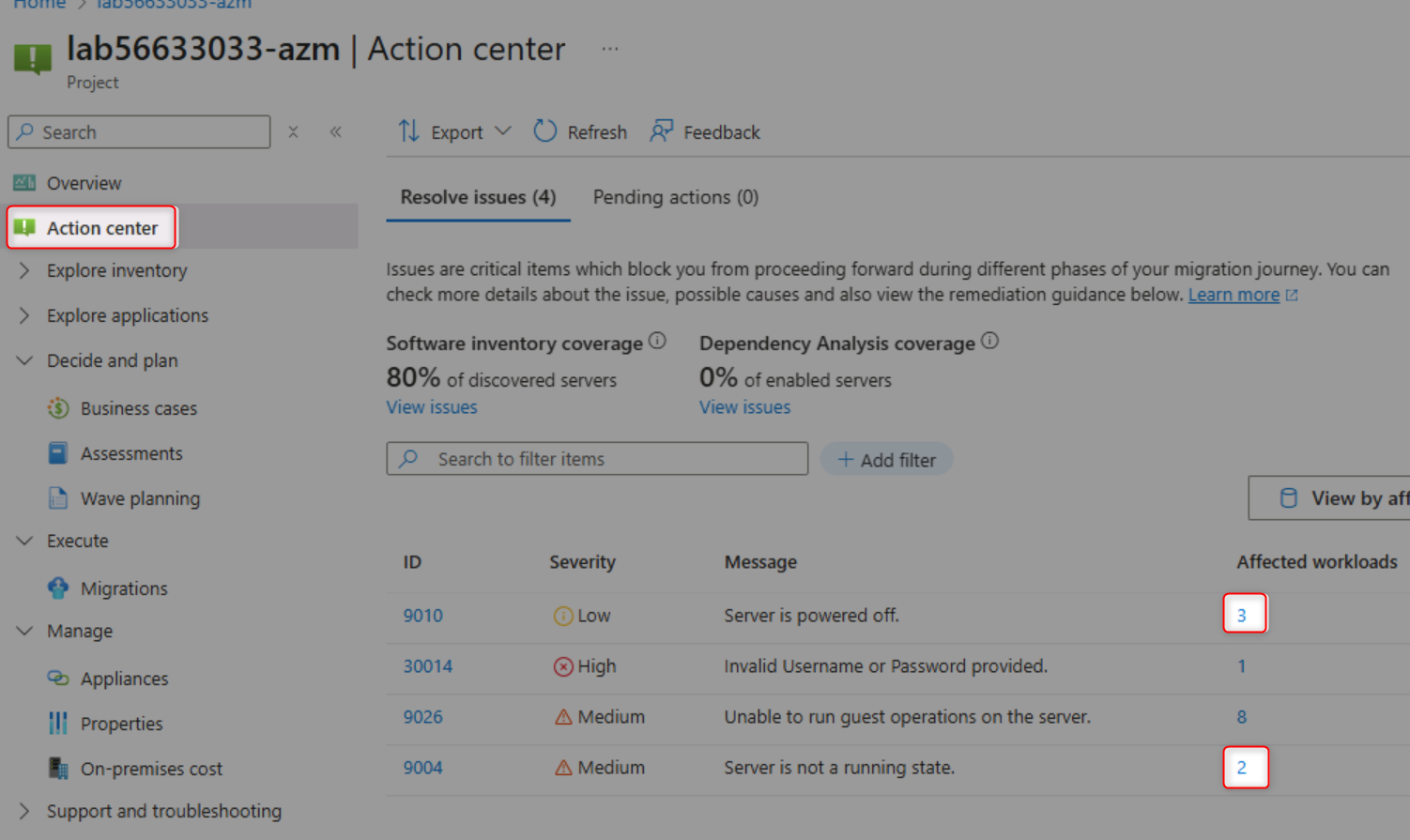
- Open the Action Center to identify data quality issues
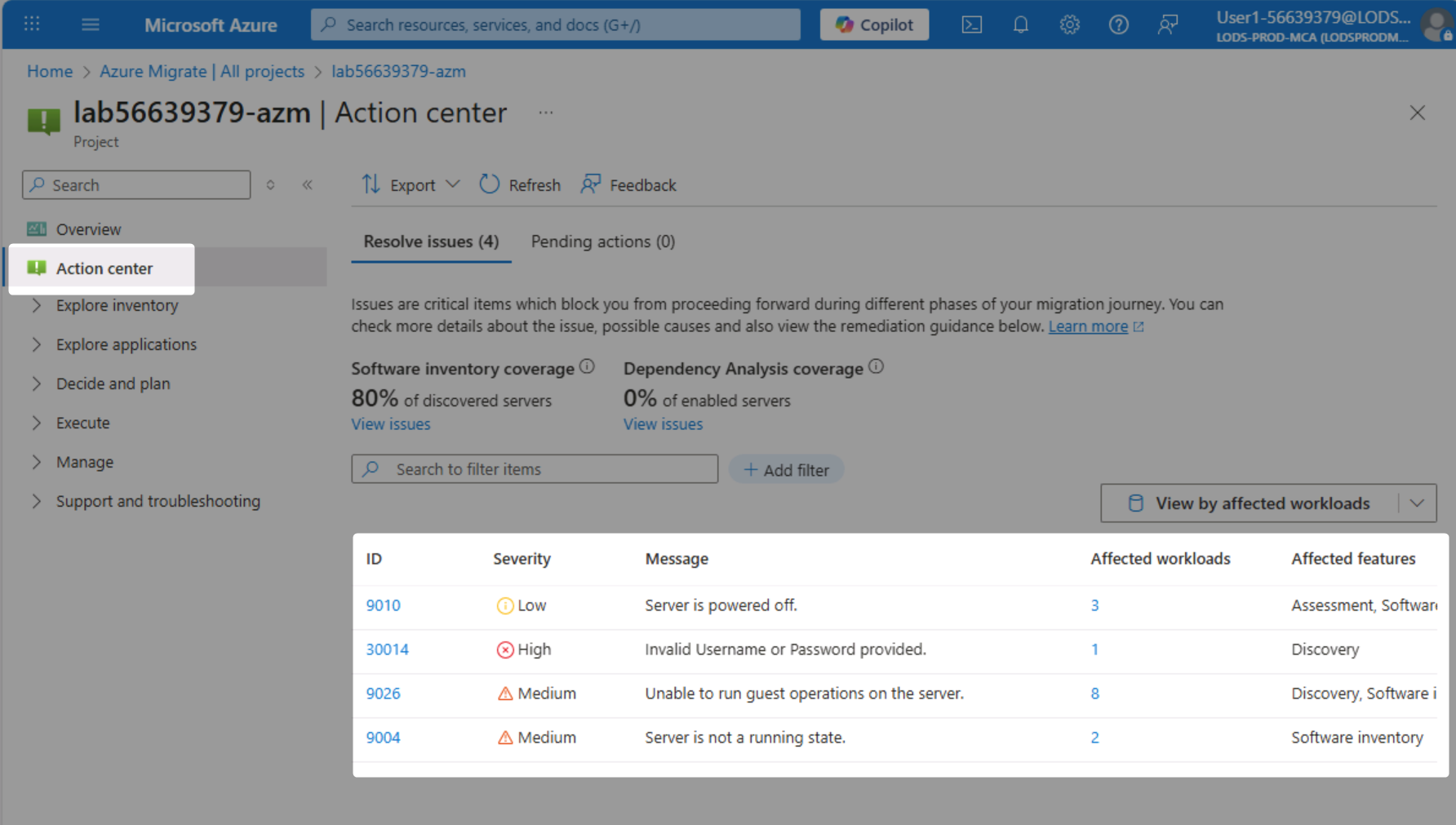
- Review common issues (powered-off VMs, connection failures, missing performance data)
- Understand the impact of data quality on assessment accuracy
Group Workloads into Applications:
- Navigate to Applications page under "Explore applications"
- Create a new application definition for "ContosoUniversity"
- Set application type as "Custom" (source code available)
- Link relevant workloads to the application
- Filter and select all ContosoUniversity-related workloads
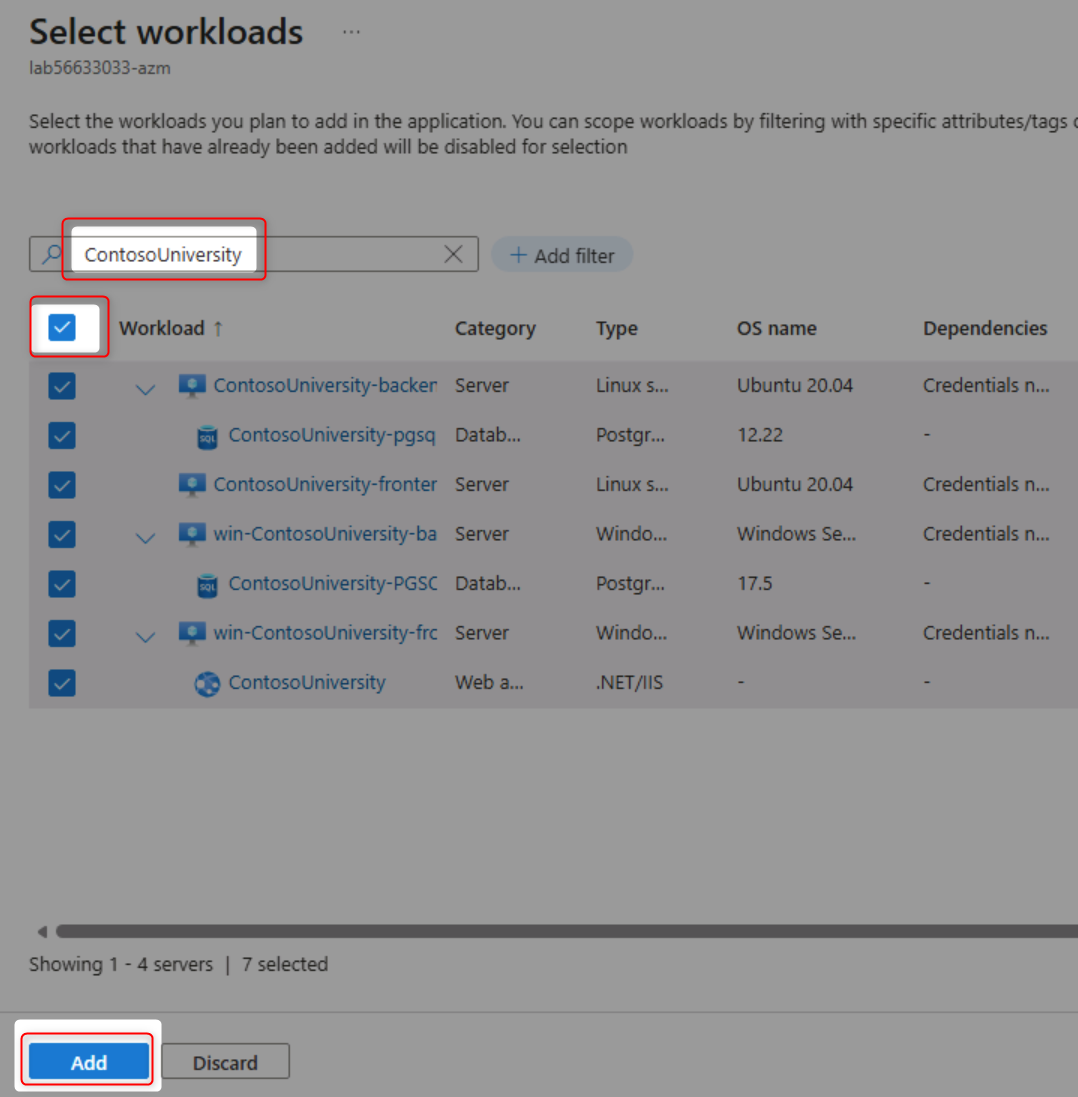
- Set criticality and complexity ratings
Build a Business Case:
- Navigate to Business Cases section
- Create a new business case named "contosouniversity"
- Select "Selected Scope" and add ContosoUniversity application
- Choose target region: West US 2
- Configure Azure discount: 15%
- Build the business case and wait for calculations
Analyze an Existing Business Case:
- Open the pre-built "businesscase-for-paas" business case
- Review annual cost savings and infrastructure scope
- Examine current on-premises vs future Azure costs
- Analyze CO₂ emissions reduction estimates
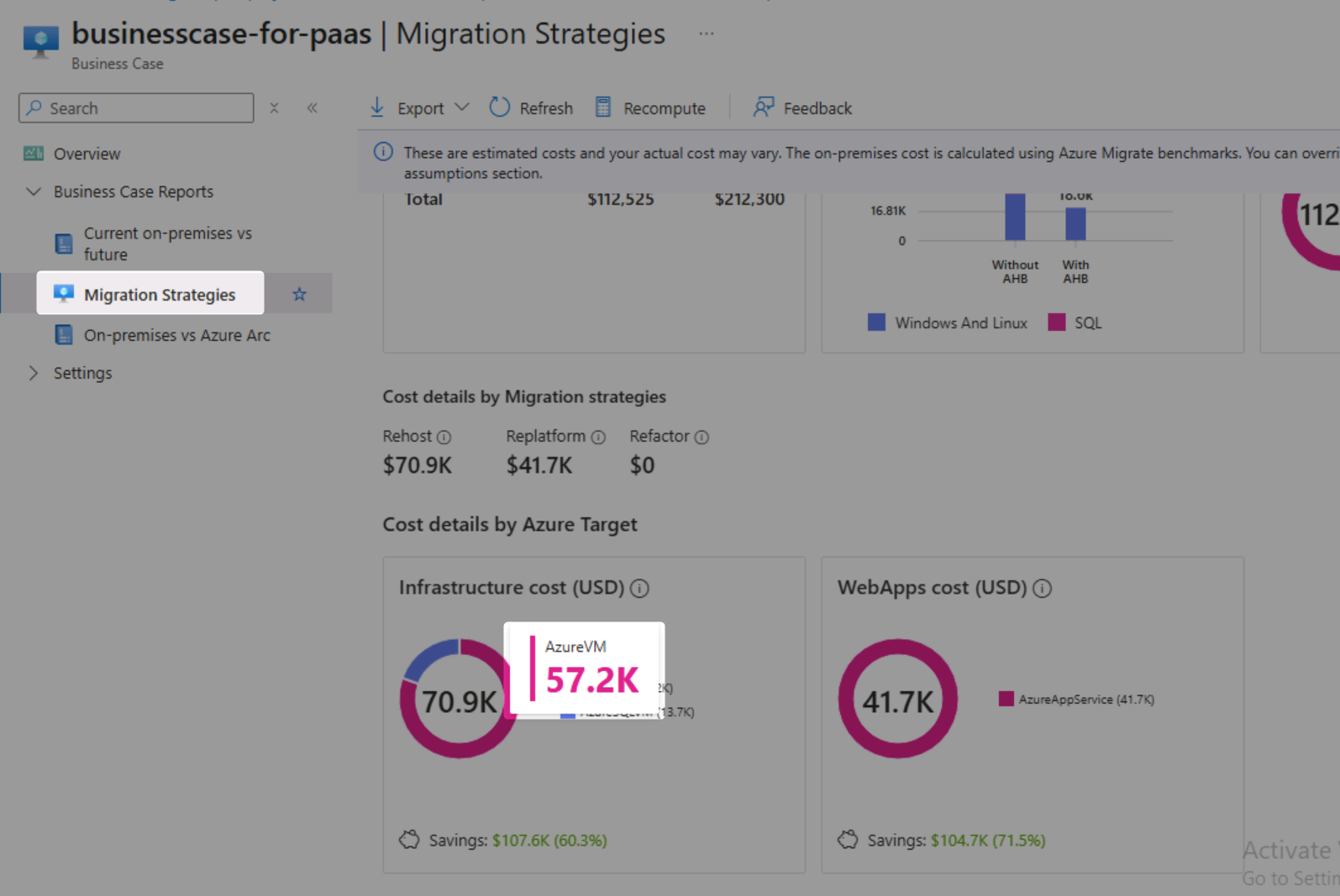
- Review migration strategy recommendations (Rehost, Replatform, Refactor)
- Examine Azure cost assumptions and settings
Perform Technical Assessments:
- Navigate to Assessments section
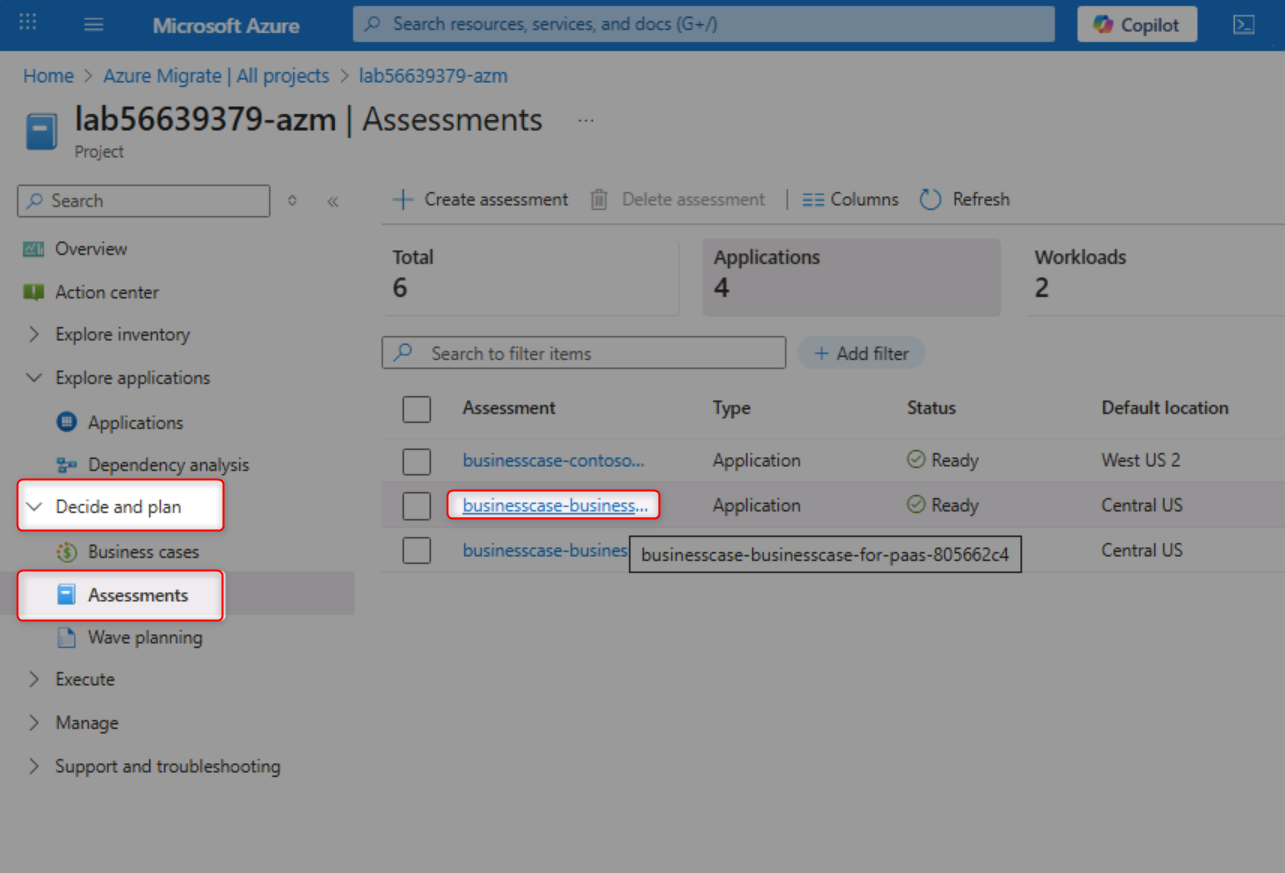
- Open the "businesscase-businesscase-for-paas" assessment
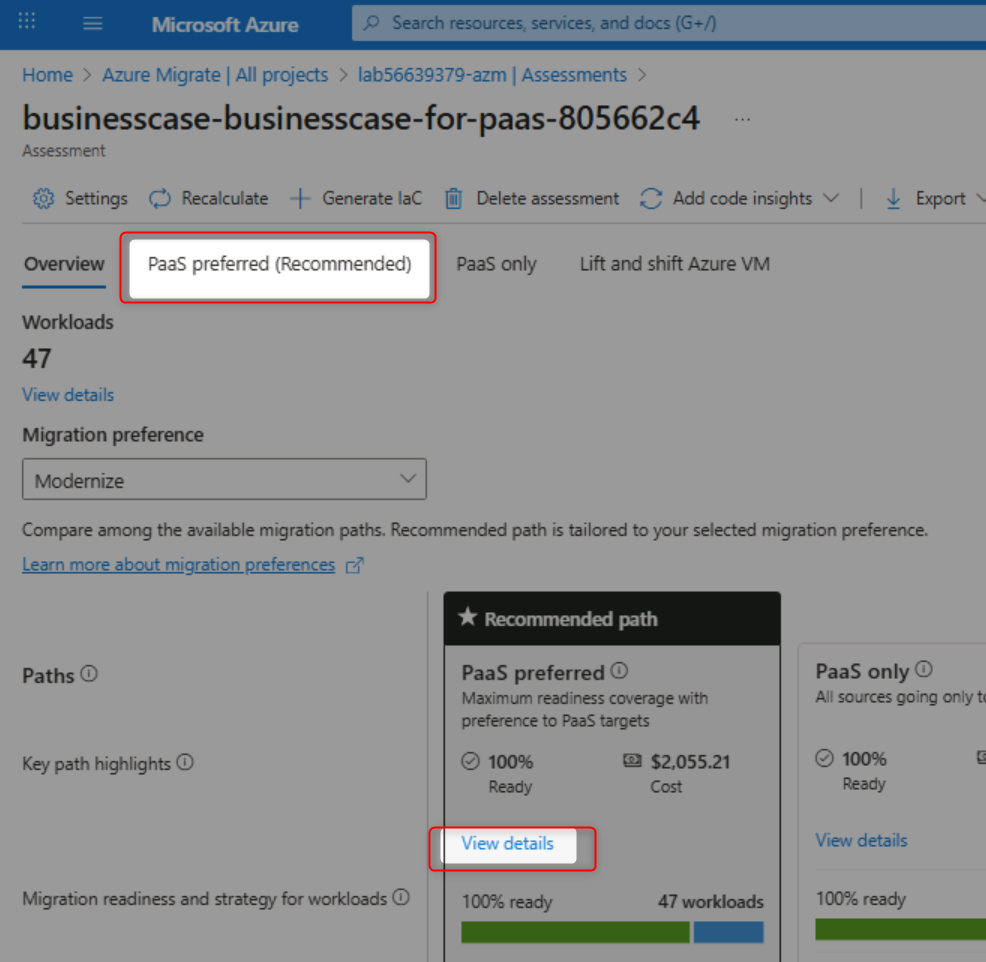
- Review recommended migration paths (PaaS preferred)
- Analyze monthly costs by migration approach
- Review Web Apps to App Service assessment details
- Identify "Ready with conditions" applications
- Review ContosoUniversity application details
- Check server operating system support status
- Identify out-of-support and extended support components
- Review PostgreSQL database version information
- Examine software inventory on each server
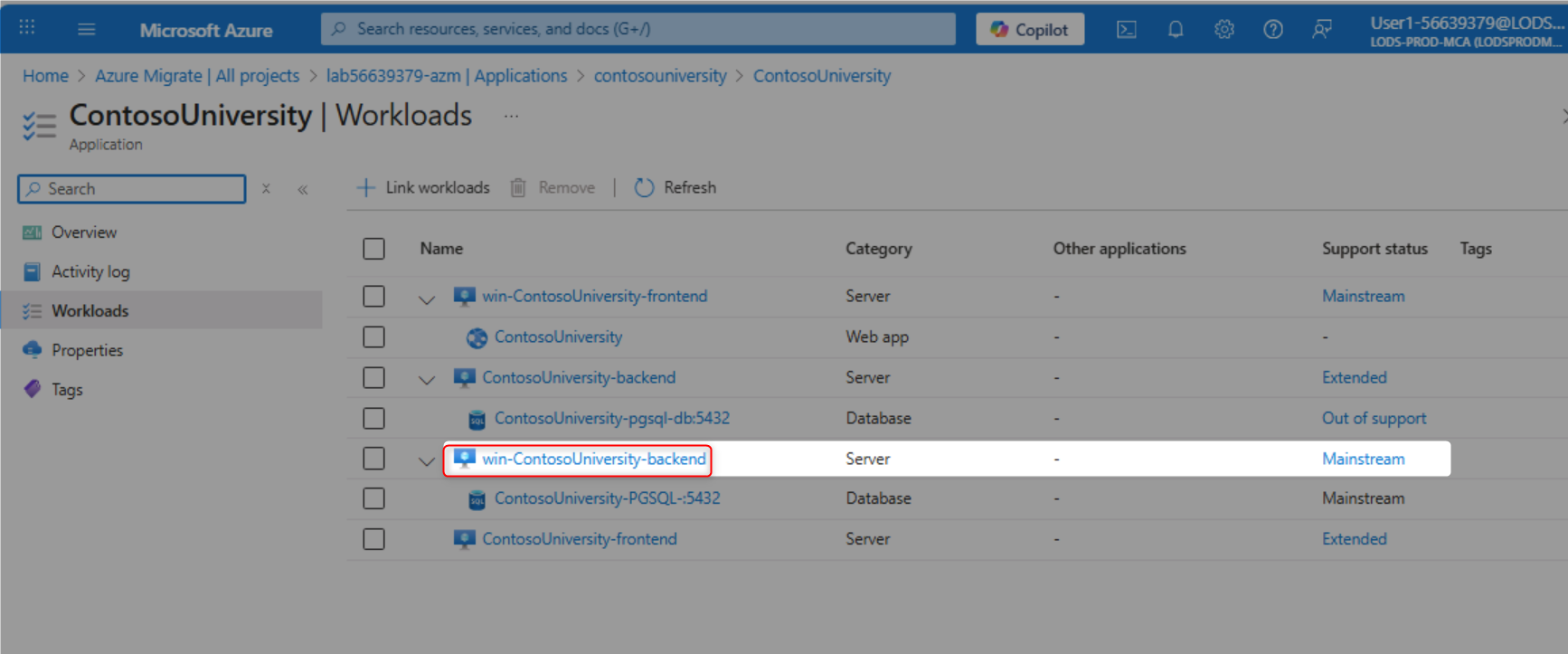
Complete Knowledge Checks:
- Find the count of powered-off Linux VMs
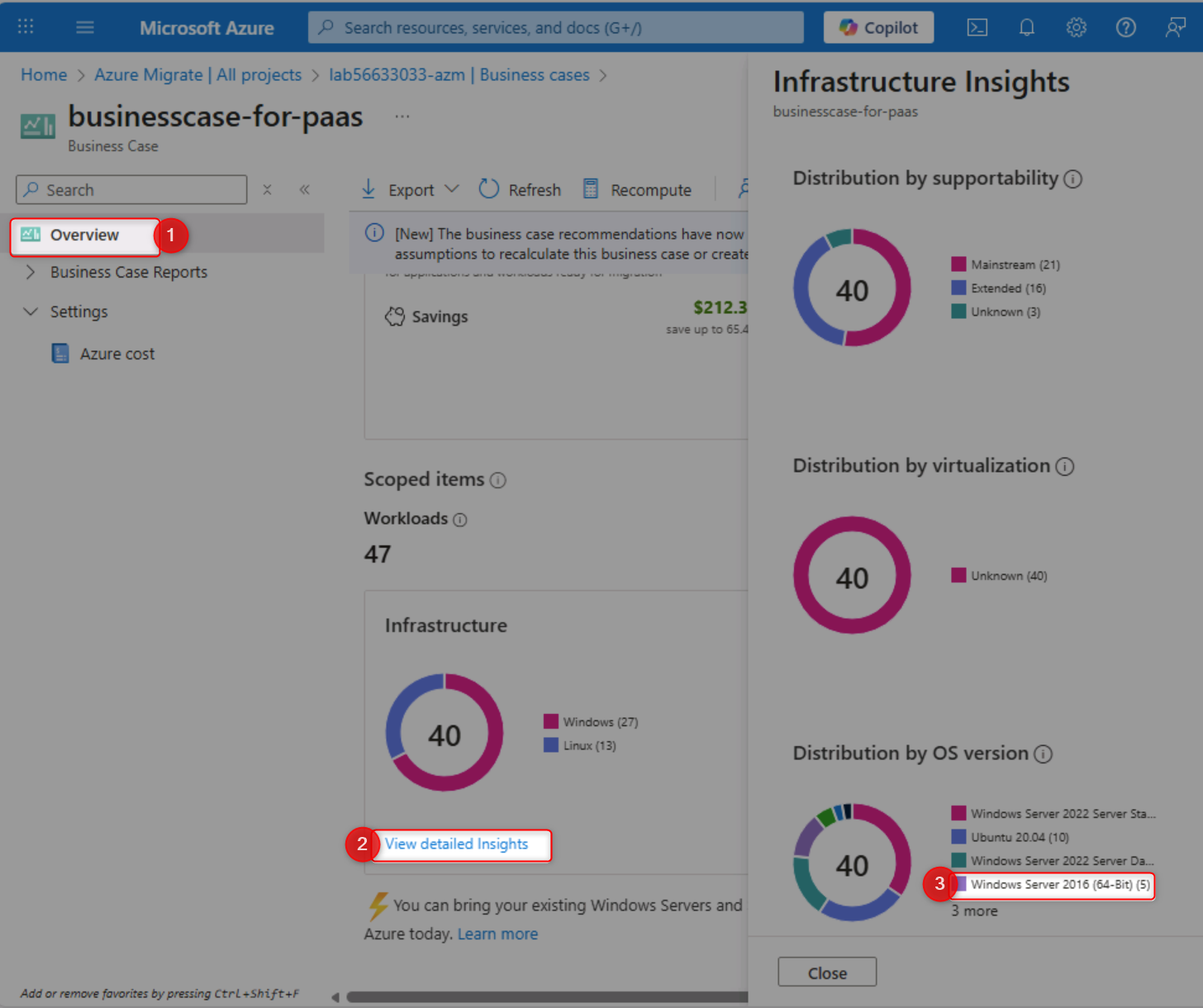
- Count Windows Server 2016 instances
- Calculate VM costs for the ContosoUniversity application
- Identify annual cost savings from the business case
- Determine security cost savings
- ✅ You understand data quality issues and their impact on assessments
- ✅ Applications are properly grouped with related workloads
- ✅ Business case successfully created showing cost analysis and ROI
- ✅ You can navigate between business cases and technical assessments
- ✅ Migration strategies (Rehost, Replatform, Refactor) are clearly understood
- ✅ Application readiness status is evaluated for cloud migration
- ✅ Out-of-support components are identified for remediation
- ✅ You can answer specific questions about your environment using Azure Migrate data
- Azure Migrate Business Case Overview
- Azure Assessment Best Practices
- Application Discovery and Grouping
- Migration Strategies: 6 Rs Explained
Modernize the Contoso University .NET Framework application to .NET 9 and deploy it to Azure App Service using GitHub Copilot's AI-powered code transformation capabilities.
💡 Tip: If you don't have Visual Studio 2022 installed locally, you can complete this challenge using GitHub Codespaces. See the Alternative: Use GitHub Codespaces section in the prerequisites for setup instructions.
Setup and Preparation:
- Navigate to
https://github.com/CZSK-MicroHacks/MicroHack-MigrateModernizeand click the "Fork" button in the top-right corner

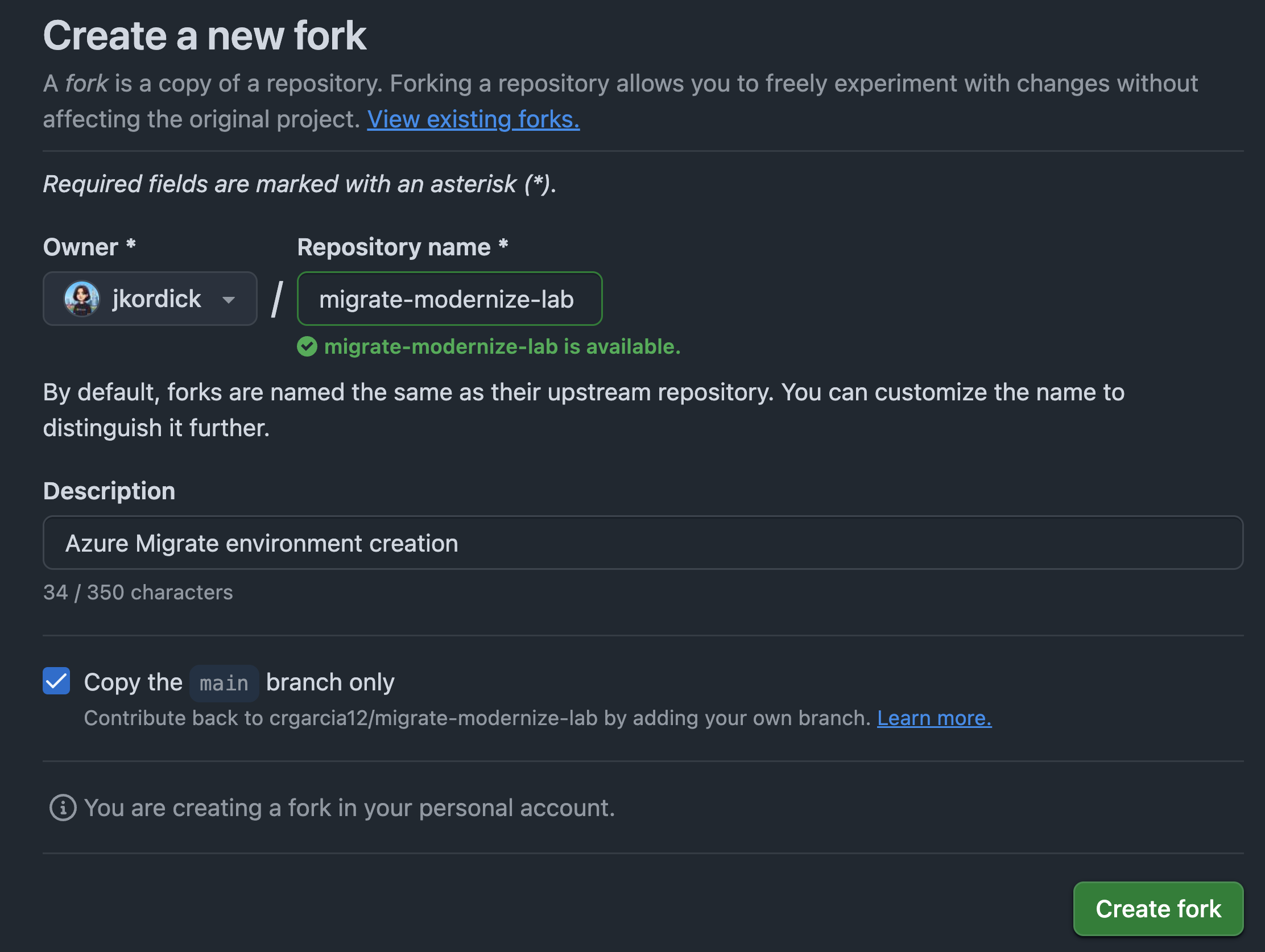
- Select your account as the owner and click "Create fork"
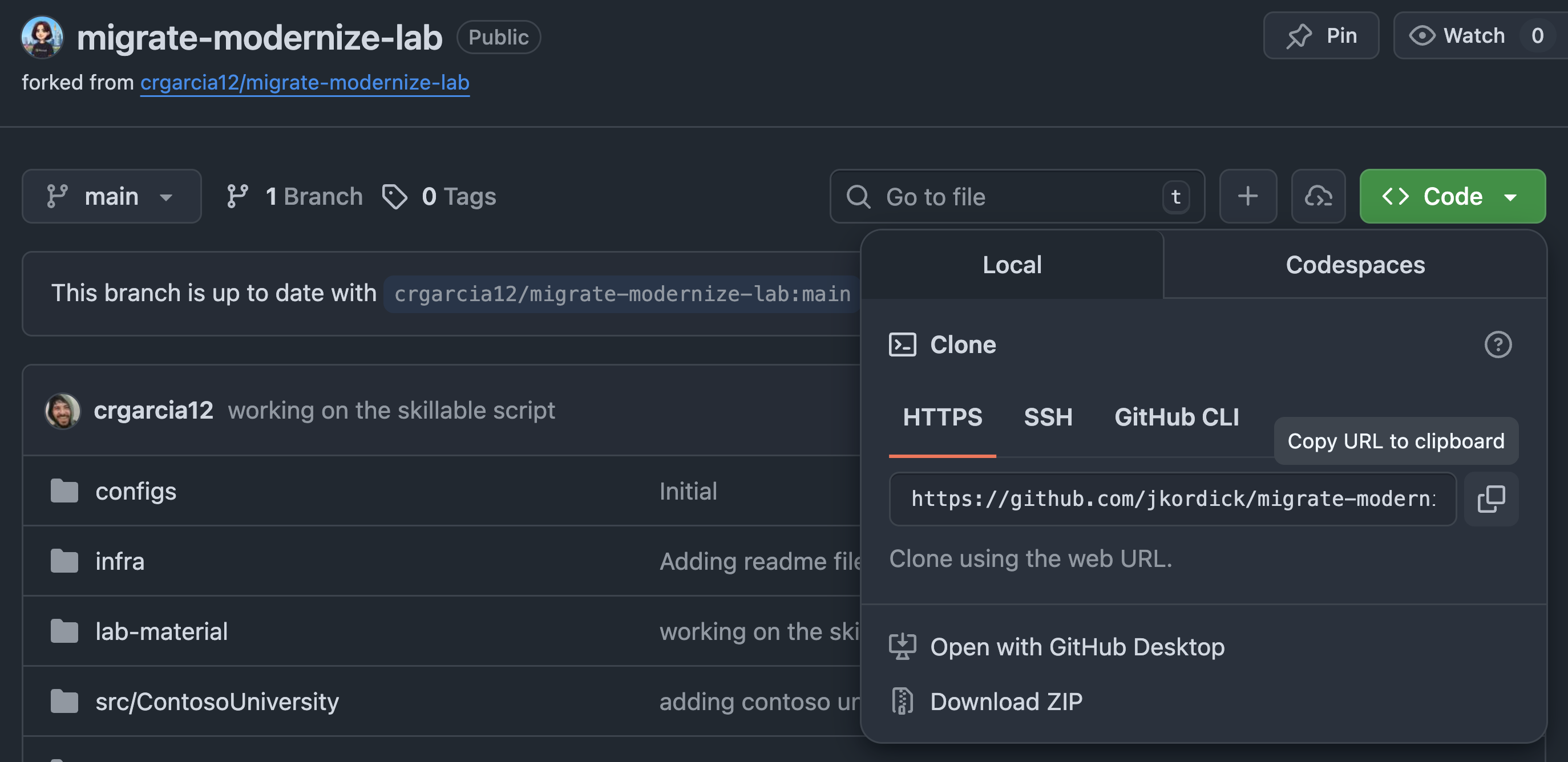
- Once the fork is created, click the "Code" button and copy your forked repository URL
- Open Visual Studio 2022
- Select "Clone a repository" and paste your forked repository URL
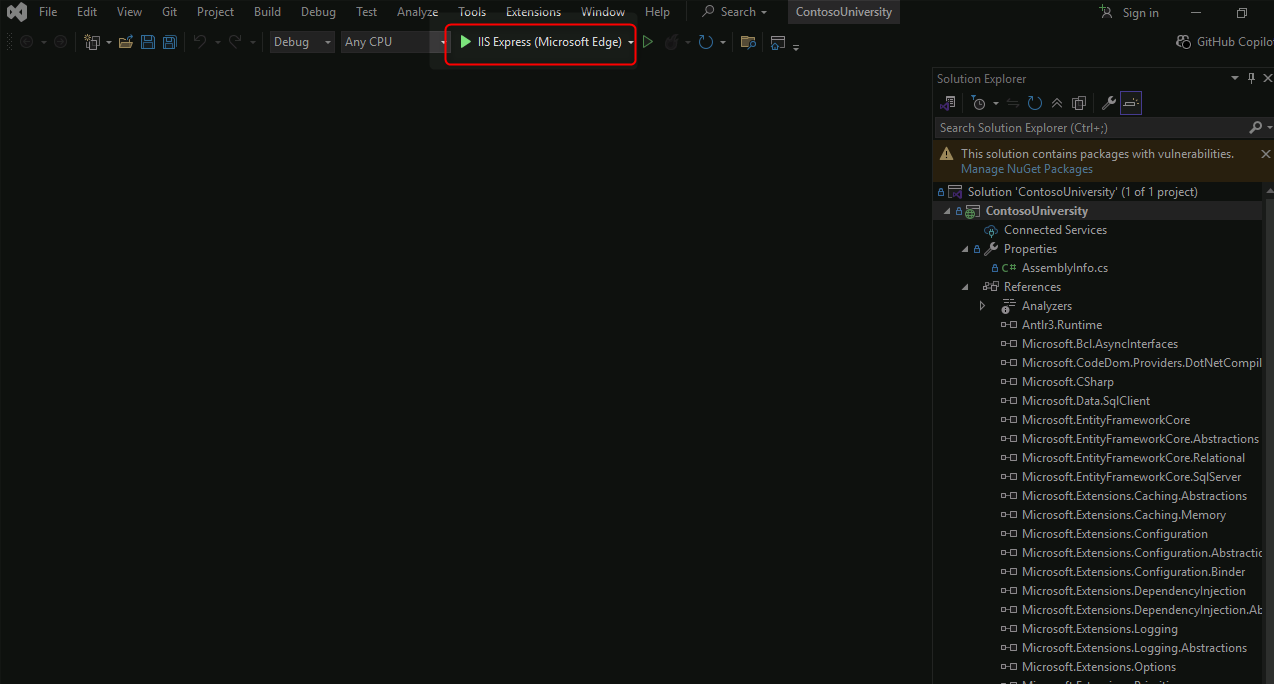
- Navigate to Solution Explorer and locate the ContosoUniversity project
- Rebuild the project to verify it compiles successfully
Assess and Upgrade to .NET 9:
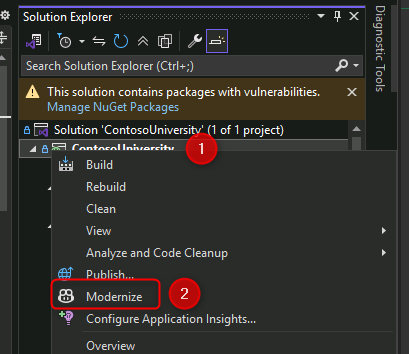
- Right-click the ContosoUniversity project and select "Modernize"
- Sign in to GitHub Copilot if prompted
- Select Claude Sonnet 4.5 as the model
- Click "Upgrade to a newer .NET version"
- Allow GitHub Copilot to analyze the codebase
- Review the upgrade plan when presented
- Allow operations when prompted during the upgrade process
- Wait for the upgrade to complete (marked by
dotnet-upgrade-report.mdappearing)
Migrate to Azure:
- Right-click the project again and select "Modernize"
- Click "Migrate to Azure" in the GitHub Copilot Chat window
- Wait for GitHub Copilot to assess cloud readiness
Resolve Cloud Readiness Issues:
19. Open the dotnet-upgrade-report.md file
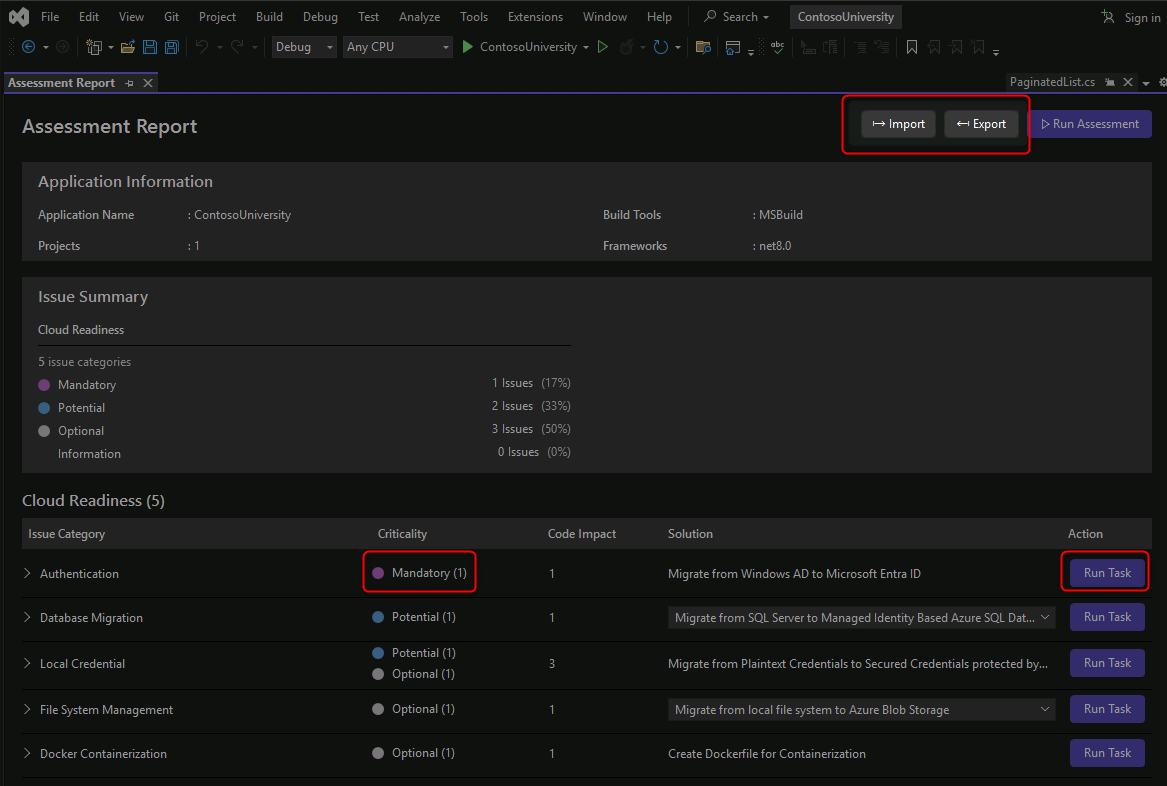
- Review the Cloud Readiness Issues section
- Click "Migrate from Windows AD to Microsoft Entra ID"
- Allow GitHub Copilot to implement the authentication changes
- Ensure all mandatory tasks are resolved
- Review the changes made to authentication configuration
Deploy to Azure:
- Allow GitHub Copilot to complete the Azure App Service deployment
- Verify the deployment succeeds
- Test the deployed application in Azure
- ✅ ContosoUniversity solution cloned and builds successfully
- ✅ Application upgraded from .NET Framework to .NET 9
- ✅ Upgrade report generated showing all changes and issues
- ✅ Authentication migrated from Windows AD to Microsoft Entra ID
- ✅ All mandatory cloud readiness issues resolved
- ✅ Application successfully deployed to Azure App Service
- ✅ Deployed application is accessible and functional
- GitHub Copilot for Visual Studio
- Modernize .NET Applications
- Migrate to .NET 9
- Azure App Service for .NET
- Microsoft Entra ID Authentication
Modernize the Asset Manager Java Spring Boot application for Azure deployment, migrating from AWS dependencies to Azure services using GitHub Copilot App Modernization in VS Code.
💡 Tip: If you don't have Docker Desktop, JDK, or Maven installed locally, you can complete this challenge using GitHub Codespaces. See the Alternative: Use GitHub Codespaces section in the prerequisites for setup instructions.
Environment Setup:
- Open Docker Desktop and ensure it's running
2 Open Terminal and run the setup commands:
mkdir C:\gitrepos\lab
cd C:\gitrepos\lab
git clone https://github.com/CZSK-MicroHacks/MicroHack-MigrateModernize.git
cd .\migrate-modernize-lab\src\AssetManager\
code .
- Login to GitHub from VS Code
- Install GitHub Copilot App Modernization extension if not present
Validate Application Locally:
- Open Terminal in VS Code (View → Terminal)
- Run
scripts\startapp.cmd - Wait for Docker containers (RabbitMQ, Postgres) to start
- Allow network permissions when prompted
- Verify application is accessible at http://localhost:8080
- Stop the application by closing console windows
Perform AppCAT Assessment:
- Open GitHub Copilot App Modernization extension in the Activity bar
- Ensure Claude Sonnet 4.5 is selected as the model
- Click "Migrate to Azure" to begin assessment
- Wait for AppCAT CLI installation to complete
- Review assessment progress in the VS Code terminal
- Wait for assessment results (9 cloud readiness issues, 4 Java upgrade opportunities)
Analyze Assessment Results:
- Review the assessment summary in GitHub Copilot chat
- Examine issue prioritization:
- Mandatory (Purple) - Critical blocking issues
- Potential (Blue) - Performance optimizations
- Optional (Gray) - Future improvements
- Click on individual issues to see detailed recommendations
- Focus on the AWS S3 to Azure Blob Storage migration finding
Execute Guided Migration:
- Expand the "Migrate from AWS S3 to Azure Blob Storage" task
- Read the explanation of why this migration is important
- Click the "Run Task" button to start the migration
- Review the generated migration plan in the chat window and
plan.mdfile - Type "Continue" in the chat to begin code refactoring
Monitor Migration Progress:
- Watch the GitHub Copilot chat for real-time status updates
- Check the
progress.mdfile for detailed change logs - Review file modifications as they occur:
pom.xmlandbuild.gradleupdates for Azure SDK dependenciesapplication.propertiesconfiguration changes- Spring Cloud Azure version properties
- Allow any prompted operations during the migration
Validate Migration:
- Wait for automated validation to complete:
- CVE scanning for security vulnerabilities
- Build validation
- Consistency checks
- Test execution
- Review validation results in the chat window
- Allow automated fixes if validation issues are detected
- Confirm all validation stages pass successfully
Test Modernized Application:
- Open Terminal in VS Code
- Run
scripts\startapp.cmdagain - Verify the application starts with Azure Blob Storage integration
- Test application functionality at http://localhost:8080
- Confirm no errors related to storage operations
Optional: Continue Modernization:
- Review other migration tasks in the assessment report
- Execute additional migrations as time permits
- Track progress through the
plan.mdandprogress.mdfiles
- ✅ Docker Desktop is running and containers are functional
- ✅ Asset Manager application cloned and runs locally
- ✅ AppCAT assessment completed successfully
- ✅ Assessment identifies 9 cloud readiness issues and 4 Java upgrade opportunities
- ✅ AWS S3 to Azure Blob Storage migration executed via guided task
- ✅ Maven/Gradle dependencies updated with Azure SDK
- ✅ Application configuration migrated to Azure Blob Storage
- ✅ All validation stages pass (CVE, build, consistency, tests)
- ✅ Modernized application runs successfully locally
- ✅ Migration changes tracked in dedicated branch for rollback capability
- GitHub Copilot for VS Code
- Azure SDK for Java
- Migrate from AWS to Azure
- Azure Blob Storage for Java
- Spring Cloud Azure
- AppCAT Assessment Tool
Congratulations! You've completed the Azure Migration & Modernization MicroHack.
What You've Accomplished:
Throughout this MicroHack, you've gained hands-on experience with the complete migration lifecycle:
- Explored a simulated datacenter environment with nested Hyper-V VMs
- Created and configured an Azure Migrate project for discovery
- Downloaded, installed, and configured the Azure Migrate appliance
- Connected the appliance to on-premises infrastructure with proper credentials
- Initiated continuous discovery for performance and dependency data collection
- Reviewed and cleaned migration data using Azure Migrate's Action Center
- Grouped related VMs into logical applications (ContosoUniversity)
- Built business cases showing financial justification with cost savings and ROI analysis
- Analyzed technical assessments for cloud readiness and migration strategies
- Evaluated workload readiness across VMs, databases, and web applications
- Navigated migration data to identify issues, costs, and modernization opportunities
- Cloned and configured the Contoso University .NET application repository
- Used GitHub Copilot App Modernization extension in Visual Studio
- Performed comprehensive code assessment for cloud readiness
- Upgraded application from legacy .NET Framework to .NET 9
- Migrated from Windows AD to Microsoft Entra ID authentication
- Resolved cloud readiness issues identified in the upgrade report
- Deployed the modernized application to Azure App Service
- Set up local Java development environment with Docker and Maven
- Ran the Asset Manager application locally to validate functionality
- Used GitHub Copilot App Modernization extension in VS Code
- Performed AppCAT assessment for Azure migration readiness (9 cloud readiness issues, 4 Java upgrade opportunities)
- Executed guided migration tasks to modernize the application
- Migrated from AWS S3 to Azure Blob Storage with automated code refactoring
- Validated migration success through automated CVE, build, consistency, and test validation
- Tested the modernized application locally
Skills Acquired:
- Azure Migrate configuration and management
- Business case development and financial analysis
- AI-powered code modernization with GitHub Copilot
- Migration strategy selection (Rehost, Replatform, Refactor)
- Cloud readiness assessment and remediation
- Azure App Service deployment
- AppCAT assessment for Java applications
- Automated validation and testing workflows
Key Takeaways:
This workshop demonstrated the complete migration lifecycle from discovery to deployment:
- Assessment First: Azure Migrate provides comprehensive discovery and financial justification before migration
- AI-Powered Modernization: GitHub Copilot dramatically accelerates code modernization while maintaining quality
- Platform Migration: Successfully migrated dependencies (S3 to Blob Storage, Windows AD to Entra ID) alongside application code
- Validation at Every Step: Automated testing ensures functionality is preserved throughout modernization
- Multiple Technology Stacks: Experience with both .NET and Java modernization approaches
Continue Your Azure Journey:
- Azure Migrate Documentation - Deep dive into migration tools and strategies
- Azure Well-Architected Framework - Learn enterprise architecture best practices
- GitHub Copilot for Azure - Explore AI-powered development tools
Hands-On Labs:
- Azure Migration Center - Additional migration resources and tools
- Azure Architecture Center - Reference architectures and patterns
- Microsoft Learn - Azure Migration Path - Structured learning modules
Continue Modernization:
- Explore additional migration scenarios in your own environments
- Practice with other workload types (containers, databases, etc.)
- Experiment with GitHub Copilot for other modernization tasks
- Continue with other migration tasks identified in the assessment reports
- Explore containerization options for deploying to AKS or Azure Container Apps
- Implement additional Azure services like Azure Service Bus (replacing RabbitMQ)
- Apply Java runtime upgrades using the identified opportunities
- Configure managed identities for passwordless authentication
If you want to give feedback, please don't hesitate to open an issue on the repository or get in touch with one of us directly.
Thank you for investing the time and see you next time!