Actor landing page: Earnings Call Transcript API on Apify Input schema: All parameters
This API returns two kinds of structured financial records for any US ticker: earnings call transcripts with every speaker turn tagged by name and role, prepared remarks separated from Q&A, and each analyst question paired with the management answers that follow; and SEC 8-K filings parsed item by item from EDGAR, with press release text, guidance sentence extraction, and finance-dictionary sentiment scores. A full-text keyword mode searches 8-K filings across ALL US companies. Everything comes back as clean JSON you can feed straight into pandas, a database, or an LLM pipeline.
Prerequisites: Python 3.11+ and a free Apify API key from https://apify.com?fpr=9n7kx3
# 1. Install uv if you do not have it
curl -LsSf https://astral.sh/uv/install.sh | sh

# 2. Clone this repo and install dependencies
git clone https://github.com/johnisanerd/Apify-Earnings-Call-Transcript-API.git
cd Apify-Earnings-Call-Transcript-API
uv sync

# 3. Add your API token
cp .env.example .env   # then paste your token into .env

# 4. Run the example
uv run python earnings-call-transcript-api-example.py
The example fetches Apple's two newest 8-K filings and its latest earnings call transcript, then prints the headline fields: item codes, press release headline, guidance sentences, sentiment, speakers, and the first analyst question with its answer. Inputs are kept small on purpose; the first run costs well under a cent.
Transcripts are structured, not text blobs. Most market data APIs return an earnings call as one giant string. This API returns speaker turns with names, roles, and firm affiliations, plus ready-made question-answer pairs, so RAG pipelines and fine-tuning datasets need zero preprocessing.
8-K filings arrive parsed. Every filing carries its item codes (2.02 earnings, 5.02 executive changes, 1.05 cybersecurity incidents, and the rest of the 1.01-9.01 map), per-item text, the press release exhibit, and EDGAR acceptance timestamps for event studies.
Guidance extraction that filters noise. Forward-looking sentences are extracted only when expectation or revision language co-occurs with a quantity or period, so "we expect great things" never pollutes your dataset.
Deterministic sentiment. Finance-dictionary sentiment scores (positive, negative, uncertainty, net) are reproducible run over run, which matters for research.
Search every US filer. The keyword mode runs a full-text search across all 8-K filings, for example "guidance withdrawal" or "material weakness", with date and item filters.
Monitoring built in. Turn on onlyNew with an Apify schedule and each run emits only newly filed 8-Ks and newly published transcripts.
Basic: filings and the latest transcript for one ticker.
{
    "tickers": ["AAPL"],
    "dataType": "both",
    "filingsLimit": 2,
    "transcriptsLimit": 1
}
Advanced: screen every US filer for guidance withdrawals in a date window.
{
    "searchKeyword": "guidance withdrawal",
    "dataType": "filings",
    "filingsLimit": 25,
    "dateFrom": "2026-01-01",
    "dateTo": "2026-06-30"
}Twenty pre-configured task pages, each one click to run with sensible defaults. Open any of them, press Start, and read the JSON from the run's dataset.
Per-ticker earnings call transcripts (speaker-tagged turns, analyst Q&A pairs, guidance, sentiment):
- NVIDIA (NVDA)
- Apple (AAPL)
- Microsoft (MSFT)
- Tesla (TSLA)
- Amazon (AMZN)
- Meta (META)
- Alphabet (GOOGL)
- AMD
- Netflix (NFLX)
- Broadcom (AVGO)
8-K item-code trackers (parsed events for a watchlist, with EDGAR links):
- SEC 8-K Item 5.02 Executive Departure Tracker
- SEC 8-K Cybersecurity Incident Monitor (1.05)
- SEC 8-K Item 2.02 Earnings Release Feed
- SEC 8-K Material Events Watchlist Monitor
Cross-company crisis screeners (full-text search across every US filer):
- Material Weakness Disclosure Screener
- Going Concern Warning Screener
- Guidance Withdrawal Screener
- Financial Restatement Screener
Ready-to-use datasets:
| Parameter | Type | Required | Default | Description |
|---|---|---|---|---|
tickers |
array | one of tickers / searchKeyword | ["AAPL"] |
Stock symbols or CIK numbers |
dataType |
string | yes | both |
filings, transcripts, or both |
filingsLimit |
integer | no | 10 | Max 8-K filings per ticker (1-200); caps total results in keyword mode |
transcriptsLimit |
integer | no | 4 | Max transcripts per ticker (1-40), newest first |
searchKeyword |
string | one of tickers / searchKeyword | - | Full-text search across ALL US filers |
eventCategories |
array | no | - | Shortcuts like earnings, executive_changes, cybersecurity |
itemCodes |
array | no | - | Exact 8-K item codes, e.g. ["2.02"] |
dateFrom / dateTo |
string | no | last ~12 months | YYYY-MM-DD window |
includeFullText |
boolean | no | false | Adds complete filing, press release, and transcript text |
metadataOnly |
boolean | no | false | Metadata and item codes only; cheapest alerting mode |
onlyNew |
boolean | no | false | Emit only records not returned by previous runs |
Filing record (trimmed):
{
    "recordType": "filing",
    "ticker": "AAPL",
    "companyName": "Apple Inc.",
    "formType": "8-K",
    "accessionNumber": "0000320193-26-000011",
    "filedDate": "2026-04-30",
    "acceptanceDateTime": "2026-04-30T20:30:41.000Z",
    "itemCodes": ["2.02", "9.01"],
    "itemNames": ["Results of Operations and Financial Condition", "Financial Statements and Exhibits"],
    "items": [{"itemCode": "2.02", "itemName": "Results of Operations and Financial Condition", "text": "On April 30, 2026, Apple Inc. issued a press release regarding..."}],
    "pressRelease": {"headline": "Apple reports second quarter results", "outlookText": null, "text": "..."},
    "guidanceSentences": [],
    "sentiment": {"positive": 18.94, "negative": 16.57, "uncertainty": 6.31, "wordCount": 1267, "netScore": 0.067},
    "sentimentNet": 0.067,
    "url": "https://www.sec.gov/Archives/edgar/data/320193/000032019326000011/"
}
Transcript record (trimmed):
{
    "recordType": "transcript",
    "ticker": "AAPL",
    "title": "Apple AAPL Q2 2026 Earnings Call Transcript",
    "fiscalQuarter": "Q2 2026",
    "callDate": "2026-04-30",
    "participants": [{"name": "Timothy D. Cook", "role": "Chief Executive Officer", "roleType": "executive"}],
    "preparedRemarks": [{"speaker": "Timothy D. Cook", "role": "Chief Executive Officer", "roleType": "executive", "text": "..."}],
    "qaPairs": [{
        "question": {"speaker": "Erik Woodring", "affiliation": "Morgan Stanley", "text": "..."},
        "answers": [{"speaker": "Timothy D. Cook", "role": "Chief Executive Officer", "text": "..."}]
    }],
    "guidanceSentences": ["We expect June quarter revenue to grow..."],
    "sentimentNet": 0.637,
    "speakerCount": 13,
    "questionCount": 16
}Available as an n8n community node, n8n-nodes-earnings-call-transcript-api. In n8n: Settings, Community Nodes, install n8n-nodes-earnings-call-transcript-api, then use it in any workflow (it also works as an AI Agent tool).
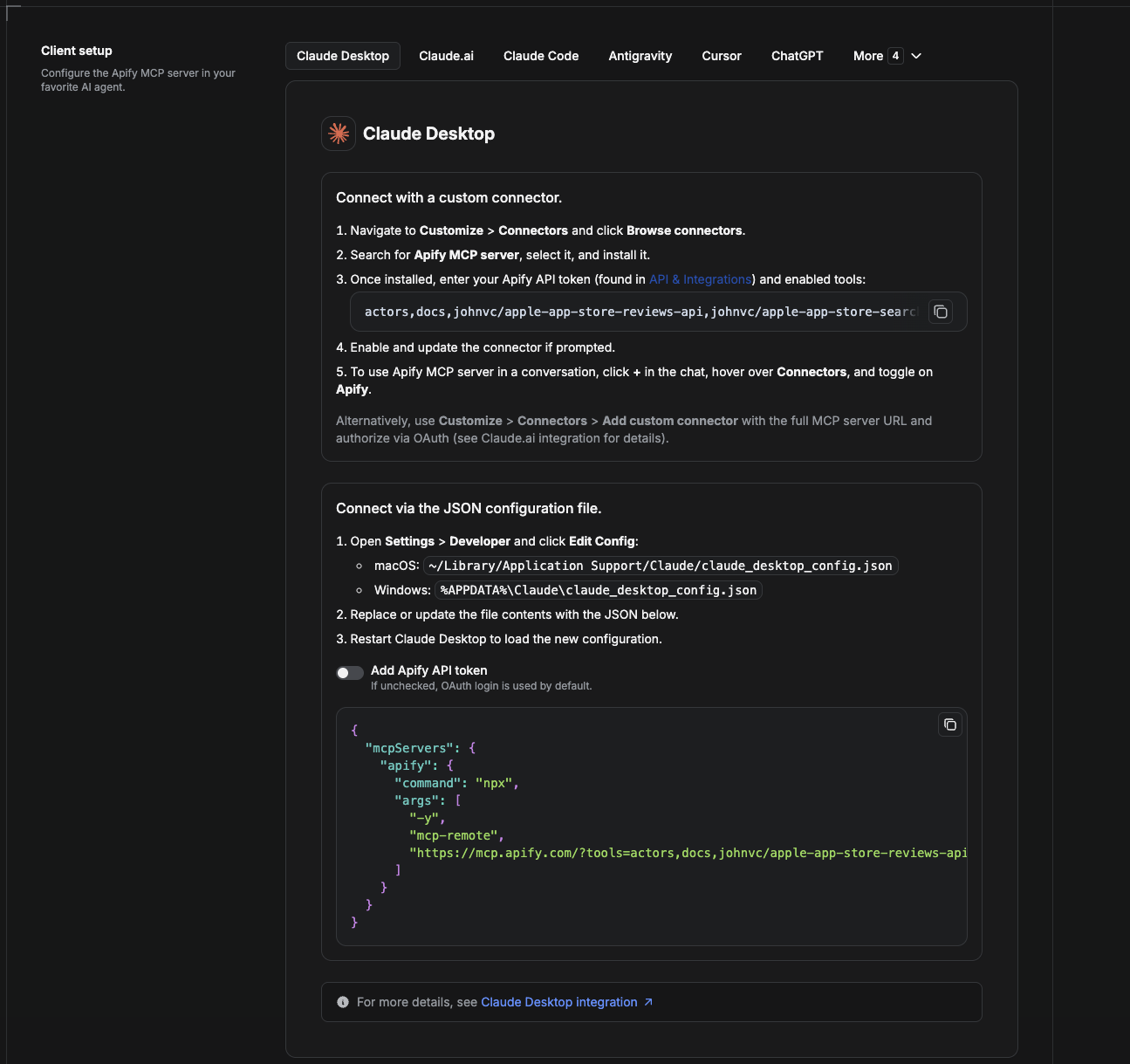
Cowork is the desktop app's automation mode. To give it the Earnings Call Transcript API as a tool, add the Apify MCP server as a connector.
- Open the Claude desktop app and go to Settings → Connectors (or Settings → Developer → Edit Config to edit
claude_desktop_config.jsondirectly).- macOS:
~/Library/Application Support/Claude/claude_desktop_config.json - Windows:
%APPDATA%\Claude\claude_desktop_config.json
- macOS:
- Add the Apify MCP server, preloaded with only this Actor:
{
  "mcpServers": {
    "apify": {
      "command": "npx",
      "args": [
        "-y",
        "mcp-remote",
        "https://mcp.apify.com/?tools=actors,docs,johnvc/earnings-call-transcript-api"
      ]
    }
  }
}- Restart the app. When Cowork first calls the tool, complete the OAuth prompt in your browser, or add your Apify API token in the connector settings to skip OAuth.
- In a Cowork chat, confirm the tool is available and ask it to run the Earnings Call Transcript API.
Download the desktop app and start a free trial: https://claude.ai/referral/uIlpa7nPLg More help: https://docs.apify.com/platform/integrations/claude-desktop
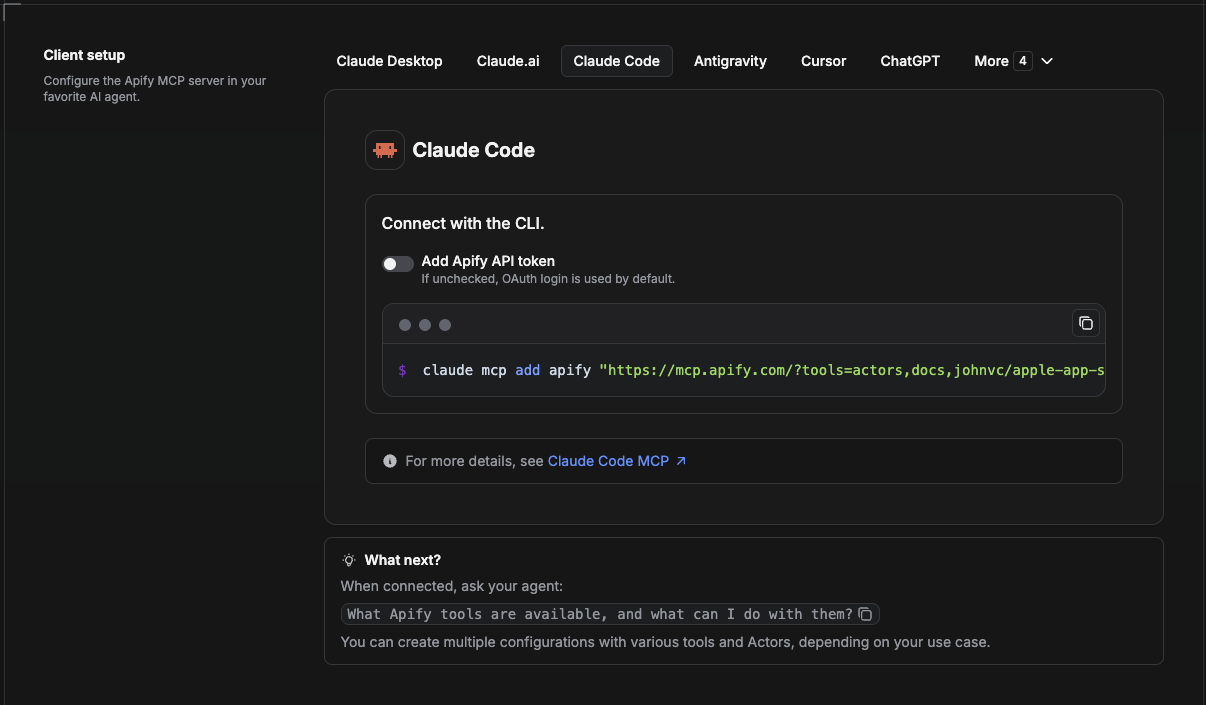
Claude Code is the command-line tool. Add the Actor's MCP server with one command:
claude mcp add --transport http apify \
  "https://mcp.apify.com/?tools=actors,docs,johnvc/earnings-call-transcript-api"
To use a token instead of browser OAuth:
claude mcp add --transport http apify \
  "https://mcp.apify.com/?tools=actors,docs,johnvc/earnings-call-transcript-api" \
  --header "Authorization: Bearer YOUR_APIFY_TOKEN"
Then verify with claude mcp list, or run /mcp inside a session. Ask Claude Code to call the Earnings Call Transcript API, for example "What guidance did NVDA give on its last earnings call?"
Try Claude Code free: https://claude.ai/referral/uIlpa7nPLg Claude Code MCP docs: https://code.claude.com/docs/en/mcp
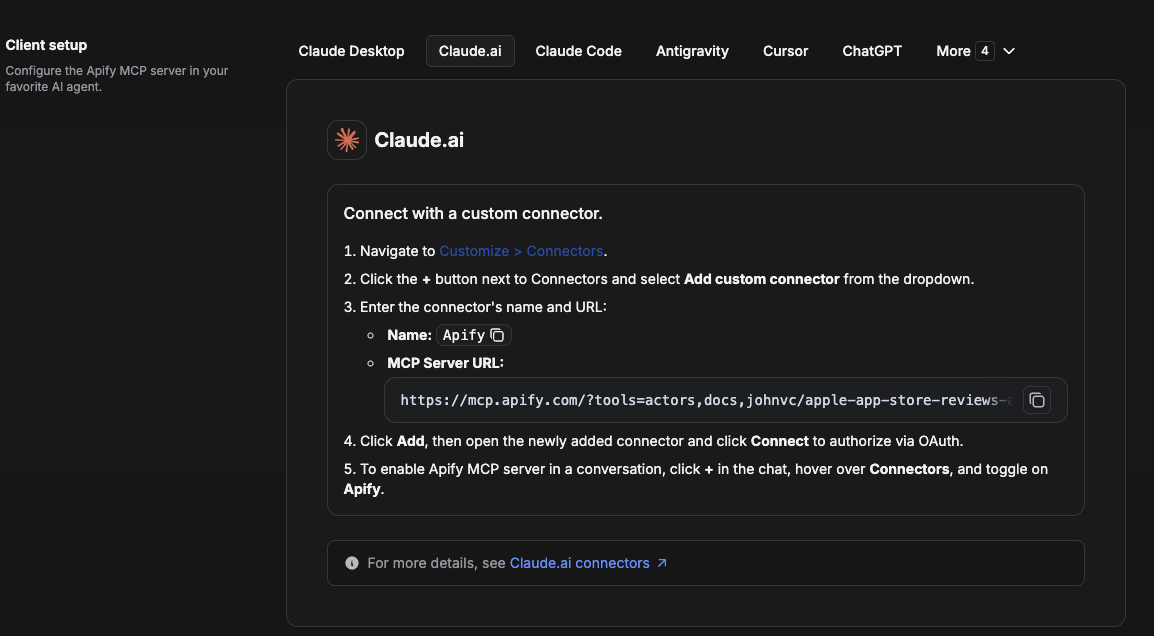
On claude.ai you add Apify as a connector, then enable just this Actor's tool.
- Go to Settings → Connectors → Browse connectors and search for Apify MCP server. Install it (enable or update if prompted).
- When connecting, authenticate with your Apify API token, and enable the tool
johnvc/earnings-call-transcript-api. - In any chat, open + → Connectors and turn on Apify.
- Alternatively, choose Add custom connector and paste the full MCP URL
https://mcp.apify.com/?tools=actors,docs,johnvc/earnings-call-transcript-api, using OAuth when prompted. - Ask Claude to run the Earnings Call Transcript API.
Open Claude on the web: https://claude.ai/referral/uIlpa7nPLg
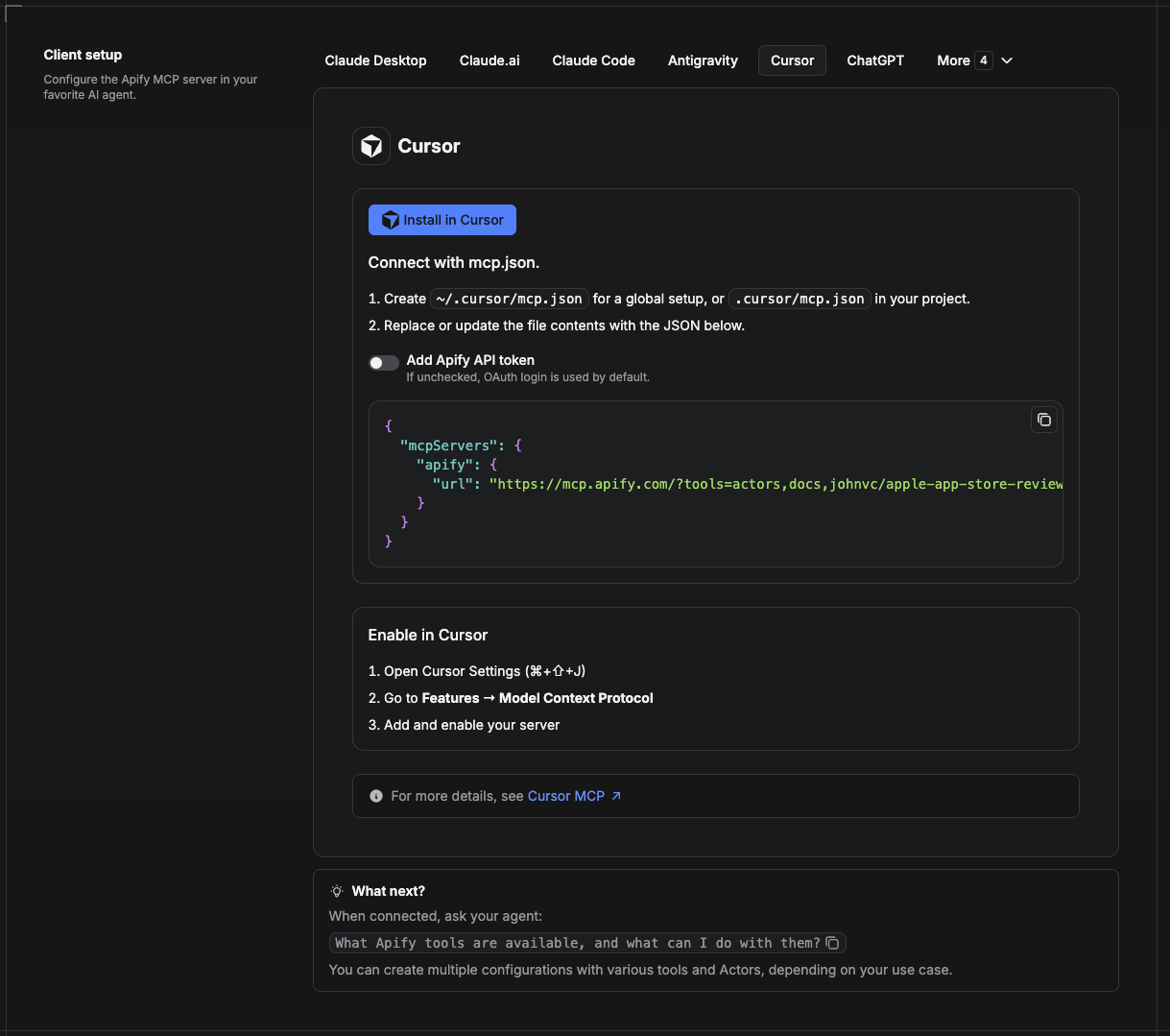
Cursor reads MCP servers from a project file at .cursor/mcp.json.
- In your project, create
.cursor/mcp.json:
{
  "mcpServers": {
    "apify": {
      "url": "https://mcp.apify.com/?tools=actors,docs,johnvc/earnings-call-transcript-api"
    }
  }
}- If you prefer token auth over browser OAuth, add a header:
{
  "mcpServers": {
    "apify": {
      "url": "https://mcp.apify.com/?tools=actors,docs,johnvc/earnings-call-transcript-api",
      "headers": { "Authorization": "Bearer YOUR_APIFY_TOKEN" }
    }
  }
}- Open Cursor → Settings → MCP and confirm the apify server is connected (green dot).
- In Composer or Chat, ask Cursor to call the Earnings Call Transcript API.
New to Cursor? Get it here: https://cursor.com/referral?code=XQP4VBLI3NNX
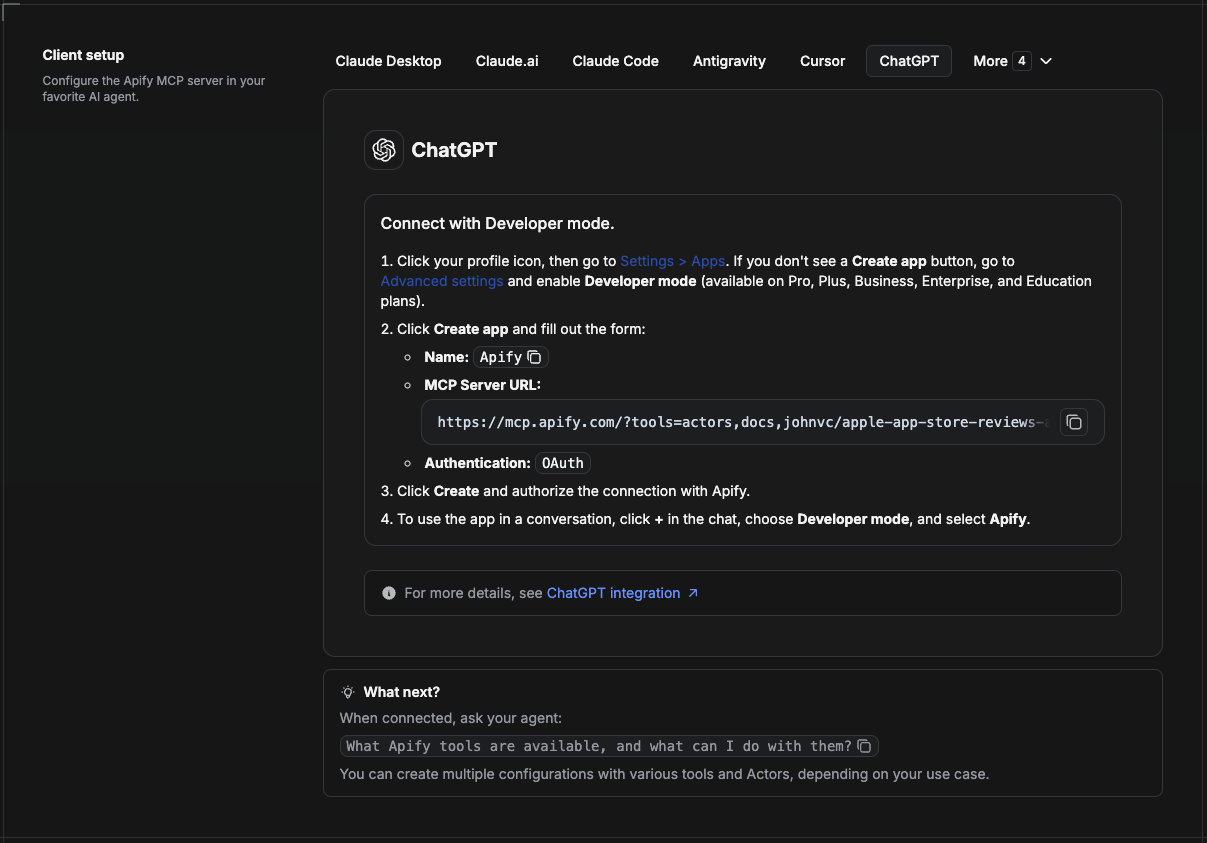
ChatGPT connects to the Apify MCP server through Developer mode (available on ChatGPT Pro, Plus, Business, Enterprise, and Education plans).
- Click your profile icon, then go to Settings > Apps. If you do not see a Create app button, open Advanced settings and enable Developer mode.
- Click Create app and fill out the form:
- Name: Apify
- MCP Server URL:
https://mcp.apify.com/?tools=actors,docs,johnvc/earnings-call-transcript-api - Authentication: OAuth
- Click Create and authorize the connection with Apify.
- To use the app in a conversation, click + in the chat, choose Developer mode, and select Apify.
More help: https://docs.apify.com/platform/integrations/mcp
Made with care by John on Apify.
Last Updated: 2026.07.14