Spatial Data Modeler 6 for ArcGIS Pro 3.0+
ArcSDM 6 is designed to work with ArcGIS Pro 3.0 and higher. The standard toolbox of ArcSDM 6 requires components that are compatible with ArcGIS Pro. Ensure you have ArcGIS Pro 3.0 or later installed to use ArcSDM 6 effectively.
If you want to work on your own data, you can download just the toolbox. If you want to try, evaluate and experiment with ArcSDM you can download our demodata separately from the main package.
ArcSDM wiki contains a howtopage: https://github.com/gtkfi/ArcSDM/wiki/Howto-start
- Install by cloning or downloading the toolbox
Click "Clone or download" and select the suitable download option for you. "Download Zip" is the safe and easy choice, just open the zip in a place where ArcGIS Pro has access in your computer. - Add the toolbox to ArcGIS Pro
- In ArcGIS Pro, add the toolbox from
Insert->Toolbox->Add Toolbox - Find your ArcSDM install location and select
ArcSDM.pytfrom theToolbox-folder
- In ArcGIS Pro, add the toolbox from
- Install the Python environment
See Setting up the Python environment for instructions.
Video guide
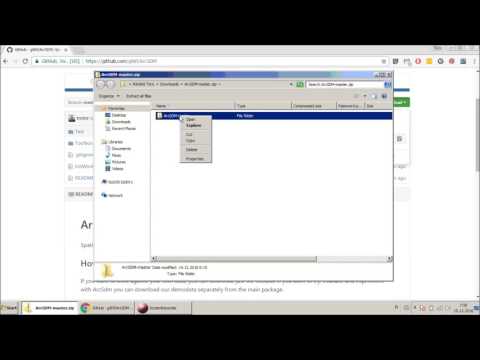
ArcSDM 6 is designed for:
- ArcGIS Pro: Version 3.0 or higher
- Python Environment: Python 3.9 or later (managed through ArcGIS Pro's Conda environment)
Download the demodata as a zip package from our demodata git repository https://github.com/gtkfi/demodata. You can download the release file from here https://github.com/gtkfi/demodata/releases/download/v1.0/ArcSDM_Demodata.zip
Open and save the zip optionally to your ArcSDM toolbox installation folder as "Data" folder. Then click "initworkdir.bat" to create (or overwrite older) working copy.
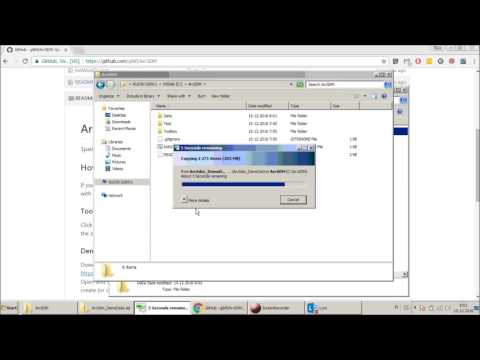
How to use Python environments in ArcGIS Pro
You can set up the Python environment for ArcSDM by cloning the default arcgispro-py3 environment and installing the dependencies in the cloned environment.
Alternatively, you can download Esri's ArcGIS Deep Learning Libraries Installer and use it to safely install the dependencies to the default arcgispro-py3 environment.
-
Clone the Environment
- Open ArcGIS Pro.
- Navigate to
Project->Package Manager. - In the right side of the screen, click on the gear icon to access the
Environment Manager. - Clone the default
arcgispro-py3environment to a file location to which you have access rights. It is recommended to clone the environment to a location inside your user folder, for exampleC:\Users\<username>\<path_to_a_folder>\arcgispro-py3-clone.
-
Change ArcGIS Pro to use the cloned environment:
- Set ArcGIS Pro to use the cloned environment instead of the default
arcgispro-py3environment.
- Set ArcGIS Pro to use the cloned environment instead of the default
-
Install the dependencies
Required Python packages:- TensorFlow
- Scikit-learn
- Imbalanced-learn
Some of the packages compatible with older ArcGIS Pro versions are not available through the Package Manager. In that case, it is recommended to install them through the Python Command Prompt that comes with ArcGIS Pro installation. You can find the correct versions of scikit-learn and TensorFlow for your ArcGIS Pro version from the Deep Learning Libraries included packages section. For imbalanced-learn, find the version that corresponds to your scikit-learn version on the releases page.
A. Install using ArcGIS Python Command Prompt
conda install -n <env-name> tensorflow=2.13 scikit-learn=1.4.2 imbalanced-learn=0.12.3 -y- an example for ArcGIS Pro 3.2.
B. Install using ArcGIS Package Manager
From the Package Manager, choose "Add Packages" and search for the correct packages

Sometimes packages do not install due to Proxy settings. Please retry, turn off your VPN or contact your organizations IT Help to enable the installation.
-
Restart ArcGIS Pro
Close and reopen ArcGIS Pro to apply the changes.


Keep in mind that the installer also contains packages not used by ArcSDM, so the download size will be larger than with the manual install.
- Download ArcGIS Deep Learning Libraries
Download the ArcGIS Deep Learning Libraries Installer for your current ArcGIS Pro version. - Follow the installation instructions
- Unzip the file and run the
ProDeepLearning.msiinstaller. - Complete instructions can be found here
- Unzip the file and run the
- Restart ArcGIS Pro
Close and reopen ArcGIS Pro to apply the changes.
If you encounter issues due to proxy settings, retry the installation or contact your IT support for assistance.
By following these steps, you will have the necessary environment set up to use ArcSDM with ArcGIS Pro.
If dependencies fail to install, verify that:
- You are using the correct Python environment for ArcGIS Pro
- The dependencies you are installing are compatible with your ArcGIS Pro version
Some versions for dependencies are not available through ArcGIS package manager.
This means you will have to install the dependencies either using the Python Command Prompt that comes with your ArcGIS Pro download or the ArcGIS Deep Learning Libraries Installer
Ensure that the toolbox file (ArcSDM.pyt) is in a folder accessible to ArcGIS Pro and that it’s properly added to the project.
This is often caused by issues in the Python environment. Try installing the environment again and ensure the versions of packages are compatible with each other and your ArcGIS Pro version.
For error messages or unexpected behavior, check the ArcGIS Pro Geoprocessing > History pane for details.