A GUI tool to merge images/videos from multiple folders, remove duplicates with SHA-256, and rename files into a clean sequential format.
Current app version: 1.1.0
- Merge media from multiple input folders into one output folder
- De-duplicate files using
SHA-256 + file extension - Supports 5 operation modes
copy_keep: copy only, keep source filescopy_delete: copy, then delete source filesmove: move files from input to outputmain_folder: organize the output folder first, then optionally merge imported foldersinside_folder: organize media already inside the selected folder
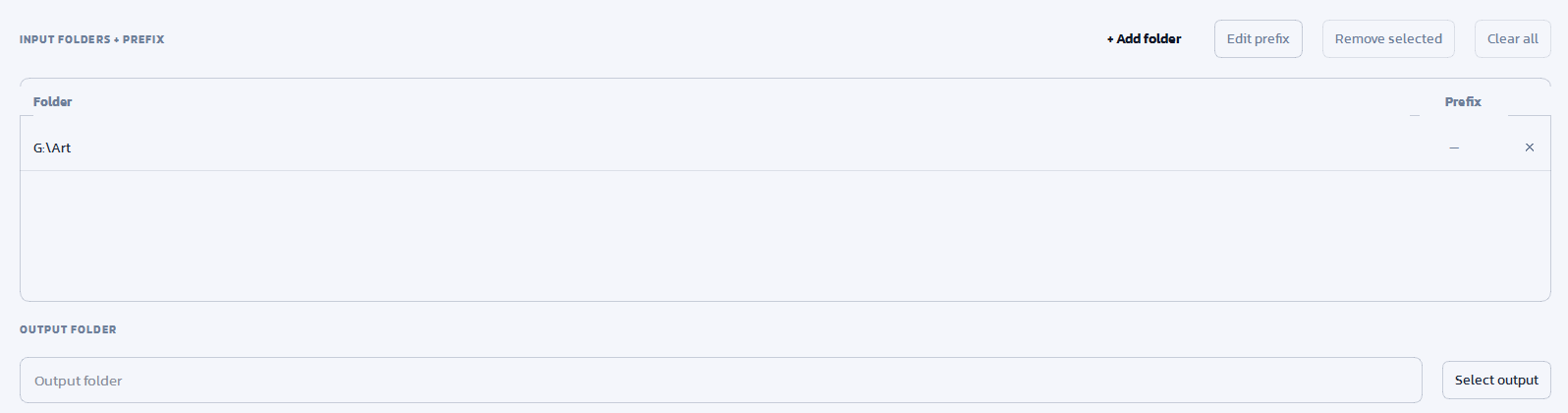
- Set a per-folder
prefix - Rename files as
prefix-0001.jpgor0001.jpg - Keep output ordered with deterministic extension groups: images first, videos last
- Image sorting groups extensions first:
.png,.jpg,.jpeg,.webp,.bmp,.gif,.tiff - Within each extension group, numeric names such as
1.png,02.png,10.png, and1(1).jpgare sorted by their number before final renaming - Safe temp workspace is enabled by default to stage output changes before applying them
- New desktop UI built with
PySide6 - Native builds with
Nuitka
- Python 3.10+ (recommended)
- OS-specific native builds are supported on Windows, Linux, and macOS
pip install -r requirements.txtPrebuilt packages are published in GitHub Releases:
- Release page:
https://github.com/TamKungZ/ImageMergePy/releases
- Microsoft Store:
https://apps.microsoft.com/detail/9ndnkpjpzt67 - WinGet:
winget install TamKungZ.ImageMerge- Download and run
ImageMerge-windows-x64.msi - Or portable folder: extract
ImageMerge-windows-x64.zip, then runImageMerge.exe - Or portable single executable: download
ImageMerge-windows-x64-portable.exe - Microsoft Store submission asset is also generated as
ImageMergeGUI-windows-x64.msix - WinGet automation is configured for package id
TamKungZ.ImageMerge
- Debian/Ubuntu/Zorin: install
ImageMerge-linux-x64.deb
sudo apt install ./ImageMerge-linux-x64.deb- Fedora/RHEL/openSUSE: install
ImageMerge-linux-x64.rpm
sudo rpm -Uvh ./ImageMerge-linux-x64.rpm- AppImage: download
ImageMerge-linux-x64.AppImage
chmod +x ImageMerge-linux-x64.AppImage
./ImageMerge-linux-x64.AppImage- Flatpak bundle:
ImageMerge-linux-x64.flatpak - Snap artifact:
ImageMerge-linux-x64.snap(store publishing workflow is configured)
brew tap TamKungZ/tap
brew install --cask imagemerge- App bundle zip:
ImageMerge-macos-app-arm64.ziporImageMerge-macos-app-x64.zip - Binary zip:
ImageMerge-macos-binary-arm64.ziporImageMerge-macos-binary-x64.zip - Homebrew cask publishing workflow is configured (
imagemerge)
python MainApp.pyUse CLI mode without opening GUI:
python MainApp.py --cli --input "/path/to/folderA::full" --input "/path/to/folderB::short" --output "/path/to/output" --mode copy_keepImageMerge --cli --input "/path/a::full" --input "/path/b::short" --output "/path/out" --mode copy_keepCLI options:
--input PATH[::PREFIX](repeatable)--output PATH--mode copy_keep|copy_delete|move|main_folder|inside_folder--clear-output--remove-duplicates--no-safe-temp--lang ar|de|en|es|fr|id|ja|ko|ru|th|vi|zh
In packaged builds, run the same options directly from the app binary (Windows/Linux/macOS).
ImageMerge assigns output numbers after sorting media in a stable, predictable order:
- Images are processed before videos.
- Image files are grouped by extension in this order:
.png,.jpg,.jpeg,.webp,.bmp,.gif,.tiff. - Files inside the same extension group are sorted by numeric filename when possible.
- Existing prefixes are preserved when reorganizing files already named like
trip-0001.jpg. - Video files use their own extension order after images.
Example:
1.png      -> 0001.png
02.png     -> 0002.png
10.png     -> 0003.png
12.png     -> 0004.png
1.jpg      -> 0005.jpg
1(1).jpg   -> 0006.jpg
1.webp     -> 0007.webp
This means modified date will not cause .webp files to jump before .png or .jpg groups during normal merge numbering.
MainApp.py is kept as the launch entry point. The application code is split under src/media_merge/:
config.py: metadata, constants, fonts, language discoverymedia_ops.py: media scanning, sorting, duplicate detection, renaming, copy/move logiccli.py: command-line interfaceworker.py: Qt worker thread wrapperui/app.py: main PySide6 windowui/widgets.py: reusable UI widgets
Install dependencies first:
pip install -r requirements.txtThen use the build scripts (or run python build_nuitka.py directly):
./build.shbuild.batBuild step will auto-generate embedded_locales.py from locales/*.json before compiling.
Windows build also reads app_metadata.json and injects version/company/product metadata into the executable.
build_nuitka.py detects the current OS and builds native output:
- Windows: PE executable (
ImageMerge.exe) underdist/windows/ImageMerge.dist/- Local
build.batalso builds a portable onefile executable atdist/windows-onefile/ImageMerge.exe
- Local
- Linux: ELF binary (
ImageMerge) underdist/linux/ImageMerge.dist/ - macOS:
- Mach-O binary under
dist/macos-binary/ImageMerge.dist/ .appbundle underdist/macos-app/ImageMerge.app
- Mach-O binary under
Note: cross-compiling to another OS is not configured; run the build on each target OS.
Architecture notes:
- Default CI runners currently publish x64 artifacts.
- The build scripts recognize these architecture labels:
x86,x64,arm,arm64. - To declare a target architecture in local/self-hosted builds, set
IMAGEMERGE_TARGET_ARCH(cross-compilation toolchains are not auto-configured).
Default build mode is standalone for reliability.
To force onefile mode (experimental on some Windows + Python/Nuitka versions):
$env:IMAGEMERGE_ONEFILE=1
./build.bat
If onefile fails during payload step, update packaging deps and retry:
python -m pip install -U "Nuitka[onefile]" zstandardAlso exclude your build folder from Windows Defender/antivirus scan during build.
Set app metadata in app_metadata.json:
company_name,product_name,file_descriptionfile_version,product_versionicon_ico(optional.icopath)
Optional signing is supported during build:
$env:IMAGEMERGE_SIGN=1
$env:IMAGEMERGE_SIGN_PFX="C:\secure\codesign.pfx"
$env:IMAGEMERGE_SIGN_PASSWORD="<pfx-password>"
$env:IMAGEMERGE_SIGN_TIMESTAMP="http://timestamp.digicert.com"
./build.bat
For better SmartScreen reputation in production:
- Use a valid OV/EV code-signing certificate (EV is fastest for reputation).
- Keep publisher name consistent across releases.
- Sign both executable and installer.
- Avoid frequent publisher/certificate changes.
- UI translations are embedded in code (no external locale files required at runtime).
- Source translation files are in
locales/en.jsonandlocales/th.json; embedded module is generated toembedded_locales.py. - Kanit fonts are embedded in code and loaded at runtime (no external font files required at runtime).
- Set
IMAGEMERGE_LANG=enorIMAGEMERGE_LANG=thto force language.
|

|

|
|
By TamKungZ_