Initialized by Azure Data Factory!
This project is a POC for testing the functionalities of Azure Data Factory in order to adapt with the requirements from the problem statement.
Azure Data Factory is a cloud-based data integration service for creating ETL (Extract, Transform and Load) and ETL pipelines. It allows users to create data processing workflows in the cloud, either through a graphical interface or by writing code, for orchestrating and automating data movement and data transformation. It is possible to build complex ETL processes that transform data visually with data flows or by using compute services such as Azure HDInsight Hadoop, Azure Databricks, and Azure SQL Database.
- Create, run and manage pipelines for data transfer between Azure Virtual Machine (simulation of the edge machine at the factories) and Azure Blob storage.
- After successfully transfer data from Azure Virtual Machine to Blob Storage, the blob filenames need to be extracted, then inserted into Azure SQL database table. The blob filenames being inserted into the table as per the following columns format:
For example, blob file name
RUSPE1ROW1ST_00000000_20200323-065617_back_camera_0.jpeg
- RU is CountryCode (corresponds to Russia)
- SPE is City (corresponds to Saint Petersburg)
- RUSPE1ROW1ST is ProductionLine
- 00000000 is Barcode
- 20200323 is Date
- 065617 is Number of Seat
- back_camera is Camera Position
- Automation of the pipeline to be able to check the state of the last pipeline run.
- Required to have Azure Virtual Machine with Windows Server to host Azure Data Factory.
- On the Azure Windows VM, some production raw data were copied into this VM to simulate the scenario of raw data at the edge machine. We use azcopy tool to perform the data transfer from Blob storage to Azure VM.
azcopy copy "https://
storage-account-name.blob or dfs.core.windows.net/container-name/blob-path?SASToken" "local-file-path" --recursive
- Once we have the raw data on Azure Windows VM, we create different pipelines to transfer these data to test container on Azure Blob Storage, media-dfpoc1.
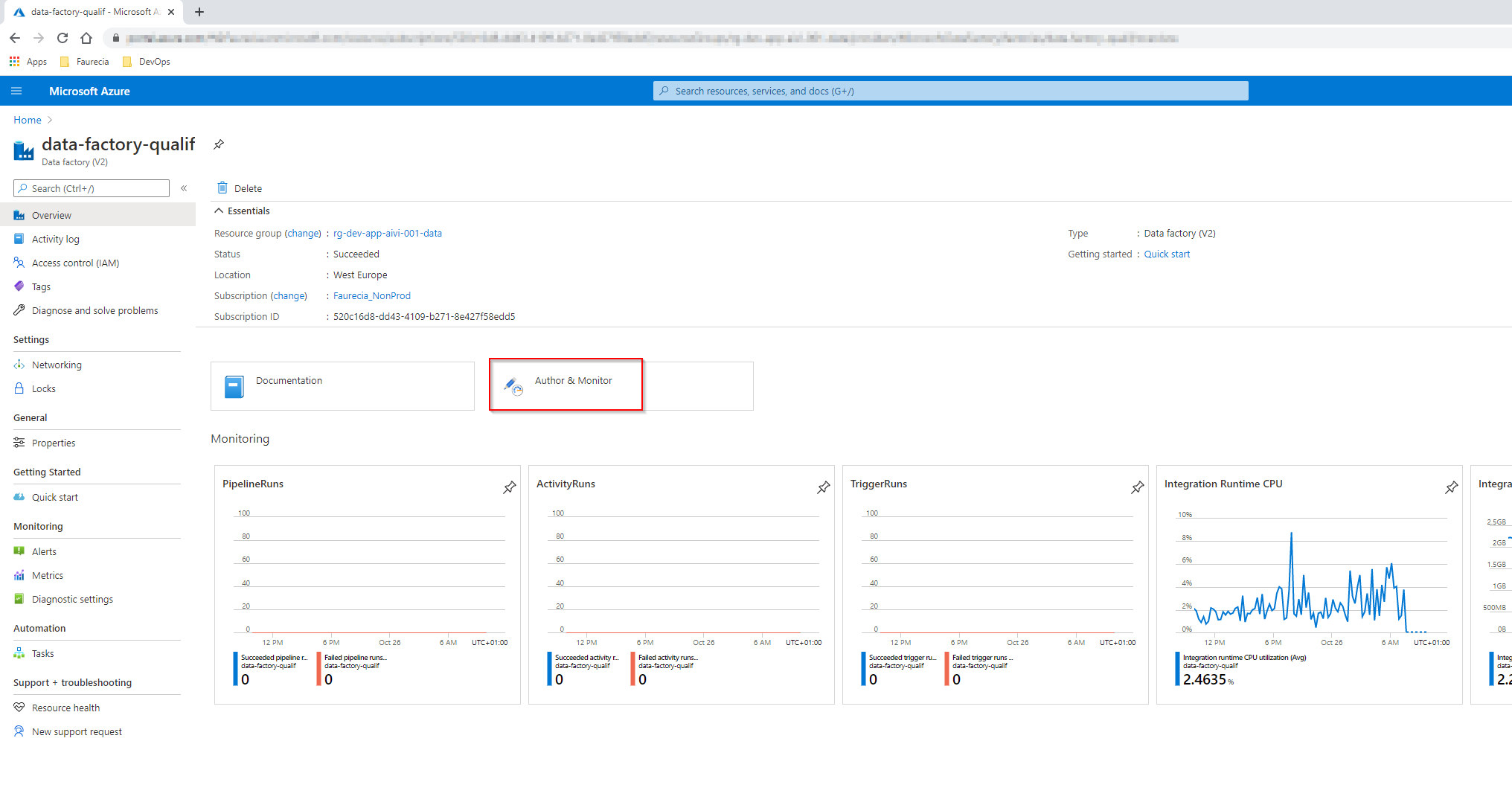
- Navigate to Azure Data Factory portal, data-factory-qualif. This Azure Data Factory is running on the Windows Server Virtual Machine. Click on Author & Monitor to open the editor mode of Azure Data Factory.
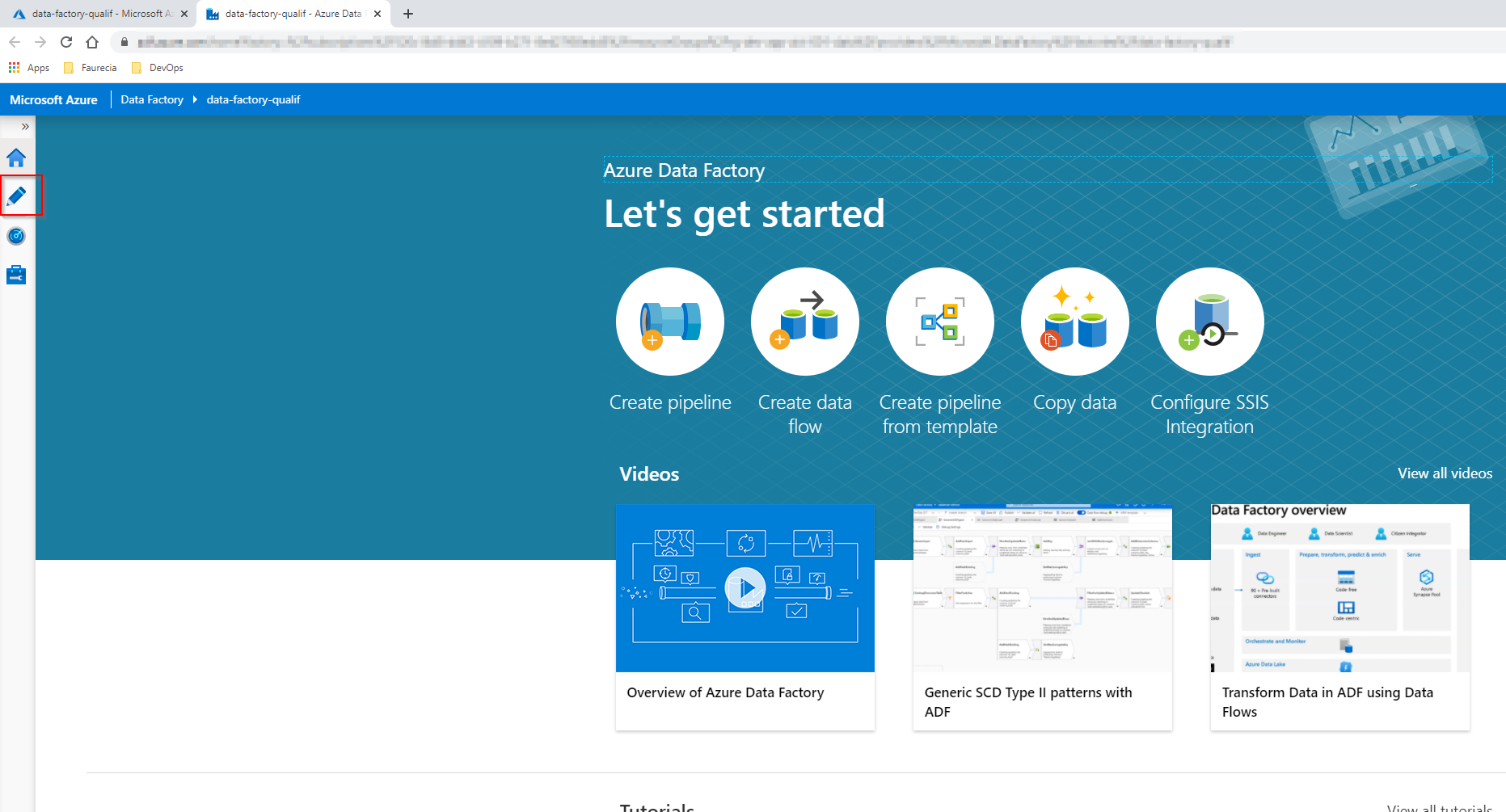
- Navigate to Author menu on the left to view and edit Azure Data Factory Pipeline
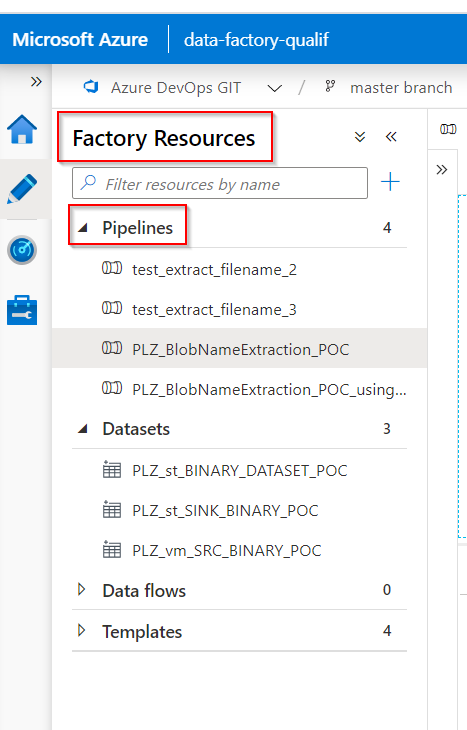
- Under the left menu
Factory Resourcesis where you can find all the available pipelines.
For this project, I propose 2 solutions for Blob filenames extraction and insert into SQL tables.
Solution 1 Using Azure Data Factory Functions and Expression in Combination with the Stored Procedure
More details about Expressions and Functions in Azure Data Factory
- For this solution, we have to open the pipeline
PLZ_BlobNameExtraction_POC
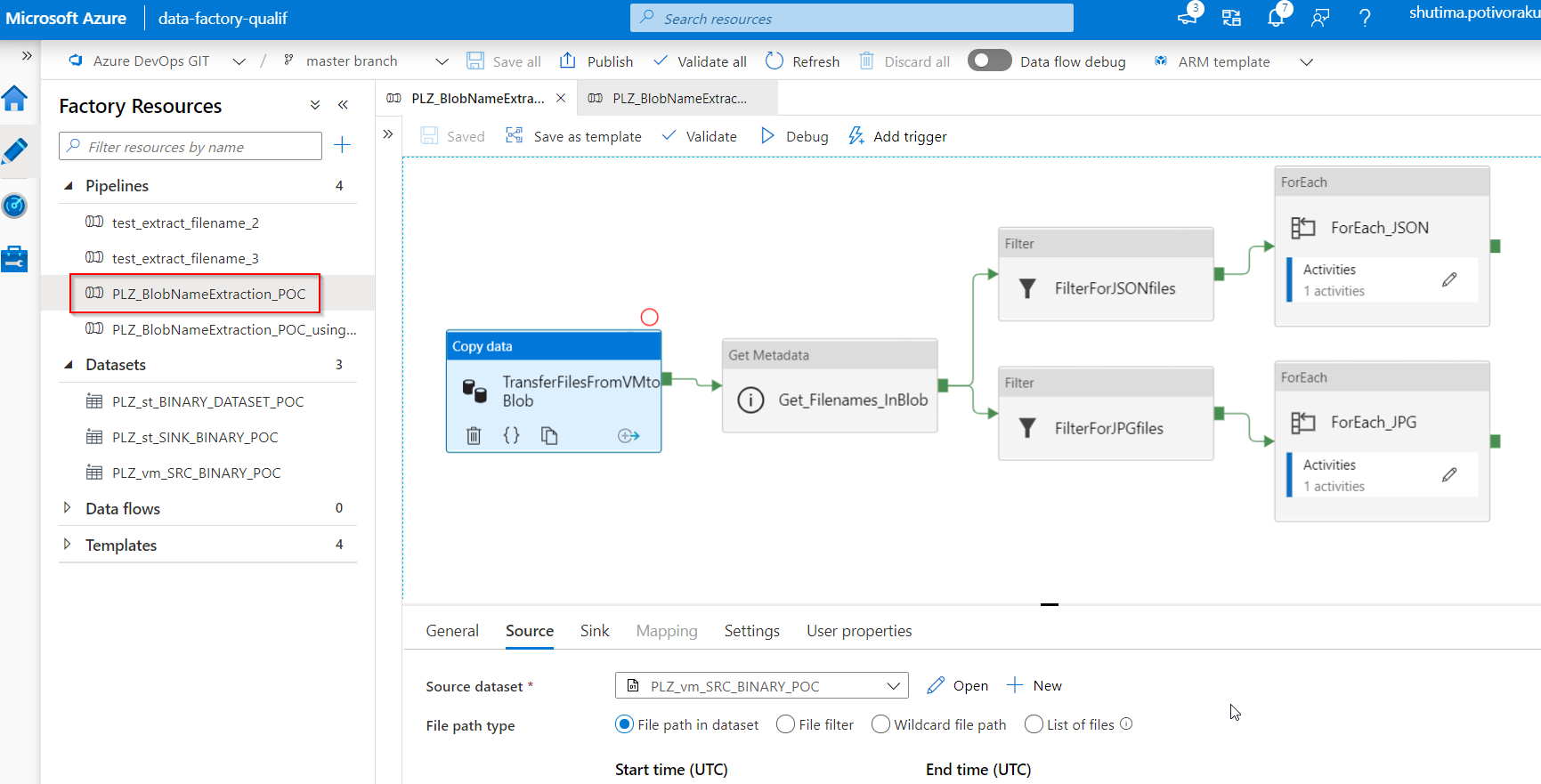
This pipeline has the following workflow:
-
TransferFilesFromVMtoBlob: this will copy all binary files (both *jpeg and *json files) from File System in Azure Virtual Machine (act like an Edge Machine at the Factory). Then, it will transfer these binary files to Blob storage at a specific location, output
-
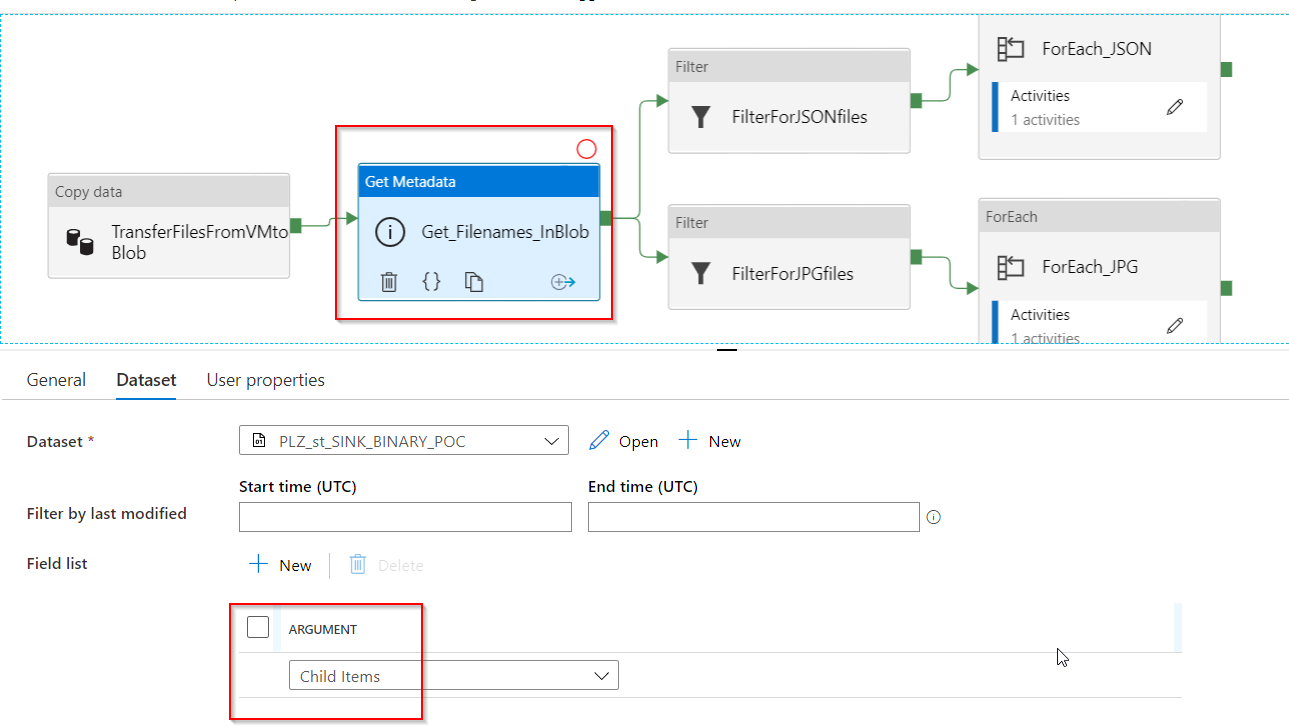
Get_Filenames_InBlob: this will take the dataset in the above output folder, output, then it will get their metadata,
Child Items. With this metadata options, the activity will retrieve the list of subfolders and files in the given folder. The returned value is a list of the name and type of each child item. More details on Get Metadata activity in Azure Data Factory
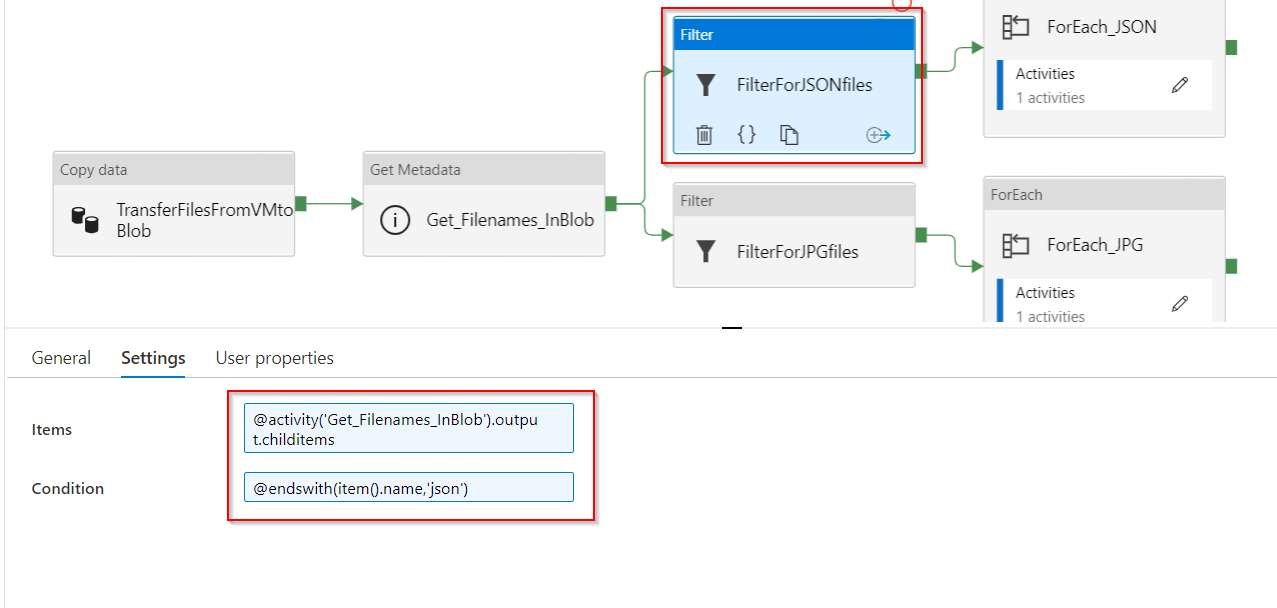
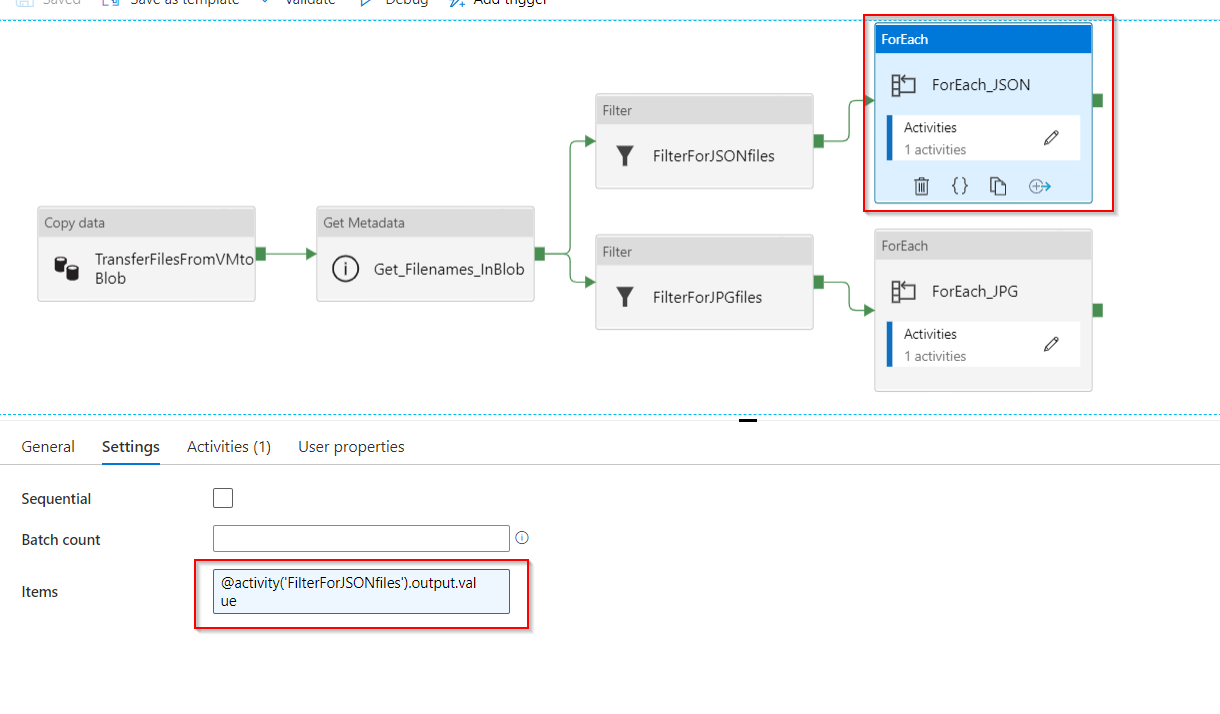
- FilterForJSONfiles: this filter activity will filter for *json files. It uses the same logic as the previous Filter activity.
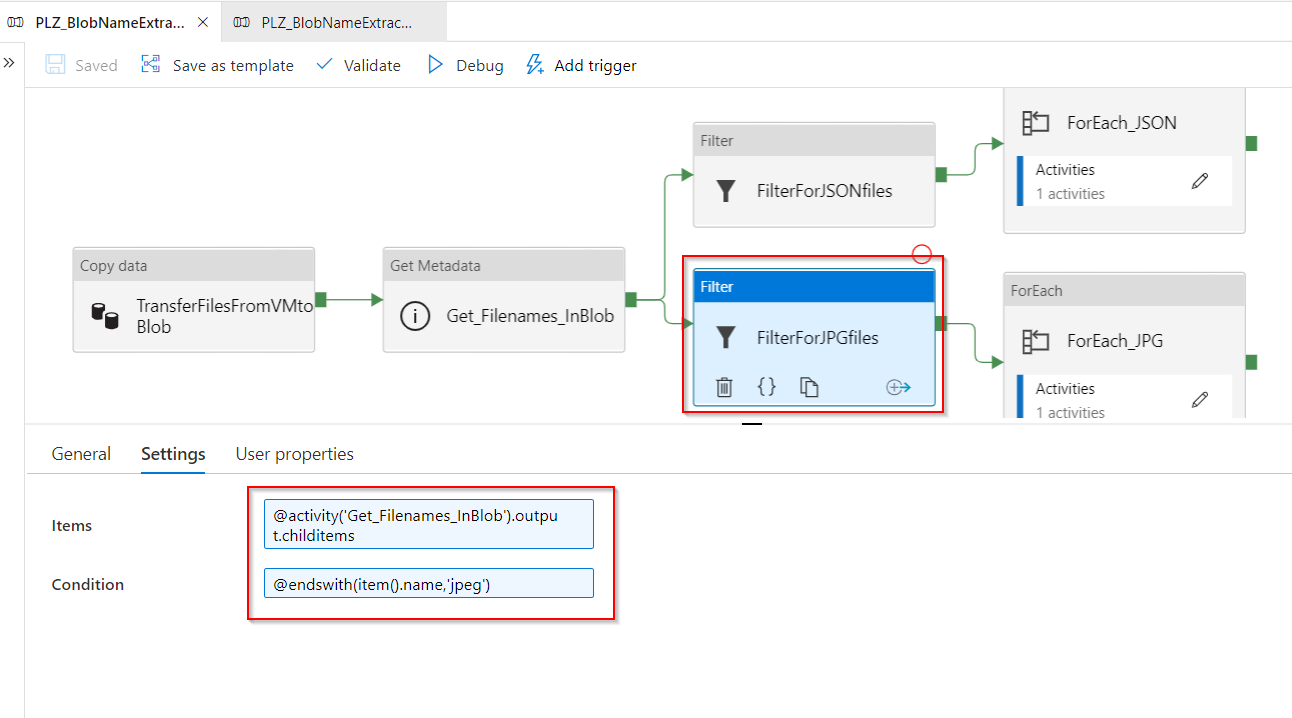
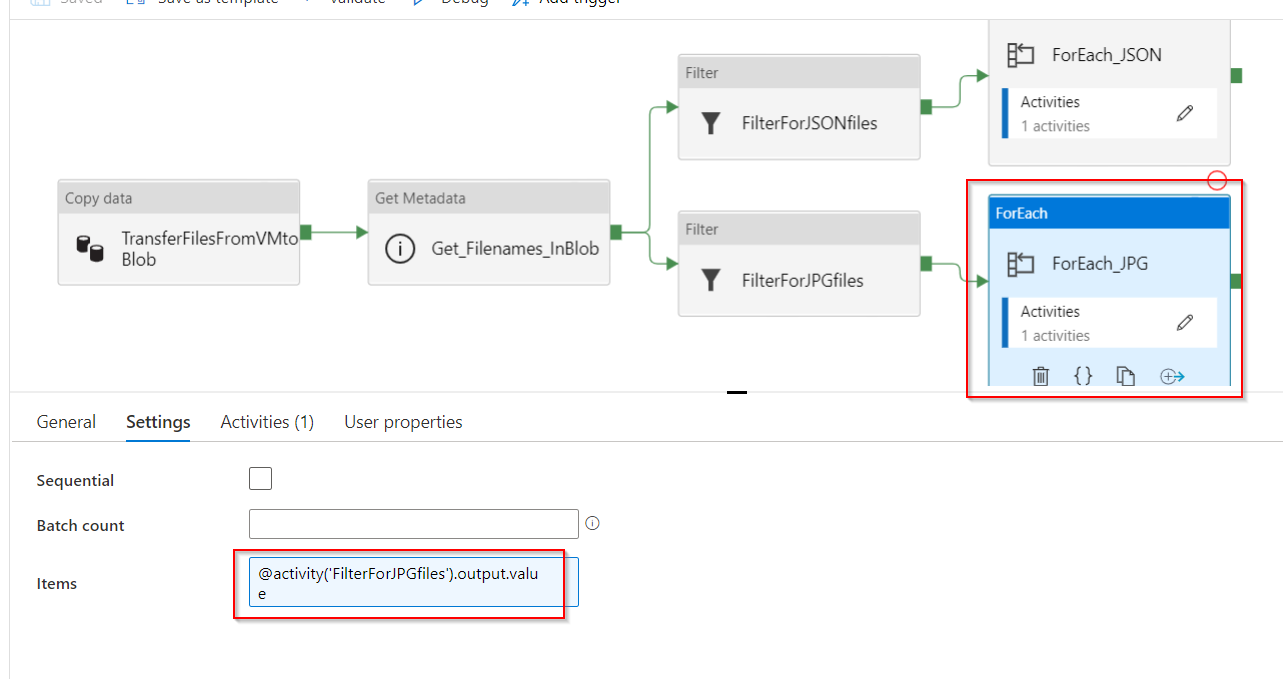
- FilterForJPGfiles: this filter activity will filter for *jpeg files. It takes as an input the output.childitems from the previous Get Metadata activity. And, it uses ADF build-in expression
endswithto filter for the image files.
-
ForEach_JPG: this activity contains:
- Input Settings: it takes as an input the output of child items from the previous Get Metadata activity with the expression:
@activity('FilterForJPGfiles').output.value
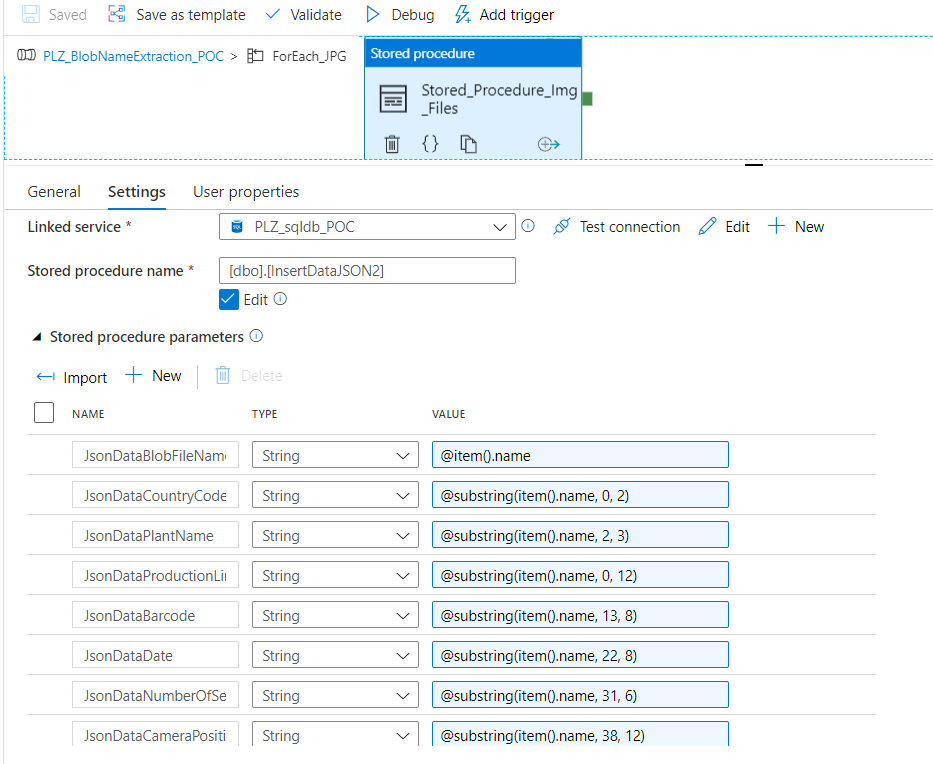
- Activities: there is only 1 activity in the ForEach_JPG, which is the Stored_Procedure_Img_Files. This Stored Procedure activity is connected to the linked service Azure SQL Database and uses the pre-written stored procedure called
InsertDataJSON2in order to insert the Blob filenames into SQL Database table. It also uses Azure Data Factory Expression to extract different parts of Blob filename and insert them into the correct columns usingsubstringfunction.
This is the stored procedure
InsertDataJSON2/****** Object: StoredProcedure [dbo].[InsertDataJSON2] Script Date: 26/10/2020 11:19:51 ******/ SET ANSI_NULLS ON GO SET QUOTED_IDENTIFIER ON GO CREATE OR ALTER PROCEDURE [dbo].[InsertDataJSON2] ( @JsonDataBlobFileName NVARCHAR (MAX), @JsonDataCountryCode NVARCHAR (MAX), @JsonDataPlantName NVARCHAR (MAX), @JsonDataProductionLine NVARCHAR (MAX), @JsonDataBarcode NVARCHAR (MAX), @JsonDataDate NVARCHAR (MAX), @JsonDataNumberOfSeat NVARCHAR (MAX), @JsonDataCameraPosition NVARCHAR (MAX) ) AS BEGIN IF NOT EXISTS (SELECT * FROM extractFileNameTest2 e WHERE e.BlobFileName = @JsonDataBlobFileName) INSERT INTO extractFileNameTest2 values (@JsonDataBlobFileName, @JsonDataCountryCode, @JsonDataPlantName, @JsonDataProductionLine, @JsonDataBarcode, @JsonDataDate, @JsonDataNumberOfSeat, @JsonDataCameraPosition) END
-
ForEach_JSON: this activity contains:
- Input Settings: it takes as an input the output of child items from the previous Get Metadata activity with the expression:
@activity('FilterForJSONfiles').output.value
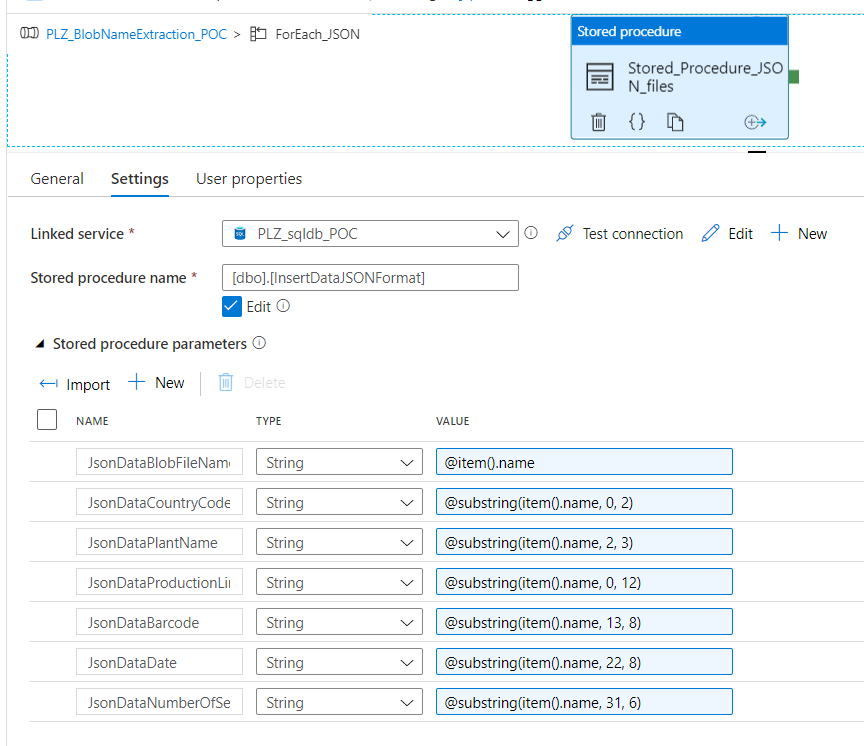
- Activities: there is only 1 activity in the ForEach_JSON, which is the Stored_Procedure_JSON_files. This Stored Procedure activity is connected to the linked service Azure SQL Database and uses the pre-written stored procedure called
InsertDataJSONFormat. This stored procedure is different than the previous one because all json dataset filenames do not contain the camera position. Therefore, we need to manage json files separately.
This is the stored procedure
InsertDataJSONFormat/****** Object: StoredProcedure [dbo].[InsertDataJSONFormat] Script Date: 26/10/2020 11:20:56 ******/ SET ANSI_NULLS ON GO SET QUOTED_IDENTIFIER ON GO CREATE OR ALTER PROCEDURE [dbo].[InsertDataJSONFormat] ( @JsonDataBlobFileName NVARCHAR (MAX), @JsonDataCountryCode NVARCHAR (MAX), @JsonDataPlantName NVARCHAR (MAX), @JsonDataProductionLine NVARCHAR (MAX), @JsonDataBarcode NVARCHAR (MAX), @JsonDataDate NVARCHAR (MAX), @JsonDataNumberOfSeat NVARCHAR (MAX) ) AS BEGIN IF NOT EXISTS (SELECT * FROM extractFileNameTest2 e WHERE e.BlobFileName = @JsonDataBlobFileName) INSERT INTO extractFileNameTest2 values (@JsonDataBlobFileName, @JsonDataCountryCode, @JsonDataPlantName, @JsonDataProductionLine, @JsonDataBarcode, @JsonDataDate, @JsonDataNumberOfSeat, DEFAULT) END
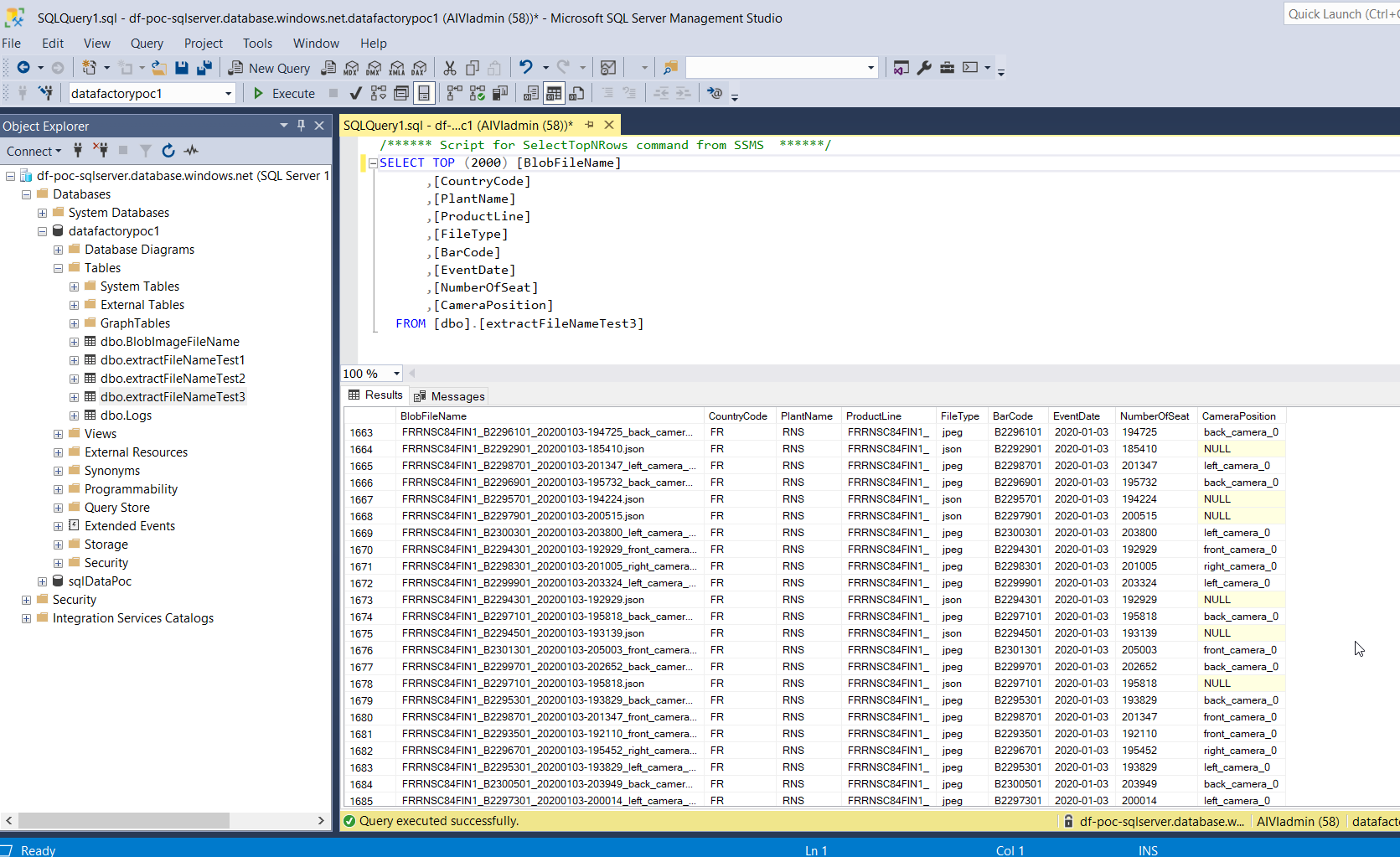
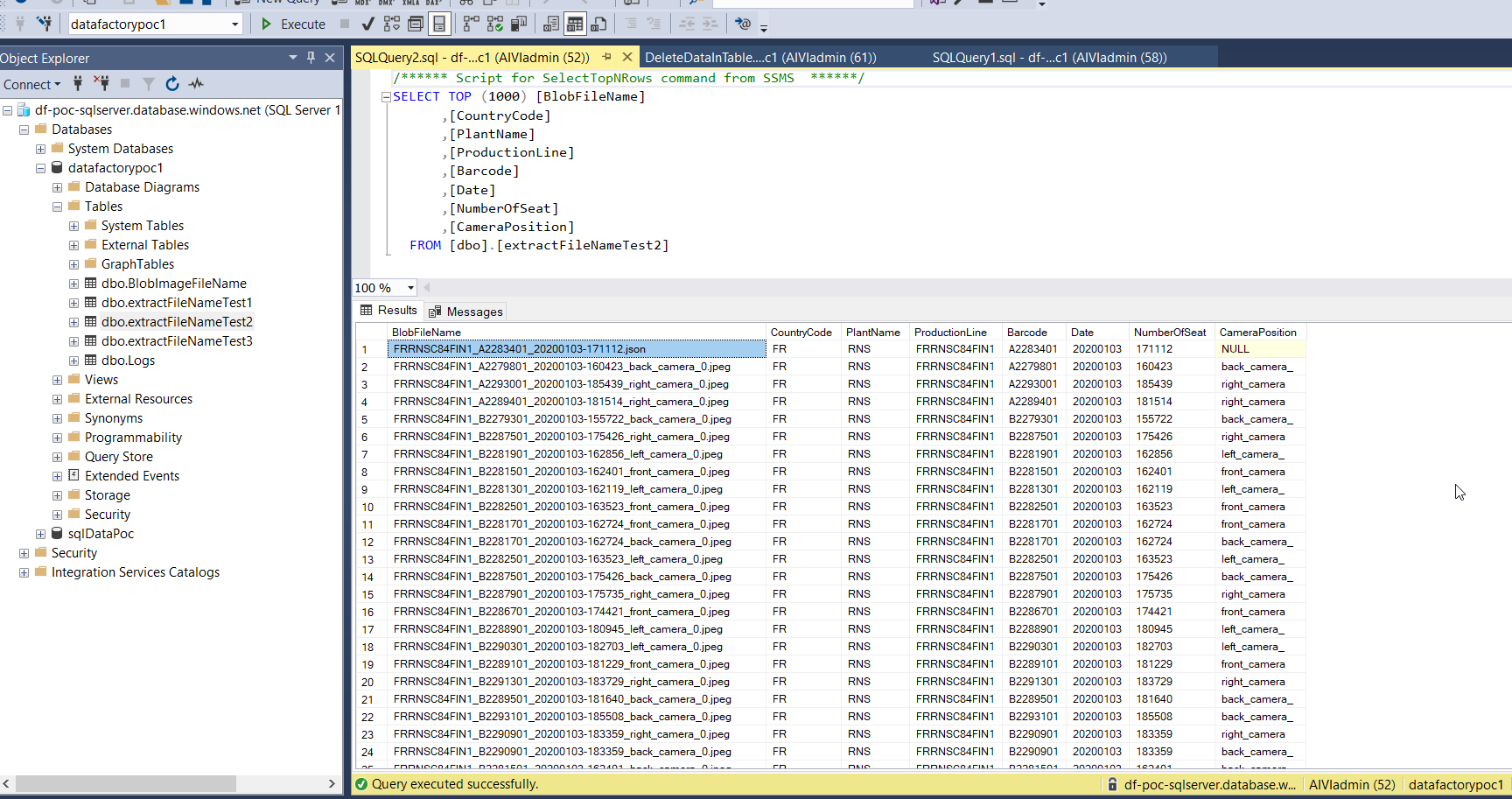
Solution 1 - Result: Here is the final SQL table displaying the Blob filenames extraction and insertion into the corresponding column names. Notice that the stored procedure avoids the insertion of duplicate Blob filenames.
- For this solution, we have to open the pipeline
PLZ_BlobNameExtraction_POC_usingSQL
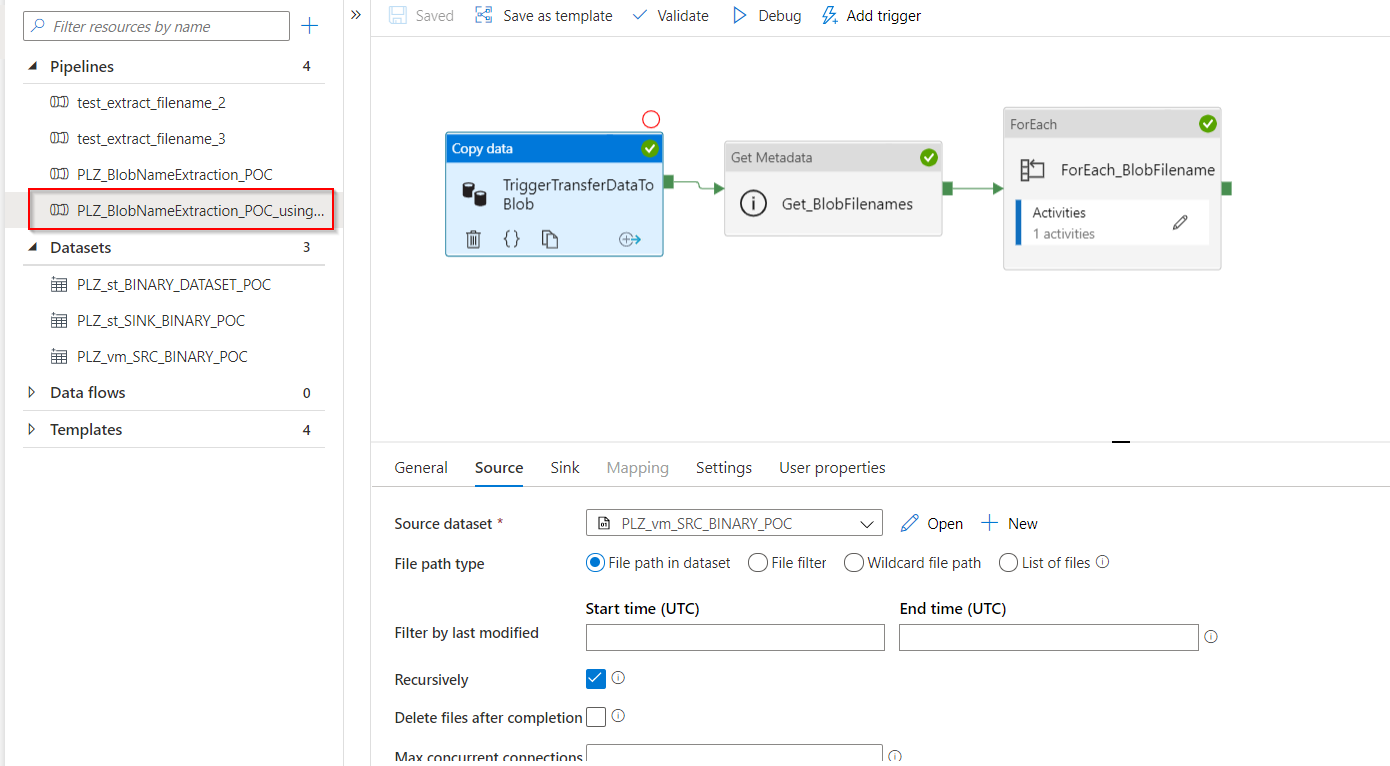 This pipeline contains the following workflow:
- TriggerTransferDataToBlob: this Copy Data activity will transfer all dataset from file system on Azure Virtual Machine to Blob storage
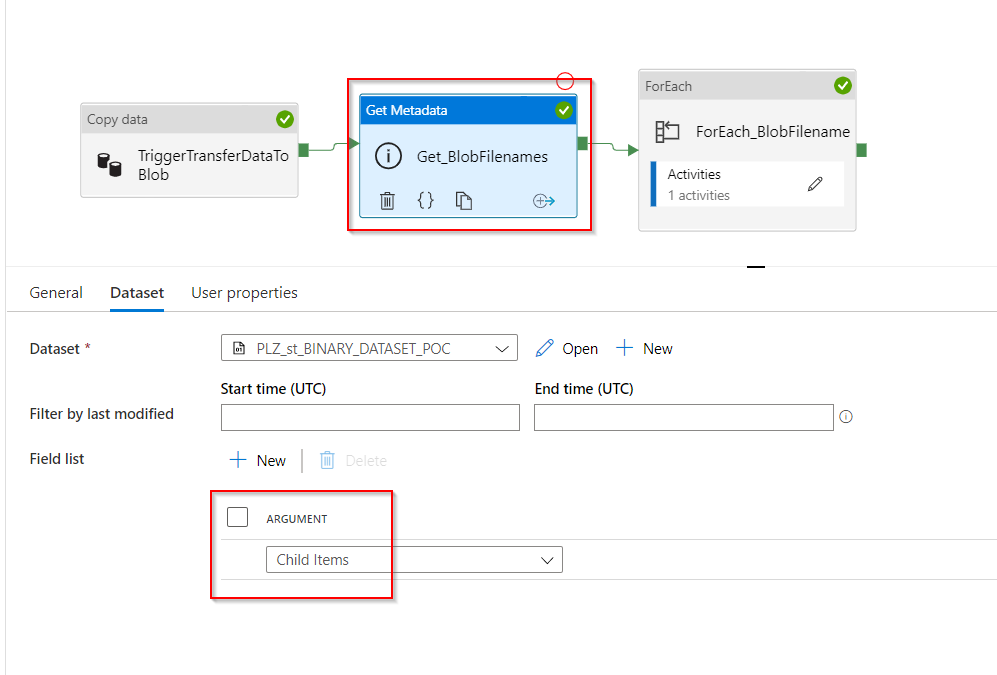
- Get_BlobFilenames: this Get Metadata activity will take the dataset in the above output folder, test_input, then it will get their metadata,
Child Items.
-
ForEach_BlobFilename: this activity contains:
- Input Settings: it takes as an input the output of child items from the previous Get Metadata activity with the expression:
@activity('Get_BlobFilenames').output.childItems
- Activities: there is only 1 activity in the ForEach1, which is the Stored_procedure_InsertBlobName. This Stored Procedure activity is connected to the linked service Azure SQL Database and uses the pre-written stored procedure called
InsertBlobFileDetails. It contains only 1 stored procedure parameter because for this solution, we manage json string inside stored procedure with SQL query and NOT with Azure Data Factory expressions.

This is the stored procedure
InsertBlobFileDetails/****** Object: StoredProcedure [dbo].[InsertBlobFileDetails] Script Date: 26/10/2020 11:22:32 ******/ SET ANSI_NULLS ON GO SET QUOTED_IDENTIFIER ON GO CREATE OR ALTER PROCEDURE [dbo].[InsertBlobFileDetails] ( @BlobFileName NVARCHAR (255) ) AS BEGIN -- SET NOCOUNT ON added to prevent extra result sets from -- interfering with SELECT statements. SET NOCOUNT ON; DECLARE @extpos int; DECLARE @pos int; DECLARE @endpos int; DECLARE @CountryCode NVARCHAR (255); DECLARE @PlantName NVARCHAR (255); DECLARE @ProdLine NVARCHAR (255); DECLARE @BarCode NVARCHAR (255); DECLARE @FileType NVARCHAR (255); DECLARE @EventDate DATE; DECLARE @NumberOfSeat NVARCHAR(255); DECLARE @CameraPosition NVARCHAR (255); SET @CountryCode = LEFT(@BlobFileName, 2); SET @PlantName = SUBSTRING(@BlobFileName, 3, 3); SET @ProdLine = LEFT(@BlobFileName, 13); SET @extpos = CHARINDEX('.', @BlobFileName, 0) + 1; SET @FileType = SUBSTRING(@BlobFileName, @extpos, LEN(@BlobFileName) - @extpos + 1); SET @pos = CHARINDEX('_', @BlobFileName, 0) + 1; SET @BarCode = SUBSTRING(@BlobFileName, @pos, CHARINDEX('_', @BlobFileName, @pos) - @pos); SET @pos = CHARINDEX('_', @BlobFileName, @pos) + 1; SET @EventDate = CONVERT(DATE, SUBSTRING(@BlobFileName, @pos, CHARINDEX('-', @BlobFileName, @pos) - @pos), 112); SET @pos = CHARINDEX('-', @BlobFileName, @pos) + 1; SET @endpos = CHARINDEX('_', @BlobFileName, @pos) + 1; IF @endpos = 1 SET @NumberOfSeat = SUBSTRING(@BlobFileName, @pos, @extpos - @pos - 1); ELSE BEGIN SET @NumberOfSeat = SUBSTRING(@BlobFileName, @pos, @endpos - @pos - 1); SET @CameraPosition = SUBSTRING(@BlobFileName, @endpos, @extpos - @endpos - 1); END IF NOT EXISTS (SELECT * FROM extractFileNameTest3 e WHERE e.BlobFileName = @BlobFileName) INSERT INTO extractFileNameTest3 values (@BlobFileName, @CountryCode, @PlantName, @ProdLine, @FileType, @BarCode, @EventDate, @NumberOfSeat, @CameraPosition) END