layout: post
 title: Introduccion a gráficos dinámicos con Highcharter
published: true
comments: false
title: Introduccion a gráficos dinámicos con Highcharter
published: true
comments: false

- Highcharter
*** es un paquete de R para crear gráficos dinámicos de Highcharts que utilizan internamente javascript.
Highcharts es una biblioteca de gráficos javascript muy madura y flexible y tiene una gran y poderosa API.

- Permite generar varios tipos de gráficos con el mismo estilo: dispersión, burbuja, línea, serie de tiempo, mapas de calor, treemap, gráficos de barras, redes, etc.
- Permite generar varios objetos R con una sola función. Con la función hchart() se puede usar: data.frames, numéricos, histogramas, caracteres, densidad, factores, ts, mts, xts, stl, ohlc, acf, pronósticos, mforecast, ets, igraph, dist, dendrogram, phylo, survfit clases.
- Soporta gráficos Highstock, gráficos de velas.
- Soporta temas como economist, financial times, google, 538 entre otros.
Soporta interesante complementos de movimiento, puntos de arrastre, fuente, anotaciones entre otros.
Todo esto lo puedes revisar en la web oficial de highcharter.
- Por ser un programa libre, no posee garantía ni un departamento de atención al cliente.
- R no posee una interfaz amigable, las tareas se llevan a través de líneas de código, lo cual puede ser incómodo para el usuario.
- R particularmente no es un lenguaje de programación rápida.
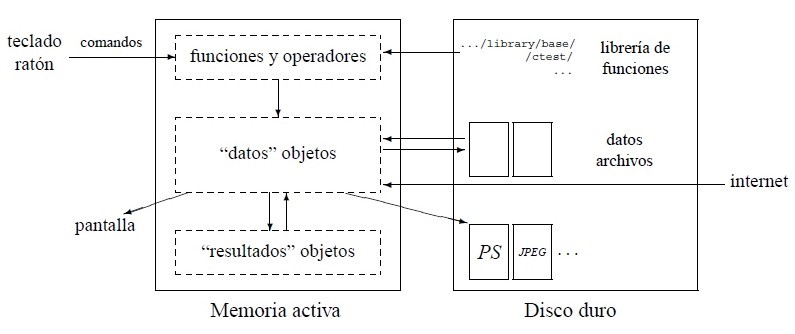
Cómo funciona R
Instalación de R, RStudio y paquetes
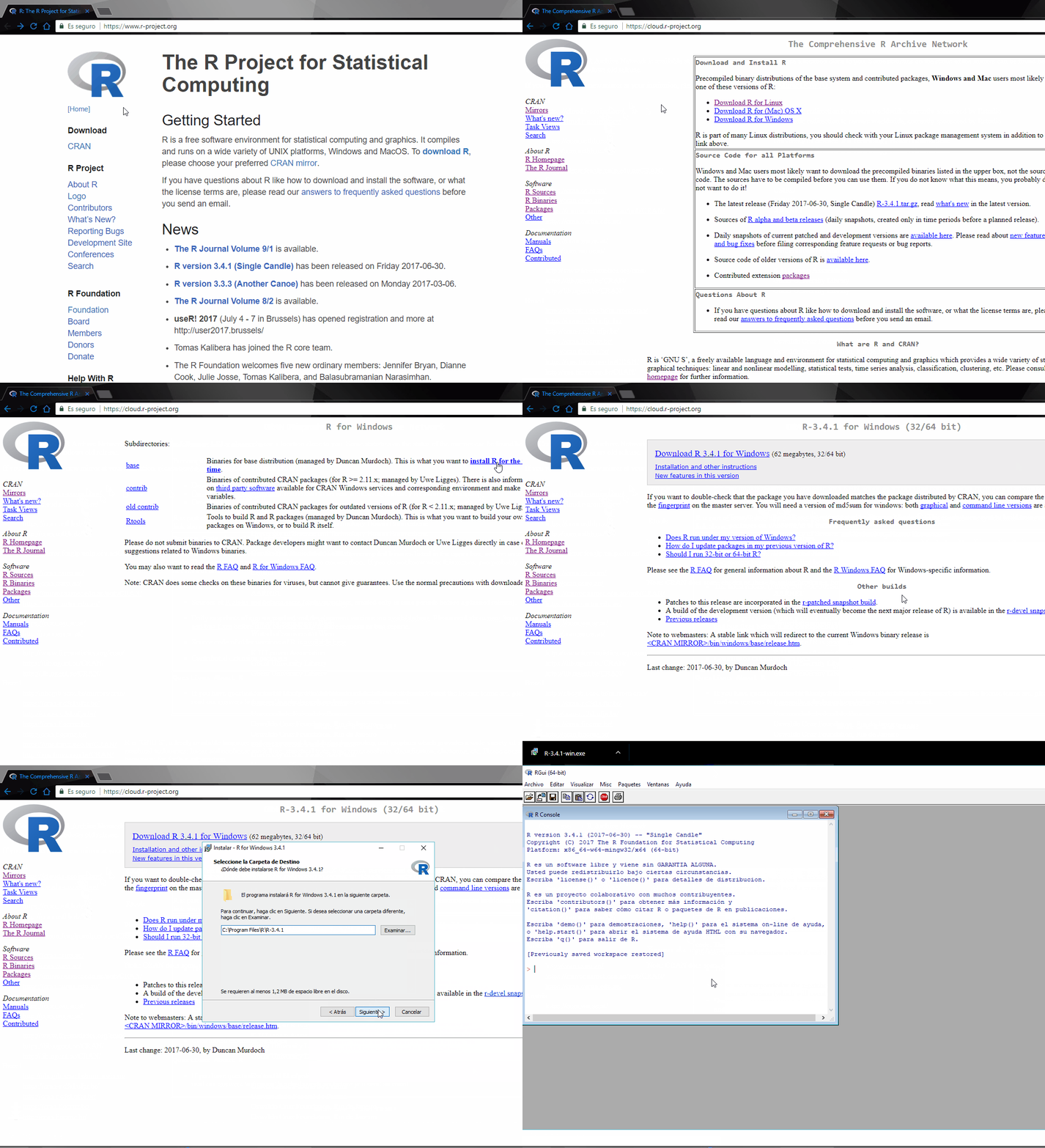
Instalación de R
- Ingresar a https://www.r-project.org/
- Elegir el CRAN (Comprehensive R Archive Network)
- Escoger versión del sistema operativo.
- Instalar R por primera vez.
R como una calculadora
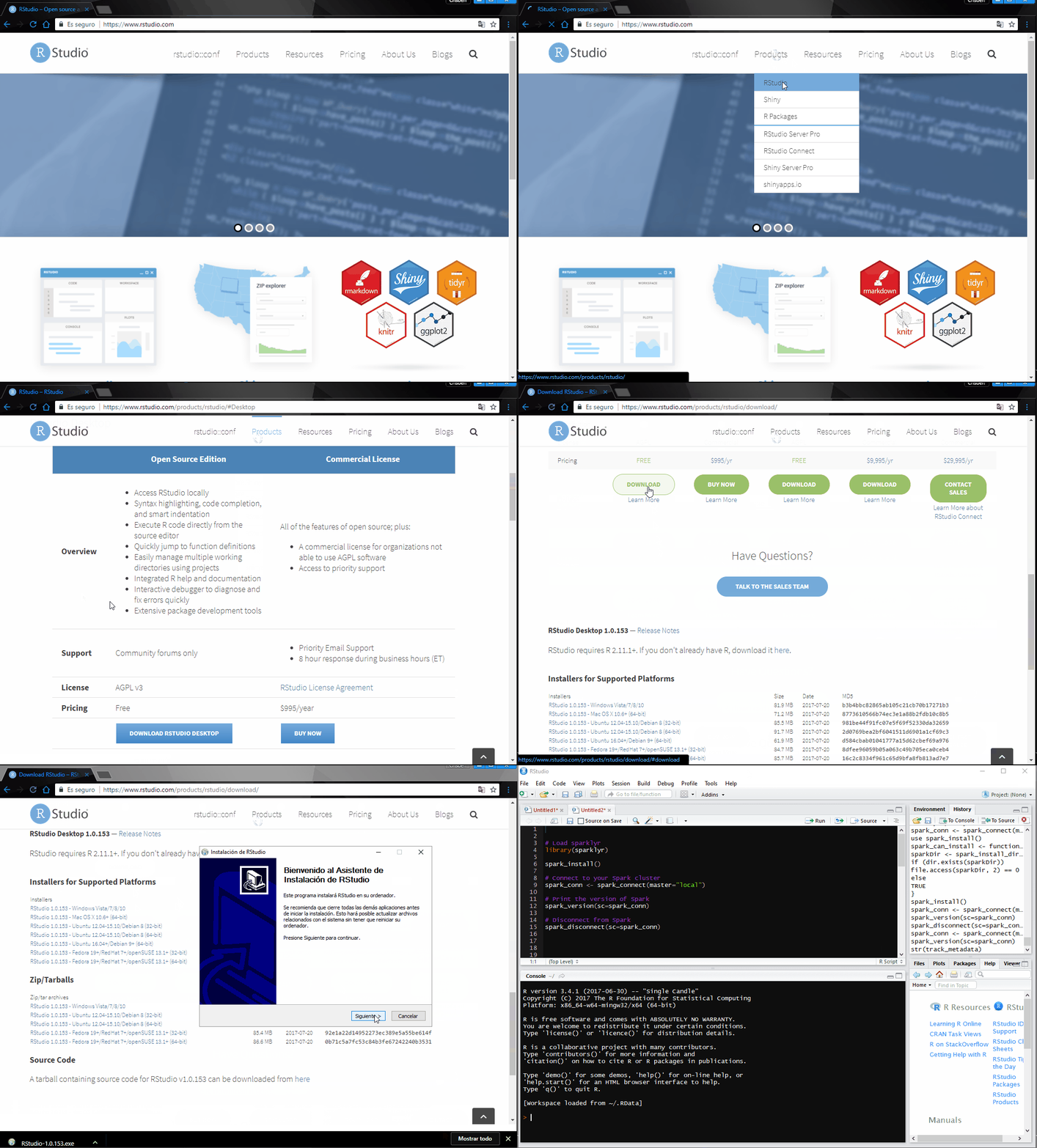
Instalación de RStudio
- Ingresar a https://www.rstudio.com/
- Productos
- Escoger versión según el Sistema Operativo
En construcción
- En construcción
jkhk
Consola de R interactiva desde tu explorador, sencilla y útil. r-fiddle
<iframe width='120%' height='700' src='http://r-fiddle.org/#/embed/eYsWfghB/1' allowfullscreen='allowfullscreen'Consola de R interactiva desde tu explorador con mayores opciones, permite ingresar al terminal del servidor. Codingground
Estas 2 herramientas dejaron de estar en funcionamiento a inicios de 2017.
Aplicación web de código abierto que permite crear y compartir documentos que contienen código en vivo, ecuaciones, visualizaciones y texto explicativo. Los usos incluyen: limpieza y transformación de datos, simulación numérica, modelado estadístico, aprendizaje automático y mucho más. Además permite integración R, Python, Julia, Haskell, Ruby entre otros. jupyter
Plataforma de aprendizaje de varios lenguajes de programación y herramientas para ciencia de datos. Code School enseña tecnologías web con lecciones de video, desafíos de codificación y screencasts. Su lema es aprender haciendo.
Buena opción si eres nuevo en R. El curso tiene 7 niveles en los cuales se muestra el manejo de la consola, expresiones regulares, variables, funciones, vectores, matrices, dataframes, etc. CodeSchool - Try R
Plataforma de aprendizaje de varios lenguajes de programación y herramientas para ciencia de datos. Code School enseña tecnologías web con lecciones de video, desafíos de codificación y screencasts. Ideal para aprender haciendo.
Swirl es un paquete creado para enseñar el lenguaje de programación R, pero desde tu computador, en sí no debería estar en esta publicación sobre R en la nube, pero dado que está muy ligado a los objetivos de Datacamp y Codeschool lo añadimos. Aprende R, en R.
Note:
- Si quieres ser un experto en varios lenguaje de programación y convertirte en un científico de datos no puedes no pasar por:
En futuras publicaciones abordaremos una extensión a estas herramientas con Cloud Computing de pago como Azure, Google Platform, AWS y gratuitas como 9cloud.
Hey! I'm your first Markdown document in StackEdit1. Don't delete me, I'm very helpful! I can be recovered anyway in the Utils tab of the Settings dialog.
StackEdit stores your documents in your browser, which means all your documents are automatically saved locally and are accessible offline!
Note:
- StackEdit is accessible offline after the application has been loaded for the first time.
- Your local documents are not shared between different browsers or computers.
- Clearing your browser's data may delete all your local documents! Make sure your documents are synchronized with Google Drive or Dropbox (check out the Synchronization section).
The document panel is accessible using the button in the navigation bar. You can create a new document by clicking New document in the document panel.
All your local documents are listed in the document panel. You can switch from one to another by clicking a document in the list or you can toggle documents using Ctrl+[ and Ctrl+].
You can rename the current document by clicking the document title in the navigation bar.
You can delete the current document by clicking Delete document in the document panel.
You can save the current document to a file by clicking Export to disk from the menu panel.
Tip: Check out the Publish a document section for a description of the different output formats.
StackEdit can be combined with Google Drive and Dropbox to have your documents saved in the Cloud. The synchronization mechanism takes care of uploading your modifications or downloading the latest version of your documents.
Note:
- Full access to Google Drive or Dropbox is required to be able to import any document in StackEdit. Permission restrictions can be configured in the settings.
- Imported documents are downloaded in your browser and are not transmitted to a server.
- If you experience problems saving your documents on Google Drive, check and optionally disable browser extensions, such as Disconnect.
You can open a document from Google Drive or the Dropbox by opening the Synchronize sub-menu and by clicking Open from.... Once opened, any modification in your document will be automatically synchronized with the file in your Google Drive / Dropbox account.
You can save any document by opening the Synchronize sub-menu and by clicking Save on.... Even if your document is already synchronized with Google Drive or Dropbox, you can export it to a another location. StackEdit can synchronize one document with multiple locations and accounts.
Once your document is linked to a Google Drive or a Dropbox file, StackEdit will periodically (every 3 minutes) synchronize it by downloading/uploading any modification. A merge will be performed if necessary and conflicts will be detected.
If you just have modified your document and you want to force the synchronization, click the button in the navigation bar.
Note: The button is disabled when you have no document to synchronize.
Since one document can be synchronized with multiple locations, you can list and manage synchronized locations by clicking Manage synchronization in the Synchronize sub-menu. This will let you remove synchronization locations that are associated to your document.
Note: If you delete the file from Google Drive or from Dropbox, the document will no longer be synchronized with that location.
Once you are happy with your document, you can publish it on different websites directly from StackEdit. As for now, StackEdit can publish on Blogger, Dropbox, Gist, GitHub, Google Drive, Tumblr, WordPress and on any SSH server.
You can publish your document by opening the Publish sub-menu and by choosing a website. In the dialog box, you can choose the publication format:
- Markdown, to publish the Markdown text on a website that can interpret it (GitHub for instance),
- HTML, to publish the document converted into HTML (on a blog for example),
- Template, to have a full control of the output.
Note: The default template is a simple webpage wrapping your document in HTML format. You can customize it in the Advanced tab of the Settings dialog.
After publishing, StackEdit will keep your document linked to that publication which makes it easy for you to update it. Once you have modified your document and you want to update your publication, click on the button in the navigation bar.
Note: The button is disabled when your document has not been published yet.
Since one document can be published on multiple locations, you can list and manage publish locations by clicking Manage publication in the menu panel. This will let you remove publication locations that are associated to your document.
Note: If the file has been removed from the website or the blog, the document will no longer be published on that location.
StackEdit supports Markdown Extra, which extends Markdown syntax with some nice features.
Tip: You can disable any Markdown Extra feature in the Extensions tab of the Settings dialog.
Note: You can find more information about Markdown syntax here and Markdown Extra extension here.
Markdown Extra has a special syntax for tables:
| Item | Value |
|---|---|
| Computer | $1600 |
| Phone | $12 |
| Pipe | $1 |
You can specify column alignment with one or two colons:
| Item | Value | Qty |
|---|---|---|
| Computer | $1600 | 5 |
| Phone | $12 | 12 |
| Pipe | $1 | 234 |
Markdown Extra has a special syntax for definition lists too:
- Term 1 Term 2
: Definition A : Definition B
Term 3
: Definition C
: Definition D
> part of definition D
GitHub's fenced code blocks are also supported with Highlight.js syntax highlighting:
// Foo
var bar = 0;
Tip: To use Prettify instead of Highlight.js, just configure the Markdown Extra extension in the Settings dialog.
Note: You can find more information:
You can create footnotes like this2.
SmartyPants converts ASCII punctuation characters into "smart" typographic punctuation HTML entities. For example:
| ASCII | HTML | |
|---|---|---|
| Single backticks | 'Isn't this fun?' |
'Isn't this fun?' |
| Quotes | "Isn't this fun?" |
"Isn't this fun?" |
| Dashes | -- is en-dash, --- is em-dash |
-- is en-dash, --- is em-dash |
You can insert a table of contents using the marker [TOC]:
[TOC]
You can render LaTeX mathematical expressions using MathJax, as on math.stackexchange.com:
The Gamma function satisfying
Tip: To make sure mathematical expressions are rendered properly on your website, include MathJax into your template:
<script type="text/javascript" src="https://cdn.mathjax.org/mathjax/latest/MathJax.js?config=TeX-AMS_HTML"></script>
Note: You can find more information about LaTeX mathematical expressions here.
You can also render sequence diagrams like this:
Alice->Bob: Hello Bob, how are you?
Note right of Bob: Bob thinks
Bob-->Alice: I am good thanks!
And flow charts like this:
st=>start: Start
e=>end
op=>operation: My Operation
cond=>condition: Yes or No?

st->op->cond
cond(yes)->e
cond(no)->op
Note: You can find more information:

| Función render | Genera | Función output |
|---|---|---|
| renderDataTable | DataTable | dataTableOutput |
| renderImage | images (saved as a link to a source file) | imageOutput |
| renderPlot | plots | plotOutput |
| renderTable | data frame, matrix, other table like structures | tableOutput |
| renderText | character strings | textOutput |
| renderPrint | any printed output | verbatimTextOutput |
| renderUI | a Shiny tag object or HTML | uiOutput |
| renderUI | a Shiny tag object or HTML | htmlOutput |