



RemoteMonitor is a highly secure, lightweight, and modern C++ Windows DLL plugin developed for the popular open-source TrafficMonitor application. It empowers you to monitor the real-time hardware telemetry of remote computers, home servers, and virtual machines directly from your main Windows Taskbar.
No heavy monitoring agents or complex web dashboards are required. RemoteMonitor streams system metrics securely in the background using minimal network footprint and system resources.
Note
This repository contains the complete source code, documentation, and releases for RemoteMonitor. For official announcements and blog posts, visit the R3D HILLS Project Page.

RemoteMonitor extracts and transmits a comprehensive list of system metrics directly from the remote nodes:
| Metric Group | Individual Telemetry Items |
|---|---|
| 🌐 Network | Download Speed, Upload Speed |
| 🧠 Processor | CPU Usage (%), CPU Frequency (MHz), CPU Temperature (°C) |
| 💾 Memory | RAM Usage (%), Used RAM (GB), Total RAM (GB) |
| 🎮 Graphics | GPU Usage (%), GPU Temperature (°C) |
| 💽 Storage | Hard Disk Drive (HDD) Usage (%), HDD Temperature (°C) |
| 🔌 Motherboard | Mainboard Temperature (°C) |
The plugin operates utilizing a secure UDP Multiplexer supporting two distinct, thread-safe communication architectures:
The remote server opens a local port and waits. The client (your workstation)
sends encrypted query packets (R3DQ). The remote server verifies the request and
replies with the hardware metrics payload (R3DM).
[Your Workstation / Client] ---- (Secure Encrypted R3DQ Query) ----> [Remote
Server (Passive Listener)]
[Your Workstation / Client] <--- (Secure Encrypted R3DM Payload) <--- [Remote
Server (Passive Listener)]
The remote server periodically pushes encrypted telemetry packets (R3DM) to your
client workstation's designated port without waiting for a request. This is ideal
for machines behind strict NAT or firewalls.
[Remote Server (Active Pusher)] ---- (Periodic Secure R3DM Payload) ----> [Your
Workstation / Listener]
Unlike typical monitoring plugins that transmit data in plain text, RemoteMonitor is engineered with production-grade security to ensure your server metrics cannot be intercepted, tampered with, or replayed over the internet:
- AES-256-GCM Encryption: All packet payloads are encrypted in-place using the Windows Cryptography Next Generation (CNG) APIs.
- PBKDF2 Key Derivation: Passwords / pre-shared keys are derived into high-entropy symmetric keys using PBKDF2 with HMAC-SHA256 and 100,000 iterations.
- Anti-Replay Attack Protection: Every packet contains a UTC timestamp and a monotonic sequence number. Decryption fails if the packet falls outside a strict 30-second sliding-time tolerance window or if an identical sequence number is replayed.
- IP Whitelisting: Lock down passive listeners to respond exclusively to authorized IP addresses.
Follow these steps to deploy and start monitoring your systems:
Ensure you have the main application installed on both your local workstation and the target remote server(s).
- Download and install the latest version from the official repository: TrafficMonitor Releases.
- Go to the RemoteMonitor Releases section of this repository.
- Download the
RemoteMonitor.zippackage containingRemoteMonitor.dll. - Fully close/exit TrafficMonitor if it is running.
- Navigate to your TrafficMonitor installation directory (e.g.,
C:\Program Files\TrafficMonitor\). - If a folder named
pluginsdoes not exist, create it. - Copy
RemoteMonitor.dlland drop it inside theplugins/folder. - Launch TrafficMonitor.
- Right-click the TrafficMonitor taskbar panel.
- Navigate to Display Settings (or Plugins).
- Check the boxes next to the newly added
RemoteMonitoritems to display them in your taskbar.
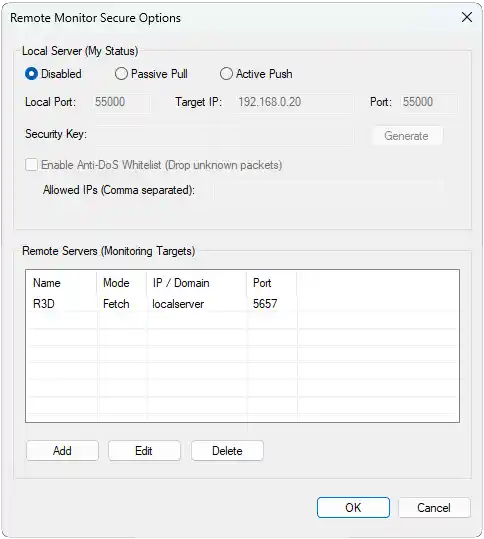
RemoteMonitor can be configured either directly through the interactive Win32
Options UI or via the RemoteMonitor.ini file.
- Right-click the TrafficMonitor taskbar and select Plugin Options... -> Remote Monitor.
- Configure your Local Server Settings (to share this computer's data) or add Remote Servers to fetch metrics.
- Use the build-in Generate buttons to create secure high-entropy security keys.
Option B: Manual INI File Configuration (Click to Expand)
You can configure your settings by creating or editing RemoteMonitor.ini in the
same directory as the plugin DLL. Here is a fully annotated production-ready
template:
[Settings]
; ServerMode: 0 = Disabled, 1 = Passive Pull (Listen), 2 = Active Push (Stream)
ServerMode=1
LocalPort=55000
TargetIP=192.168.0.10
TargetPort=55000
; SecurityKey: Password used to derive the AES-256 key for your local metrics
SecurityKey=y$R8v#X!mK9@P2&qW4_zT7*bN1%jE5=a
EnableWhitelist=1
; WhitelistIPs: Comma-separated authorized IPs (ignored if EnableWhitelist=0)
WhitelistIPs=192.168.0.20, 192.168.0.30
; Define how many remote servers you want to track
ServerCount=2
[Server_0]
ID=R3D_SRV_01
Name=Home Server
; Mode: 0 = Fetch (Query the server), 1 = Listen (Wait for push data)
Mode=0
IP=192.168.0.10
Port=55000
SecurityKey=y$R8v#X!mK9@P2&qW4_zT7*bN1%jE5=a
[Server_1]
ID=R3D_LAP_02
Name=Sara Laptop
Mode=1
IP=192.168.0.30
Port=55001
SecurityKey=k#B9z$W1@X7*pQ2&mL5_rT3=jN4%aE8!If you want to compile the DLL yourself:
-
Windows 10 / 11 or Windows Server
-
Visual Studio 2022 (with Desktop development with C++ workload)
-
Windows SDK 10.0+
- Clone this repository:
git clone https://github.com/NematollahShojaei/RemoteMonitor/- Open
RemoteMonitor.slnin Visual Studio 2022. - Change the build configuration to Release and platform to x64.
- Build the solution (
Ctrl + Shift + B). - The final, optimized DLL file (
RemoteMonitor.dll) will be generated inside thex64/Release/root directory.
Q: Why are my remote items showing
Offline / Awaiting Secure Data?A: This means the client is not receiving valid decrypted data. Verify that:
- The remote port is opened in both local and router firewalls (UDP protocol).
- The
SecurityKeyis identical on both the local monitor and remote node.- System clocks on both machines are synchronized (within 30 seconds drift tolerance). Q: Can I monitor my home lab over the internet?
A: Yes! You can use Passive Pull with Port Forwarding on your router, or better yet, run Active Push from your remote lab pointing to your public IP. Always ensure you have a strong random security key configured.
Developed with ❤️ by Nematollah Shojaei (Technical Director & Senior Developer at R3D HILLS).
- Official Website: https://r3dhills.com
- Contact Email: nemat@r3dhills.com
- LinkedIn: https://linkedin.com/in/NematollahShojaei Special thanks to Zhongyang for creating the amazing TrafficMonitor utility!
This project is licensed under the MIT License - see the LICENSE file for details.