
A PipeWire / PulseAudio mixer for Linux — control volumes, routing, and virtual sinks from a native desktop window or any device on your local network (desktop, tablet, or phone).
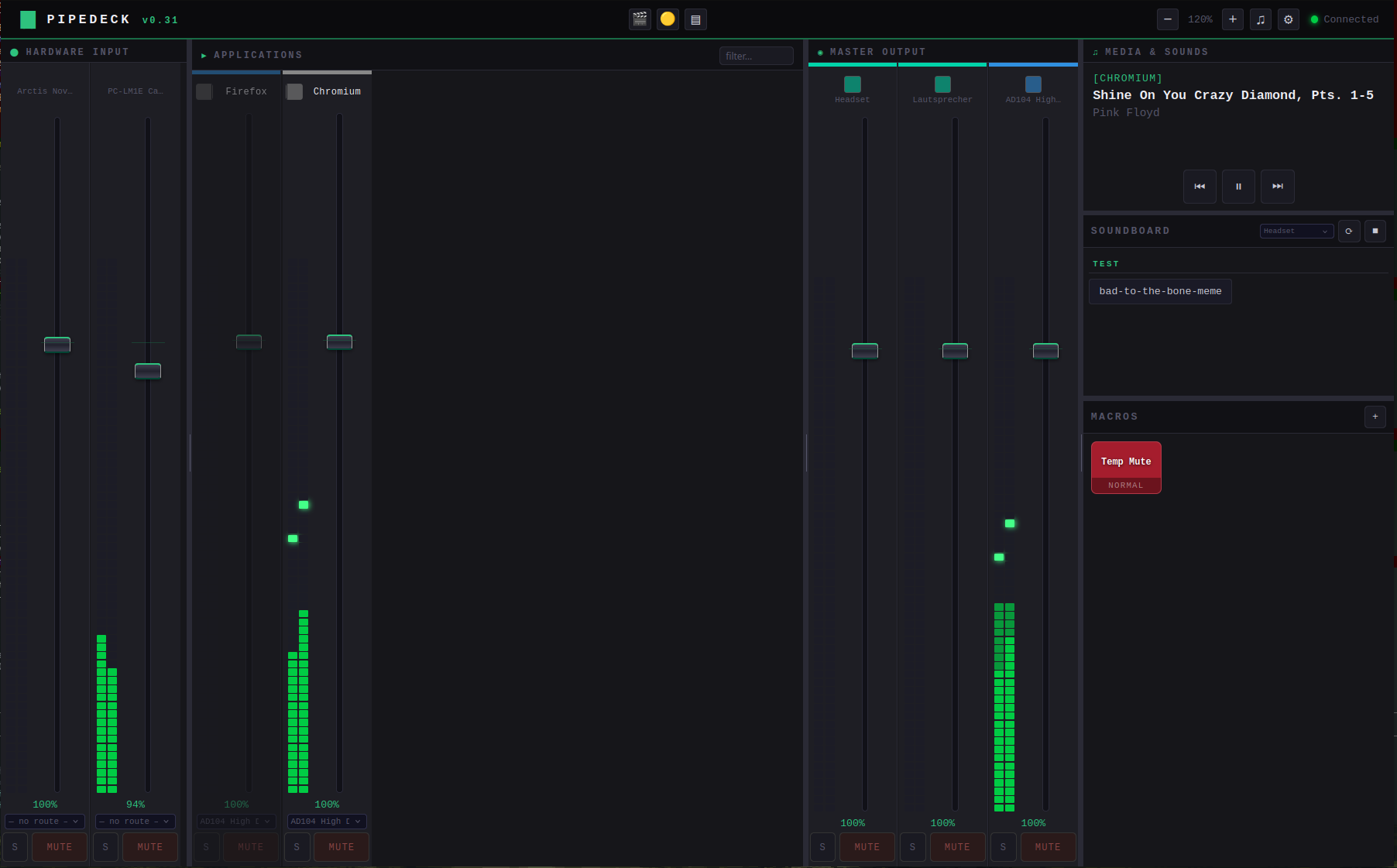
- Real-time VU meters for all hardware inputs, outputs, and application streams
- Stereo VU metering — optional per-channel L/R meters (toggle in Settings)
- VU peak hold — peak tick stays visible after the signal drops; hold duration is adjustable from 0.2 s to 10 s (toggle and slider in Settings)
- VU sensitivity — adjustable boost multiplier (1× – 4×) in Settings; raise it to make quiet sources more visible on the meters
- VU meter rate — configurable update rate: Slow (5 fps), Normal (10 fps), Fast (20 fps), Very fast (30 fps); higher rates increase CPU usage slightly
- Per-channel volume faders and mute buttons
- Solo button — isolate any channel; only channels of the same type are affected
- Snap to 100% — double-click (or double-tap on touch) any fader to jump to unity gain
- Channel rename — double-click a hardware channel name to give it a custom label; the custom name propagates to all output selectors, the soundboard sink picker, and the default-sink switcher; names are keyed to the device's stable PipeWire name rather than its dynamic index, so they survive server restarts; stale custom names can be removed in Settings → Inputs / Settings → Outputs under the "Custom Names" section
- App rename — double-click an application name in the Applications panel to give it a custom label; the name is remembered by app key across reconnects and restarts
- Keyboard shortcuts — focus a strip and use
↑/↓(1 %),Shift+↑/↓(5 %),Mto mute, mouse wheel to adjust;Spaceanywhere for media play/pause - Route hardware inputs to virtual sinks via loopback modules
- Create and delete virtual sinks (software mixer busses)
- Move application audio streams to any output
- Per-app volume memory — PipeDeck remembers the last volume for each application; the volume is automatically restored when the app reconnects
- Color-coded app strips — click the color swatch on any app strip to assign it a persistent color; the color is remembered by app name across reconnects and restarts
- Paused application streams remain visible in the panel (dimmed) and reappear correctly on resume
- Default output for new apps — choose a catch-all sink in Settings → Auto Routing; every new app stream is routed there unless a per-app rule matches
- Auto-routing rules — per-app rules that match on app name and override the default; configured in Settings → Auto Routing
- Scenes / Mix snapshots — save the current volume, mute, and routing state as a named scene with a chosen emoji icon; one-click recall from the header bar
- App stream filter — type in the filter box in the Applications panel header to instantly show only matching streams
- Batch controls — MUTE ALL / UNMUTE ALL / RESET 100% buttons above the Applications strip list; act only on currently visible (non-filtered, non-hidden) streams; MUTE ALL / UNMUTE ALL respect the smooth-mute fade setting
- Hide / show apps — click the
✕button on any app strip to hide it; a 👁 button appears in the panel header to reveal hidden apps (shown dimmed); click↺on a hidden strip to restore it; hidden state persists by app name across restarts - Smooth mute fade — optional setting; muting/unmuting ramps volume over ~160 ms instead of cutting instantly (toggle in Settings)
- Soundboard — play sound files directly to any output device; drag-and-drop audio files onto the soundboard to upload them instantly; files can be organised in sub-folders
- Macro buttons — a configurable button grid below the soundboard; three switch modes: Normal (click to fire), Momentary (hold to activate, release to deactivate), Toggle (latching on/off with separate activate and deactivate action lists); each button has a custom label, a color, and one or more actions per phase; click the lower strip of a button to open its settings (color, mode, actions, delete); active/held state is visually highlighted; macro action types include: recall scene, set default output, toggle mute (input/output), move app to output, move ALL apps to output (routes every active stream to a chosen sink in one click), set default output for new apps (also immediately moves all currently connected app streams — including silent/corked apps — to the chosen output), and media controls; macros persist across restarts; instant GUI feedback — macro mute/move/scene actions update the interface immediately without waiting for PipeWire events; resizable buttons — each macro can be set to 1×1, 2×1, 1×2, 2×2, 3×1, etc. in the config modal (W × H in grid units); group headers — add named section dividers between macros via the + menu; click a group label to rename it inline; drag-and-drop reordering — drag any macro or group header by its
⠿grip handle to reorder or move between groups; dropping on empty grid space appends to the end - Media player controls (via
playerctl) - Per-device profiles — on first visit each browser/device is prompted to enter a name (or pick an existing profile); UI layout (zoom, panel widths, light mode, accent color, strip width, VU display settings, smooth mute, macros) is saved per profile; audio state (volumes, routing, scenes, channel names, app colors) stays shared across all devices; switch or create profiles in Settings → Profile
- Native desktop window — if
pywebviewis installed,python3 server.pyopens a native desktop window (no browser required); the window appears in the taskbar, can be moved/resized/minimised like any app, and shows the app icon; use--no-windowto force headless mode for the systemd service while still using the desktop launcher separately - Browser optimizations — VU meter updates are batched via
requestAnimationFramefor smooth rendering; strip element lookups during peak updates use an O(1)Mapinstead of DOM attribute-selector queries; color/name/hidden-device maps are cached in memory soJSON.parse(localStorage.getItem(...))runs at most once per map rather than on every render cycle;touch-action: manipulationremoves the 300 ms tap delay on iOS Safari and older Android; thin, styled scrollbars in all scroll areas (Chrome, Firefox, Safari); GPU-composited zoom viabackface-visibility; CSScontain: layout styleisolates each strip's paint from its siblings; background tabs pause peak broadcasting entirely to save CPU - Light mode — toggle a full light theme in Settings → Display; all panels, strips, faders, and overlays adapt; persists across restarts
- Accent color picker — choose the UI highlight color in Settings
- Strip width slider — adjust channel strip width in Settings
- Auto-fit panel width — optional per-panel setting (Settings → Display) that automatically sizes the Hardware Input and/or Output panel to exactly fit its strips; the resize handle turns accent-colored when active; dragging manually turns auto-fit off
- Tabbed Settings panel — Display, Hardware Inputs, Hardware Outputs, Auto Routing, Virtual Outputs, Backup & Restore, Profile — each in their own tab; last active tab is remembered
- Resizable panels, adjustable zoom, hide/show devices; panel visibility toggles —
⬤and◉buttons in the header collapse the Hardware Input and Master Output panels entirely (state persists across restarts) - Mobile swipe navigation — on small screens panels snap horizontally with a tab bar for quick switching
- All settings and layout (volumes, routing, panel widths, hidden devices, channel names, scenes) persist across restarts in
settings.json - HTTP REST API — control volumes, mutes, routing, media, and soundboard from scripts or other tools
- Application streams appear automatically within ~3 seconds even if the PipeWire event was missed (e.g. music started via an OS hotkey while the dashboard is open)
- Runs as a systemd user service — starts automatically at login
This tool was completely vibe coded with Claude Code within 48 hours. I needed a working Voicemeeter-replacement, as I switched from Windows to Ubuntu. As long as my Claude Code subscription is running, I'll try to let it update and fix anything that shows up. If something doesn't work, I am more than happy to accept any pull requests.
PipeDeck requires PipeWire with the PulseAudio compatibility layer, or a native PulseAudio installation.
# Ubuntu / Debian — PipeWire (recommended, default since Ubuntu 22.10)
sudo apt install pipewire pipewire-pulse wireplumber

# Or plain PulseAudio
sudo apt install pulseaudio| Tool | Package | Purpose |
|---|---|---|
pactl |
pulseaudio-utils |
Audio control |
parec |
pulseaudio-utils |
Peak metering |
mpv |
mpv |
Soundboard playback |
playerctl |
playerctl |
Media player controls |
sudo apt install pulseaudio-utils mpv playerctlPython 3.10 or newer is required.
python3 --version # must be 3.10+Install the websockets library:
# System package (Ubuntu / Debian)
sudo apt install python3-websockets

# Or via pip
pip3 install websocketsInstall pywebview and the GTK WebKit2 backend to run PipeDeck as a native desktop window:
pip3 install pywebview
sudo apt install gir1.2-webkit2-4.1 libwebkit2gtk-4.1-0
Without pywebview, PipeDeck works exactly as before — just open the printed URL in any browser.
-
Clone the repository
git clone https://github.com/MajorMaxdom/PipeDeck.git cd PipeDeck -
Create the sounds folder (optional, for the soundboard)
mkdir -p sounds
# Drop .mp3 / .wav / .ogg / .flac files into sounds/ to use them
# Sub-folders are shown as sections in the soundboard
# Or drag-and-drop files onto the soundboard in the browser
-
Add an icon (optional)
Place a
icon.pngfile insidepublic/. It will be used as:- The native window icon and taskbar icon
- The browser favicon and PWA icon
- The app launcher icon
-
Run manually to verify everything works
python3 server.py
- With pywebview installed: a native desktop window opens automatically.
- Without pywebview: open the printed URL (
http://localhost:8080) in your browser.
When pywebview is installed, python3 server.py opens PipeDeck as a native desktop window — no browser required. The window:
- Appears in the taskbar like any other application
- Can be moved, resized, minimised, and maximised
- Displays the app icon (place
icon.pnginpublic/) - Closes independently from the background server (if running as a systemd service)
To disable the native window and run in headless/browser mode only:
python3 server.py --no-windowA systemd user service starts PipeDeck automatically whenever you log in — no root required. Running as a service keeps the server alive in the background so tablets and phones on your network can always reach it, even when the desktop window is closed.
-
Create the systemd user directory:
mkdir -p ~/.config/systemd/user -
Create the service file at
~/.config/systemd/user/pipedeck.service:[Unit] Description=PipeDeck – PipeWire/PulseAudio mixer After=pipewire.service pipewire-pulse.service Wants=pipewire.service pipewire-pulse.service [Service] Type=simple WorkingDirectory=/path/to/pipedeck ExecStart=/usr/bin/python3 /path/to/pipedeck/server.py --no-window Restart=on-failure RestartSec=5 StandardOutput=journal StandardError=journal Environment=PYTHONUNBUFFERED=1 [Install] WantedBy=default.target
Replace
/path/to/pipedeckwith the actual path (e.g./home/yourname/PipeDeck). The--no-windowflag keeps the service headless — use the app launcher or desktop shortcut to open the native window separately. -
Enable and start the service:
systemctl --user daemon-reload systemctl --user enable pipedeck.service systemctl --user start pipedeck.service -
Check that it is running:
systemctl --user status pipedeck.service
systemctl --user stop    pipedeck.service   # stop
systemctl --user restart pipedeck.service   # restart
systemctl --user disable pipedeck.service   # remove from auto-start
journalctl --user -u pipedeck.service -f # live logsThe default ports can be changed via environment variables:
HTTP_PORT=9090 WS_PORT=9091 python3 server.pyOr in the systemd service file:
[Service]
Environment=HTTP_PORT=9090
Environment=WS_PORT=9091Settings are stored in JSON files next to server.py:
| File | Contents |
|---|---|
settings.json |
Shared audio state: volumes, routing, channel names, app colors, scenes, auto-routing rules, hidden devices |
virtual_sinks.json |
Virtual sink definitions (created via the Settings panel) |
client_settings/<name>.json |
Per-device UI layout: zoom, panel widths, light mode, accent color, macros, etc. — one file per named profile |
These files are created automatically. You can delete them to reset all settings to defaults.
settings.json and virtual_sinks.json can be downloaded as a single ZIP via Settings → Backup & Restore → Download backup, and restored the same way — useful when migrating to a new machine.
PipeDeck exposes a small REST API for scripting and external control.
Returns the full current audio state as JSON (same payload the WebSocket broadcasts).
Returns available soundboard files grouped by folder.
Returns a list of existing per-device profile names.
Returns the UI settings for the named profile.
Saves UI settings for the named profile.
{ "type": "sink|source|sink-input", "index": 0, "volume": 85 }{ "type": "sink|source|sink-input", "index": 0, "mute": true }Move a sink-input to a different sink:
{ "sink_input_index": 3, "sink_index": 1 }{ "action": "play-pause|next|previous" }{ "file": "filename.mp3", "folder": "", "sink_name": "alsa_output.pci..." }Stops all currently playing soundboard sounds (no body required).
PipeDeck binds to 0.0.0.0, so it is reachable from any device on your local network:
http://192.168.x.x:8080
Your server's IP address is printed in the terminal / journal when PipeDeck starts. For permanent access from a tablet or phone, bookmark that URL or use your browser's "Add to Home Screen" option — PipeDeck is a PWA and will open full-screen.
Security note: PipeDeck has no authentication. Only run it on a trusted local network.
PipeDeck/
├── server.py              # Python backend (WebSocket + HTTP server)
├── settings.json          # Shared audio settings (auto-created)
├── virtual_sinks.json     # Virtual sink config (auto-created)
├── client_settings/       # Per-device UI profiles (auto-created)
│   └── Desktop.json
├── sounds/                # Drop audio files here for the soundboard
│   └── subfolder/         # Sub-folders appear as sections in the soundboard
└── public/
    ├── index.html
    ├── app.js
    ├── style.css
    ├── icon.png           # App icon — place here (favicon, window icon, launcher icon)
    └── manifest.json      # PWA manifest
| Dependency | Type | Install |
|---|---|---|
| Python ≥ 3.10 | Runtime | System |
websockets ≥ 13 |
Python library | apt install python3-websockets |
pactl / parec |
System tool | apt install pulseaudio-utils |
mpv |
System tool | apt install mpv |
playerctl |
System tool | apt install playerctl |
pywebview |
Python library (optional) | pip3 install pywebview |
gir1.2-webkit2-4.1 + libwebkit2gtk-4.1-0 |
System library (optional) | apt install gir1.2-webkit2-4.1 libwebkit2gtk-4.1-0 |
| PipeWire + PulseAudio compat or PulseAudio | Audio system | apt install pipewire pipewire-pulse wireplumber |
MIT