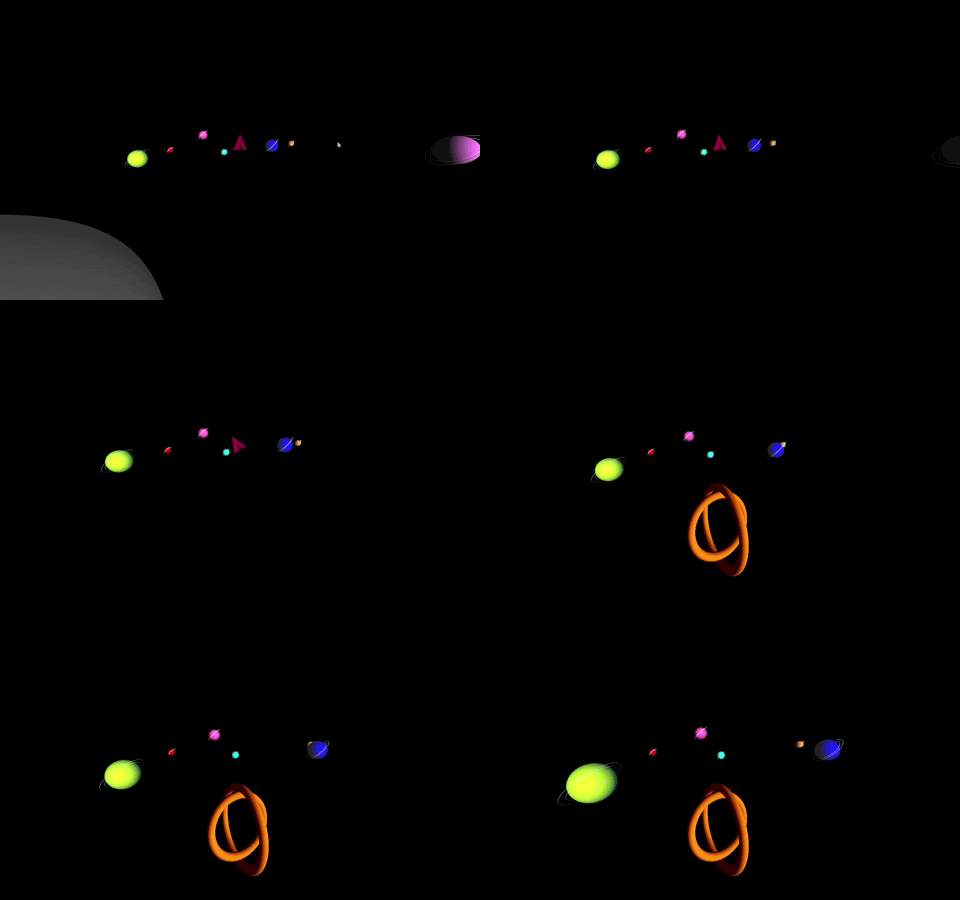
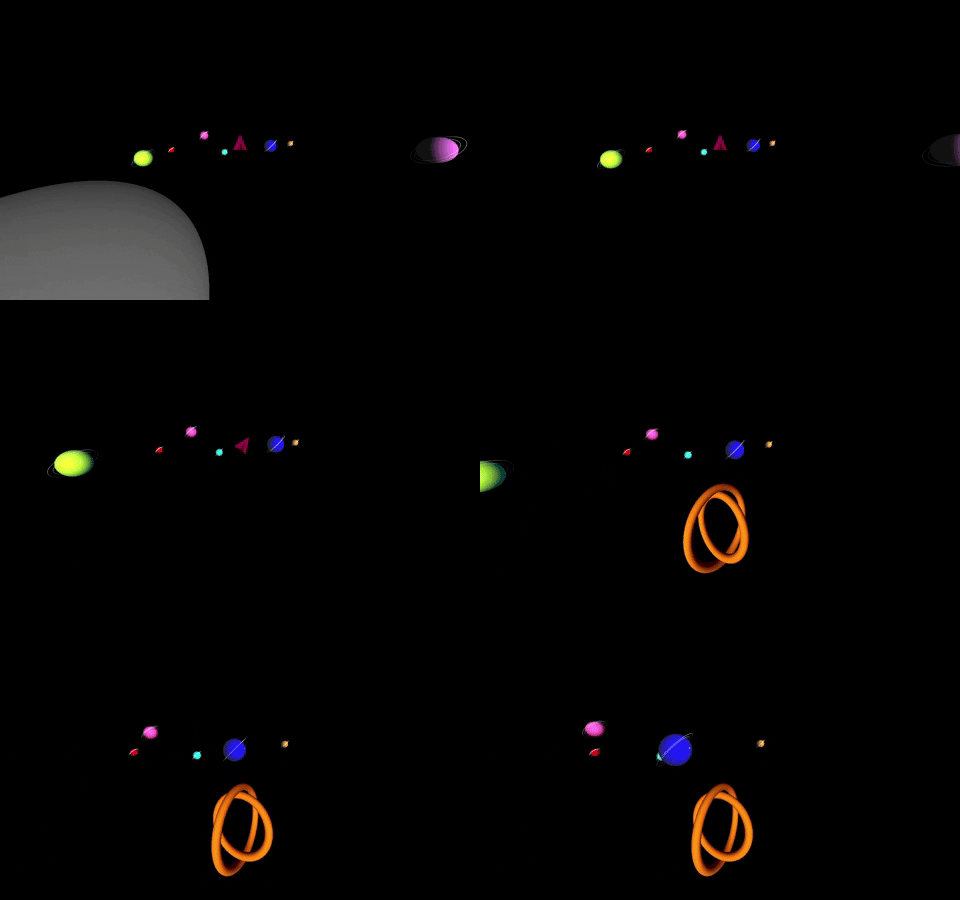
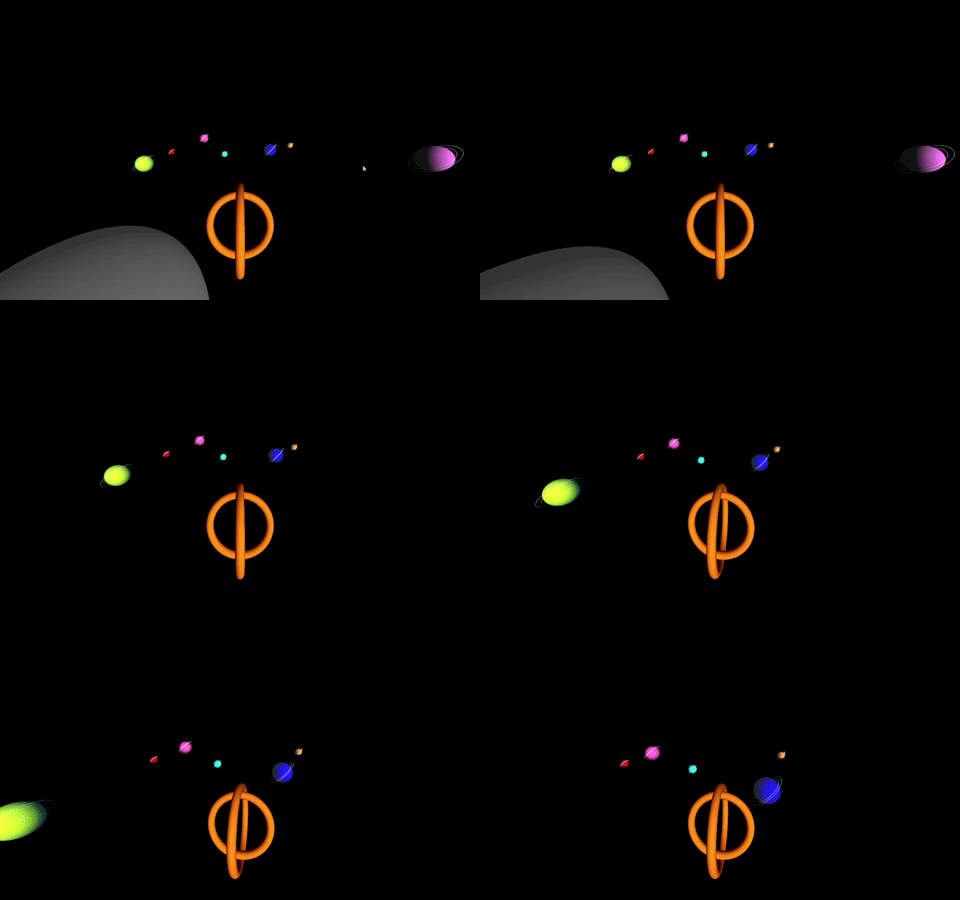
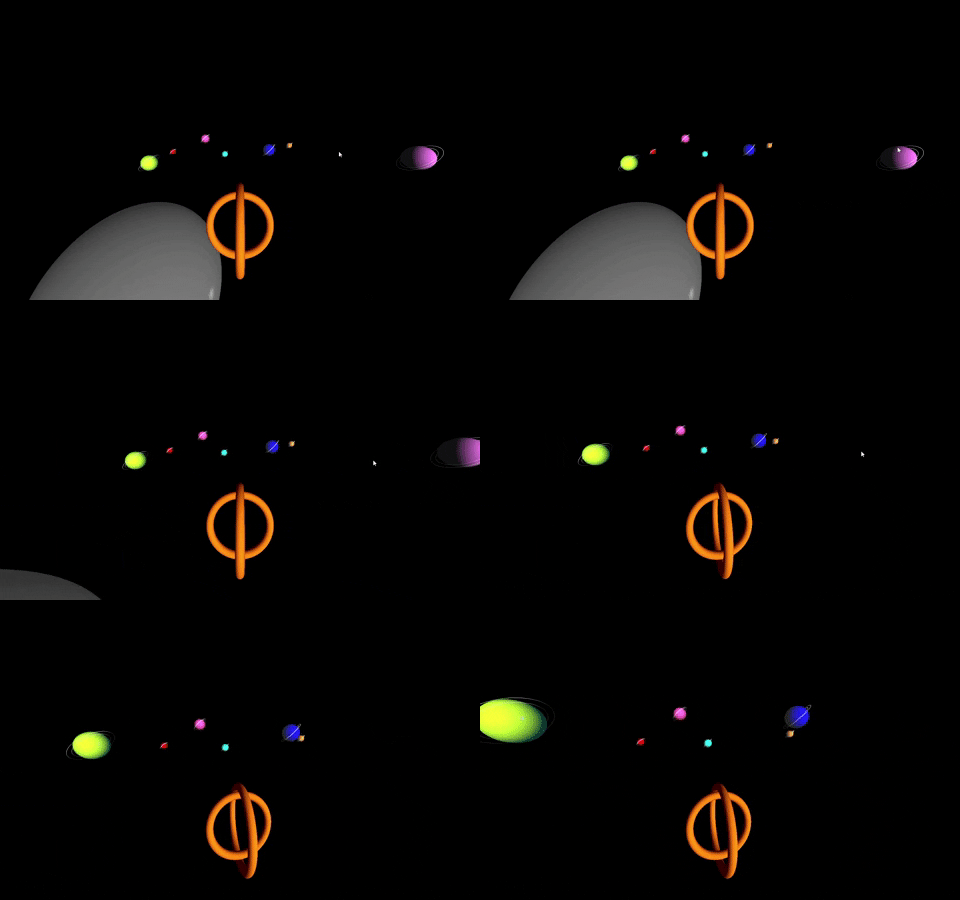
Year 2987, Spaceman try to map a new planetary system with his spaceship. In this system, whole of the planets have a circle and they all have different colors.
This program has been generated by retained mode (post 3.0) OpenGL. Program has been written with shaders(glsl) in modern OpenGL. Program should run in win32 environment and needs glut and opengl libraries.
Spaceship: Drawn as a union of two tori (plural of torus).
Planets: Drawn as colorful spheres with white circles.
Space Station: Drawn as a grey sphere. Moreover it turns around itself.
Compass: Drawn as a tetrahedron.
The ground lies along the x-z plane and the y axis points up. So in the beginning ship's velocity vector set to (0.0, 0.0, -1.0).
View Mode 1
By pressing 'c', the camera will set up to front of the spaceship and you can find your direction by looking up the tetrahedrons's(Compass) direction.
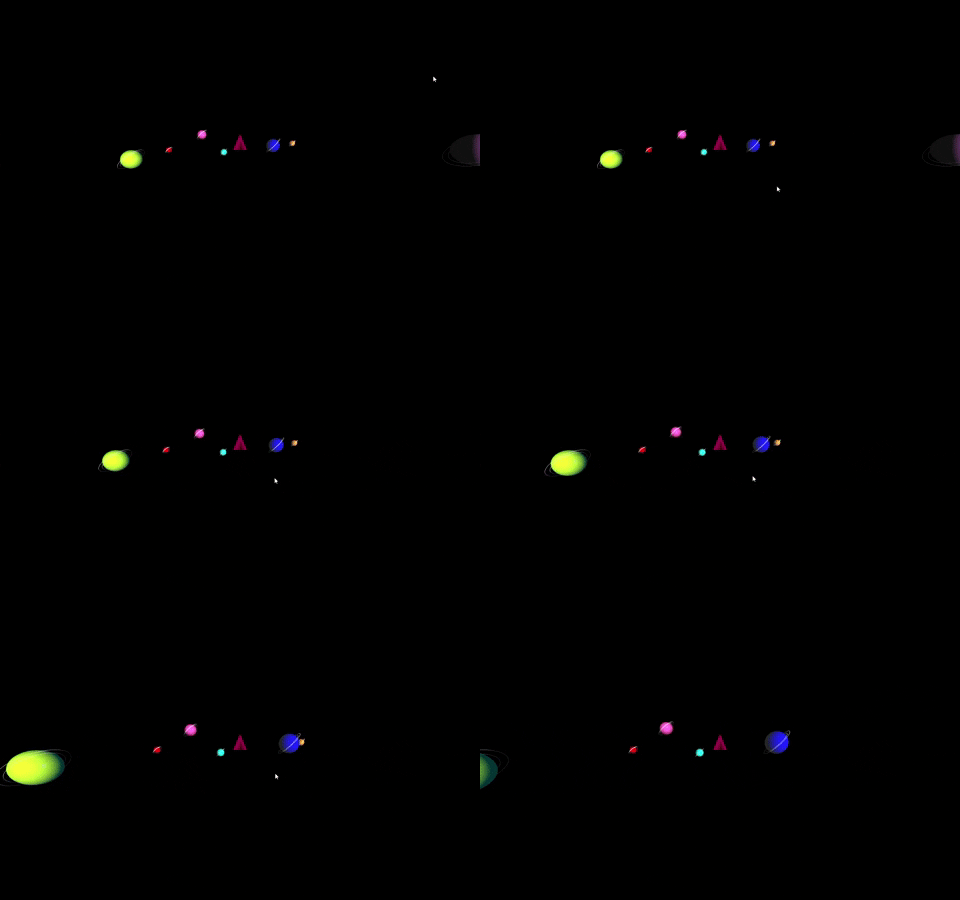
View Mode 2
By pressing 's', the camera will set up to front of the space station, so you can see the planetary system by the space station's front(pink square).
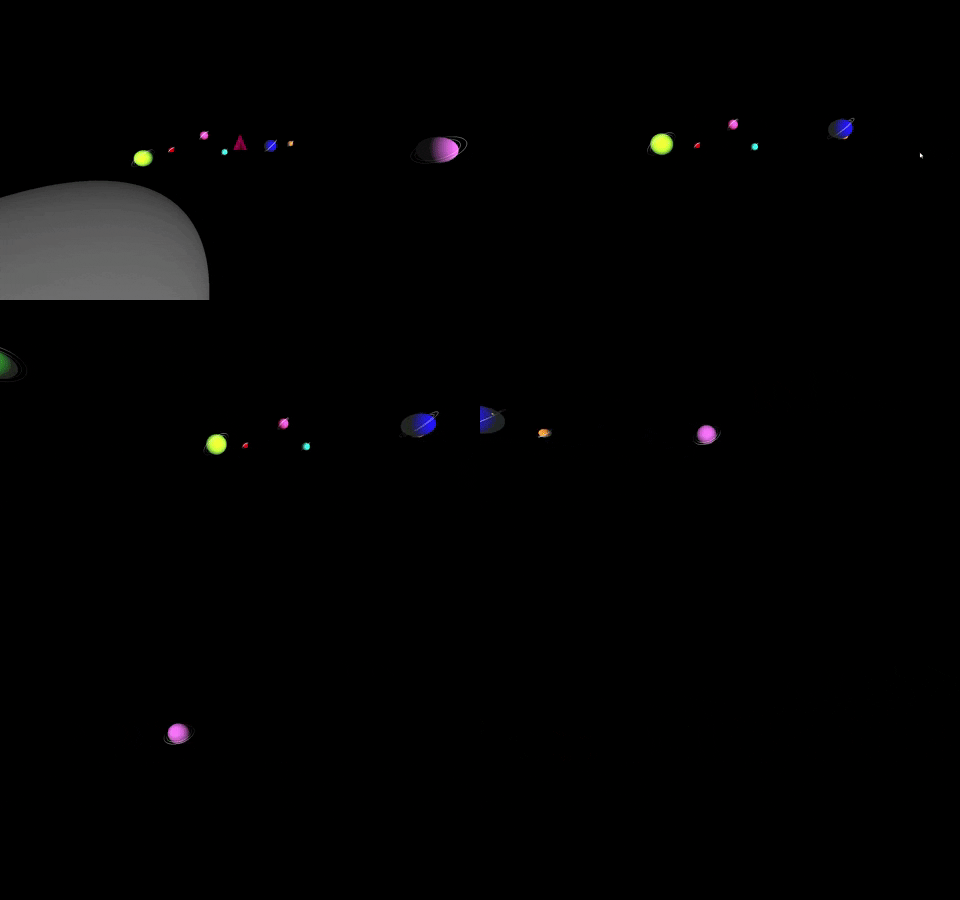
View Mode 3
By pressing 't', the camera will set up to slightly up and back of the spaceship, so you can see space as well as the ship.
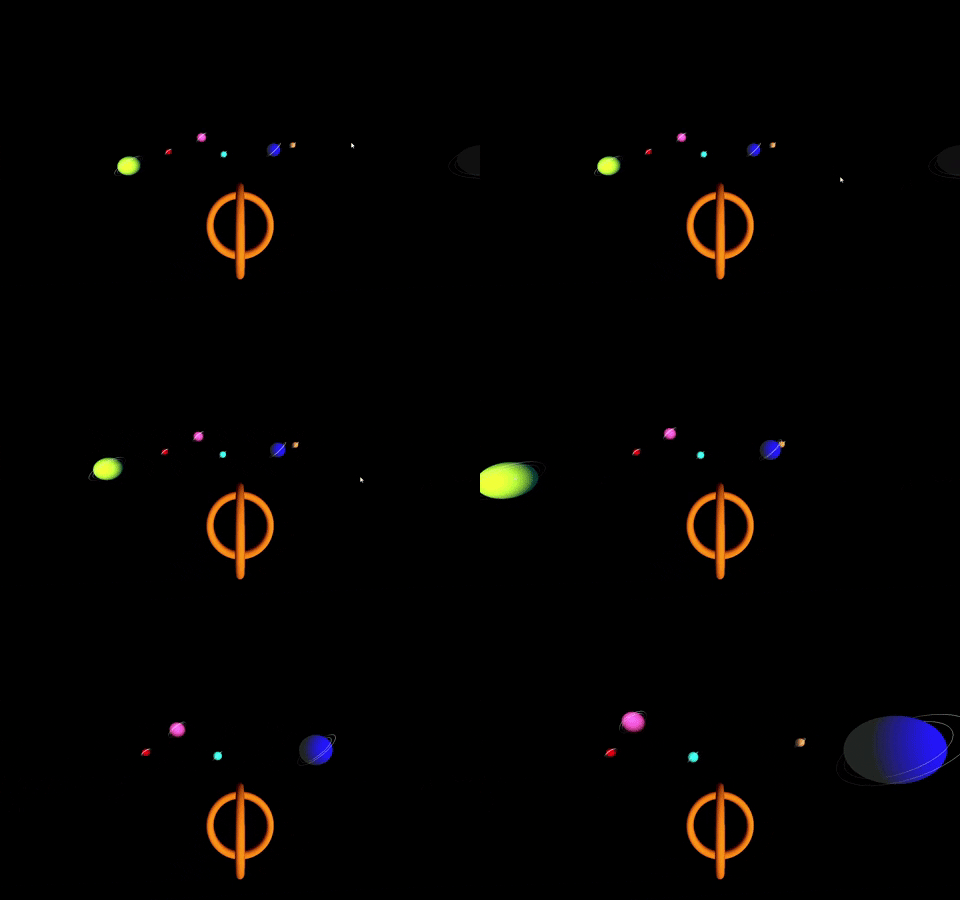
View Mode 4
By pressing 'w', the camera will set up to LARGE_Y position, so you can see the whole planet system, spaceship and space station by top view.
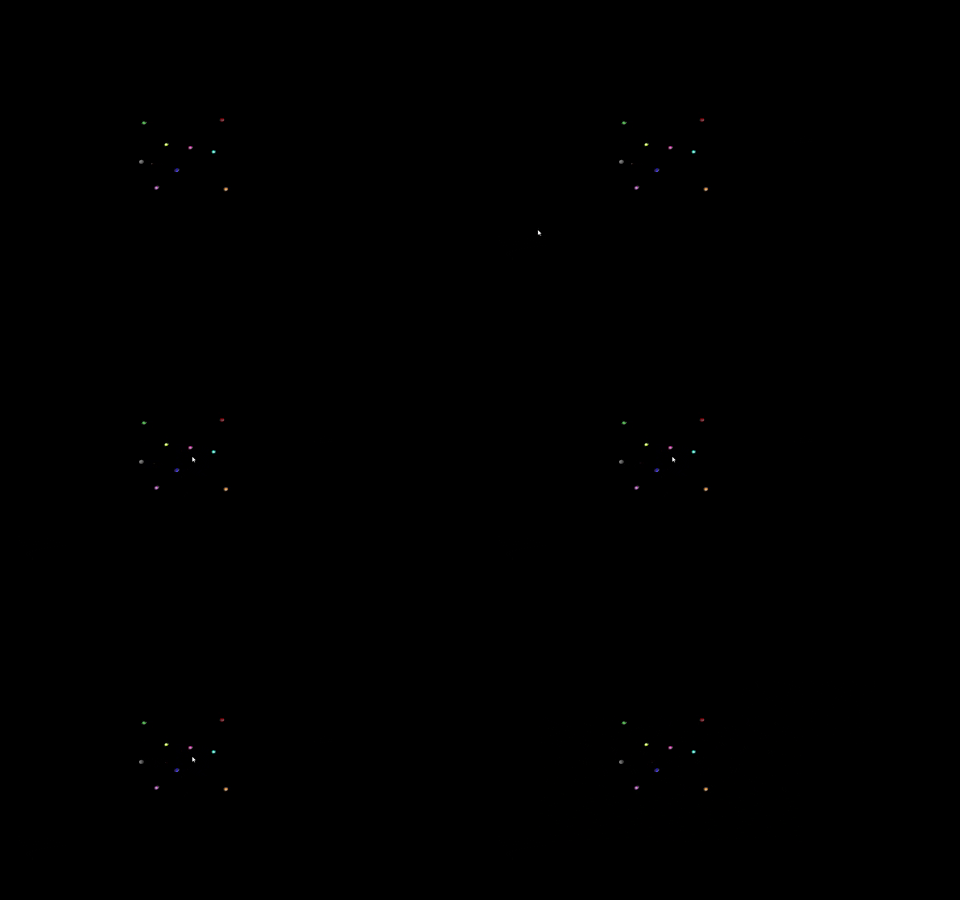
Spaceship Mobility
- By pressing 'Left Arrow', the ship and the compass(tetrahedron) will slightly turn to left and move that direction.
- By pressing 'Right Arrow', the ship and the compass(tetrahedron) will slightly turn to right and move that direction.
- By pressing 'Up Arrow', the ship will move up slightly. If you are in down direction and press to up arrow, then ships' velocity vector's y value will be 0.
- By pressing 'Down Arrow', the ship will move down slightly. If you are in up direction and press to down arrow, then ships' velocity vector's y value will be 0.
Spaceship Speed
- By pressing 'd', the speed of the ship will increase.
- By pressing 'a', the speed of the ship will decrease.
Space Station Speed
- By pressing 'j', the angular speed of the station will increase.
- By pressing 'k', the angular speed of the station will decrease.
Game Settings
- By pressing 'p', the simulation will stop but you can still rotate the ship, if simulation is already in pause mode then it will continue.
- By clicking 'Right Mouse', the simulation enters paused state if the simulation is not in pause state. Then in every click ship and station will continue to their move frame by frame. Moreover in every click:
- Current coordinat values of the ship
- Velocity vector of the ship
- Speed of the ship
- Angular speed of the ship
Written to the console for debug purposes.
! Spaceship and space station always continue to their movement unless the simulation is not in pause state.