Setup Guide
- Windows 11 24H2 – no support for versions that have officially reached end of life
If it seems that you are stuck on an unsupported version of Windows, try to use the Installation Assistant to coax your system into upgrading.
- Windows 11 25H2+
- Download Duo, either from GitHub or Patreon.
- Should your browser give you a warning message, choose to Keep the file anyway.
- Execute the downloaded file and follow the on-screen-instructions to finish installing it.

- Open the start menu, search for Duo Manager and execute it.

- Optional: Click on Unlock Patreon Benefits and follow the on-screen-instructions to unlock your Patreon benefits if you haven't done so yet.

- Create your first instance.
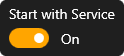
- To make the initial set-up easier, toggle the instance's Auto Start setting.
- Click on the Start button in the left pane to start Duo.

- Navigate to your instance via the left pane.

- Wait for the Pair New Client button to light up, and click on it.

- Follow the on-screen-instructions to pair your Moonlight client.
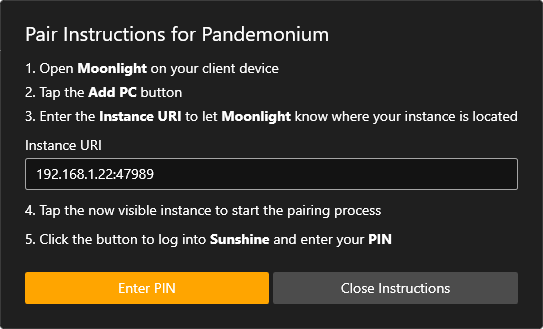
At this point, your client is paired to your new instance, and you're ready to play games.
If you're new to using Moonlight, now might be a good time to check their Wiki as well.
- Open the start menu, search for Duo Manager and execute it if you haven't already.
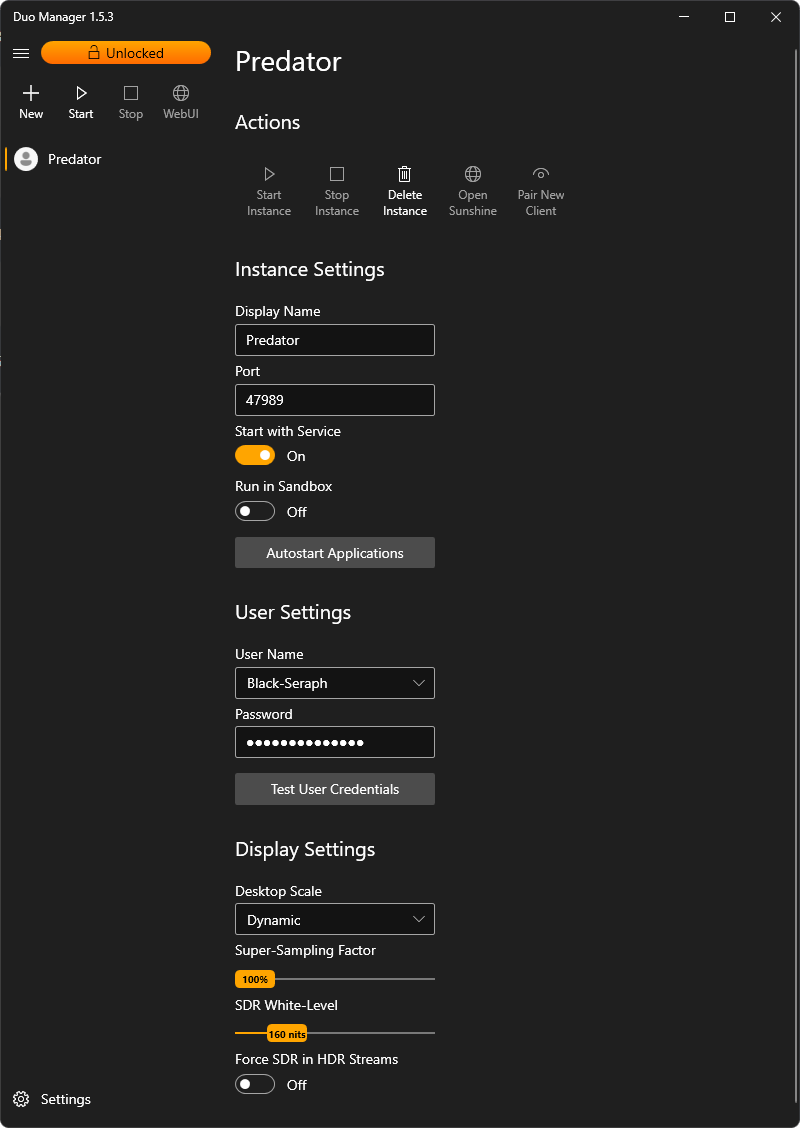
- Click on the New button in the left pane and follow the on-screen-instructions to create a new instance.

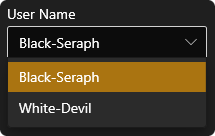
- Choose a local user account from the User Name list.
- Enter the chosen user's password into the Password text box.
- Optional: Adjust other instance parameters as needed.
By default Duo's WebUI listens on port 38299, but this port can be changed under Settings.
It is suggested to bookmark the WebUI link on a companion device of choice for easy remote starting & stopping of instances.

HDR is only available with enabled Patreon benefits!
- Ensure you've worked your way through the Quick Setup Instructions.
- Install the latest Moonlight Flatpak on your Steam Deck OLED.
- Add Moonlight as a non-Steam game on your Steam Deck OLED.
- Start Moonlight on your Steam Deck OLED in game mode, enable HDR in the settings, and pair it to your Duo instance.